Thursday, August 6, 2020

Microsoft's xCloud and Xbox Game Pass Not Coming to iOS Due to Apple's Restrictions

https://ift.tt/2ux7PXv

Microsoft's "Project xCloud" streaming game service that pairs with its Xbox Game Pass won't be available on iPhone and iPad when it launches this September, and Apple's App Store restrictions are to blame.
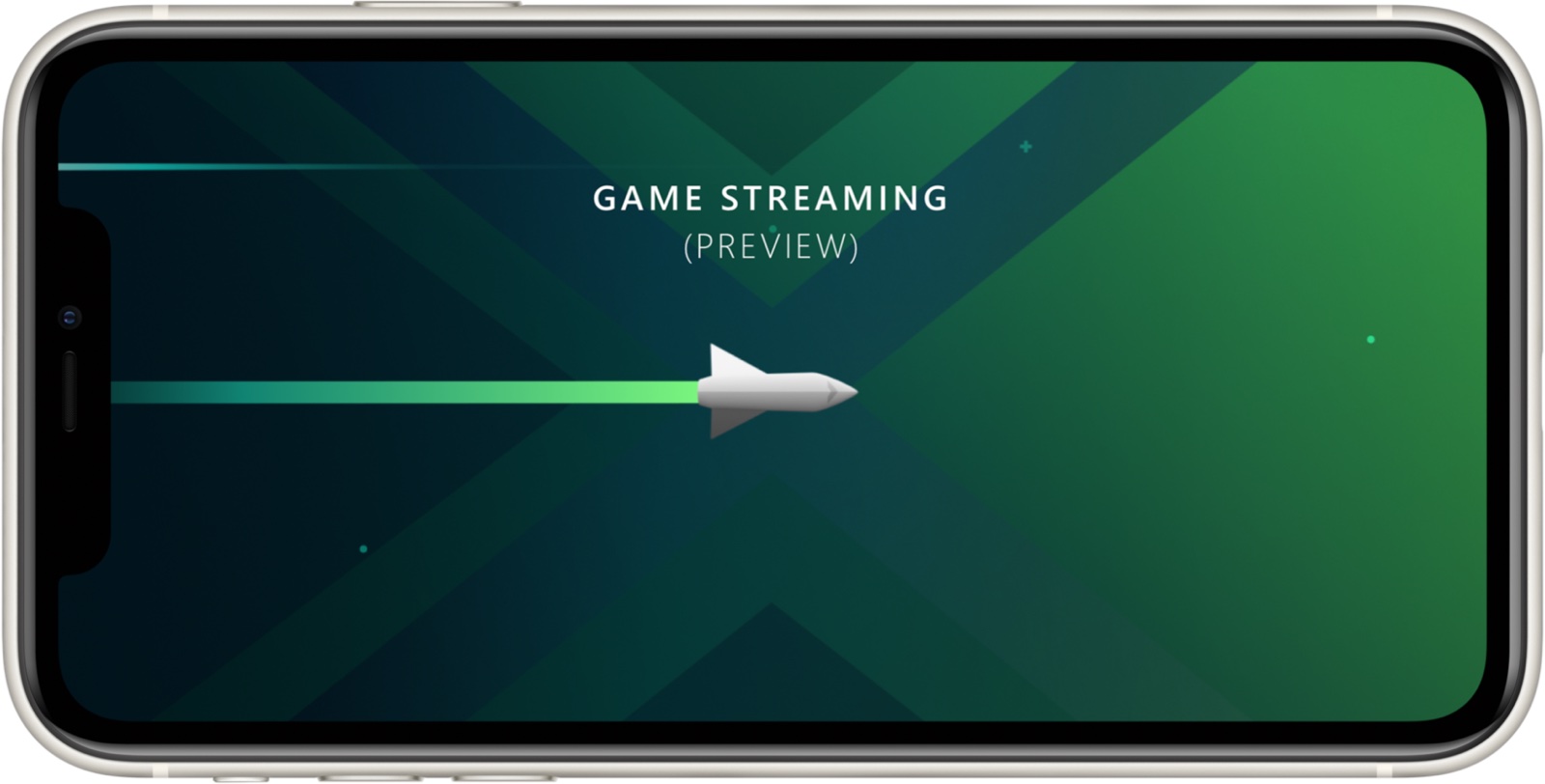

Xbox Game Pass and its accompanying xCloud streaming feature offer access to hundreds of games that can be streamed to mobile devices, and Apple says that because it can't review each game available through Game Pass, it can't be allowed on the ‌App Store‌.

In a statement to Business Insider, an Apple spokesperson said that the restrictions are designed to protect consumers and provide a level playing field to developers.
"The ‌App Store‌ was created to be a safe and trusted place for customers to discover and download apps, and a great business opportunity for all developers. Before they go on our store, all apps are reviewed against the same set of guidelines that are intended to protect customers and provide a fair and level playing field to developers."

"Our customers enjoy great apps and games from millions of developers, and gaming services can absolutely launch on the ‌App Store‌ as long as they follow the same set of guidelines applicable to all developers, including submitting games individually for review, and appearing in charts and search. In addition to the ‌App Store‌, developers can choose to reach all ‌iPhone‌ and ‌iPad‌ users over the web through Safari and other browsers on the ‌App Store‌."
Project xCloud, a new arm of the Xbox Game Pass feature that lets users download games to a PC or Xbox, will provide streaming access to more than 100 games for $15 a month, with games able to be played on smartphones and tablets. It's designed to be like Netflix for games.

Microsoft made a TestFlight beta available for Project xCloud earlier this year, but it became clear yesterday that xCloud isn't going to be available on iOS devices at launch.

In a statement, a Microsoft spokesperson said that the company wants to make Game Pass available on all devices, but there's no info on iOS at this time.
"It's our ambition to scale cloud gaming through Xbox Game Pass available on all devices, but we have nothing further to share at this time regarding iOS."
Microsoft has known that it would be difficult to launch the streaming gaming service on iOS since beta testing began. When the TestFlight version of the app was released for iOS users, Microsoft said that the preview experience would "look and feel different" on iOS because of Apple's limitations. ‌iPhone‌ and ‌iPad‌ users testing the feature could only stream games from the cloud and not from an Xbox console, eliminating the pick up and play on any device option.

Microsoft was also only able to make one game available on TestFlight, "Halo: The Master Chief Collection" because Apple's ‌App Store‌ rules require games in a game subscription to be owned or licensed by the developer.

Google offers a similar streaming gaming service called Google Stadia, which Apple has not allowed on the ‌App Store‌. Stadia can be accessed on Android devices, but not on iPhones and iPads. The same goes for Nvidia's streaming gaming service, GeForce Now.

Valve also ran into trouble when attempting to make Steam Link available on iPhones and iPads, with Apple rejecting the app after it was submitted for review.

Valve was ultimately able to launch the app by removing the ability to purchase apps from within the Steam Link store, which may have led Apple to ultimately approve the app.

Steam Link is designed to allow you to play your own Steam games on an ‌iPhone‌, ‌iPad‌, or Apple TV, streaming from a Mac or PC, so it is somewhat different than Google Stadia and Project xCloud, services that make a catalog of games available.
This article, "Microsoft's xCloud and Xbox Game Pass Not Coming to iOS Due to Apple's Restrictions" first appeared on MacRumors.com

Discuss this article in our forums


from MacRumors: Mac News and Rumors - All Stories https://ift.tt/2XAL5Rq

How to Install the macOS Big Sur Public Beta

https://ift.tt/2YqdL0m

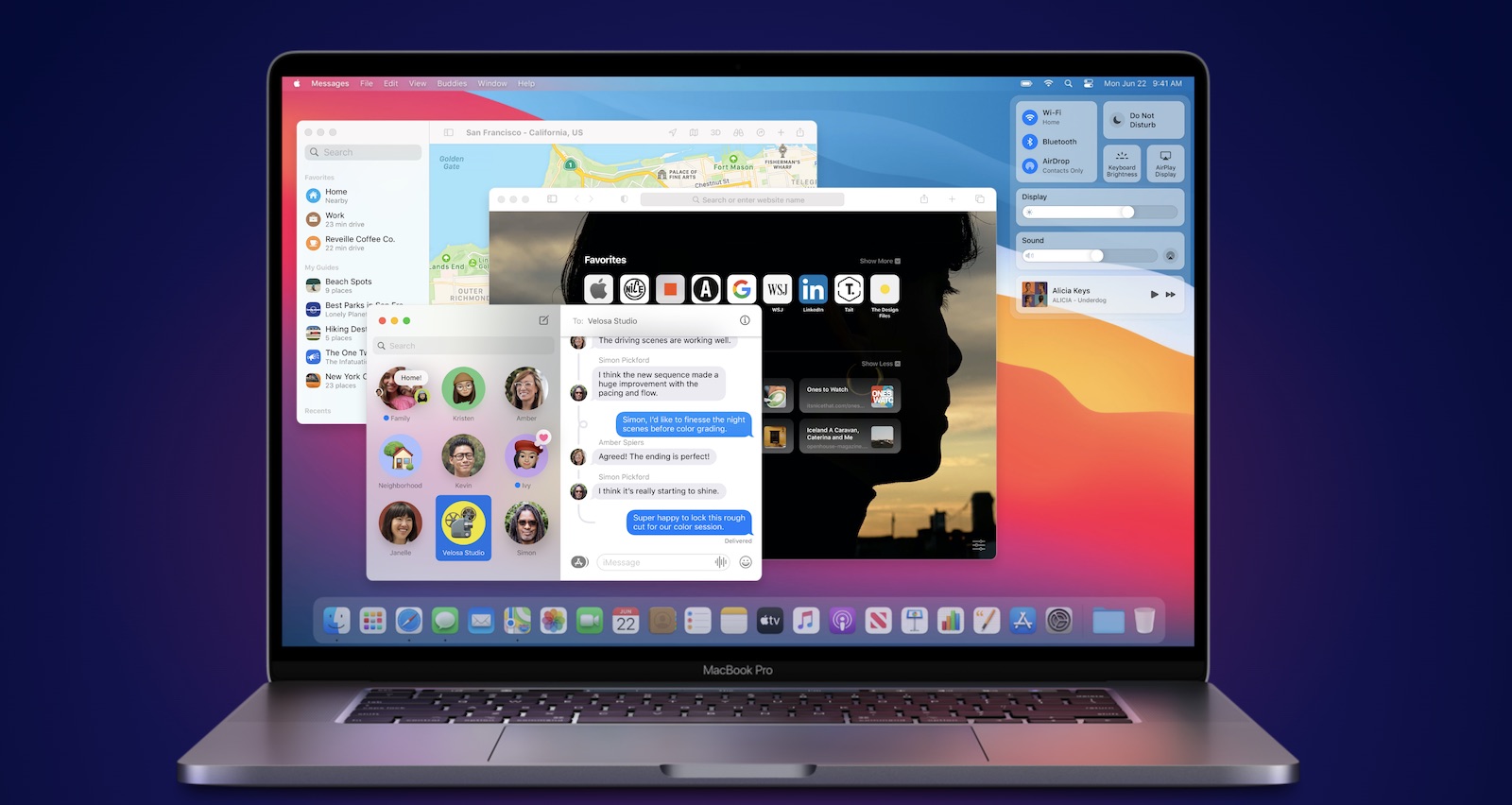
Apple in August released the macOS Big Sur beta for its public beta testing group, allowing them to test out the new software for Macs ahead of its release this fall.


The macOS Big Sur Public Beta is available to anyone with a compatible Mac and it does not require a developer account. This guide walks you through the steps on installing the beta software. Note that you will need about 20GB of free space on your hard drive before attempting an installation.


Before you jump in and download the update, it's worth noting that Apple does not recommend installing the macOS Big Sur Public Beta on your main Mac, so if you have a secondary machine, use that. This is beta software, and there are often bugs and issues that pop up that can prevent software from working properly or cause other problems.

Will macOS Big Sur Run on My Mac?


macOS Big Sur is compatible with most 2013 and later machines, outlined below:

The operating system update does not support the following Macs that were capable of running macOS Catalina:

  • 2012 and Early 2013 ‌MacBook Pro‌

  • 2012 ‌MacBook Air‌

  • 2012 and 2013 ‌iMac‌

  • 2012 ‌Mac mini‌


Make a Time Machine Backup


Before upgrading to the new beta, make sure to make a backup using Apple's Time Machine feature with an external drive.

If you want to revert back to your previous setup after testing macOS Big Sur or if it doesn't work out, you'll need to re-install ‌macOS Catalina‌ and a backup can be helpful to get things up and running as before.

Enroll in Apple's Beta Software Program


Installing macOS Big Sur requires enrolling your Mac in Apple's free Apple Beta Software Program. Follow these steps to do so.


  1. Visit the Apple Beta Software Program website in a browser on your Mac.
  2. Click on the blue Sign up button or, if you're already a member, click sign in.
  3. Enter your Apple ID and password and then a two-factor authentication code if verification is required.
  4. Agree to the Apple Beta Software Program terms and conditions.
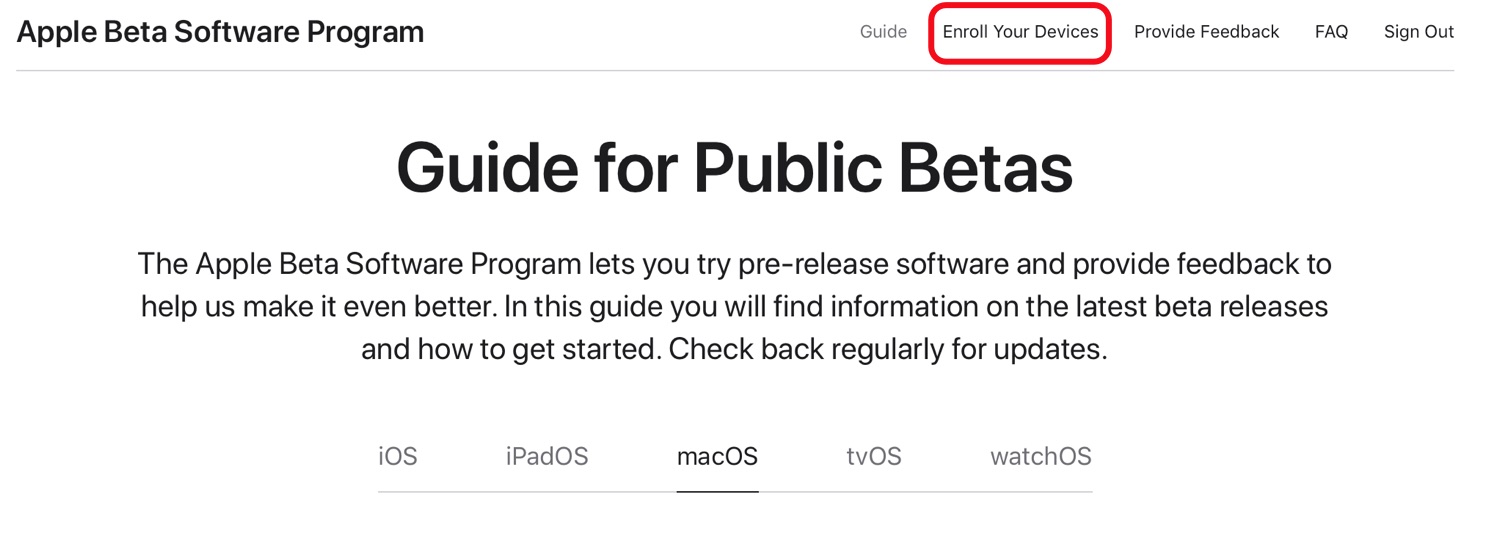
  5. Once signed in and at the Guide for Public Betas page, scroll up to the top and click on "Enroll Your Devices" then click on "macOS."

Downloading and Installing the macOS Big Sur Beta


Once you're enrolled in Apple's public beta testing program, you can download macOS Big Sur.

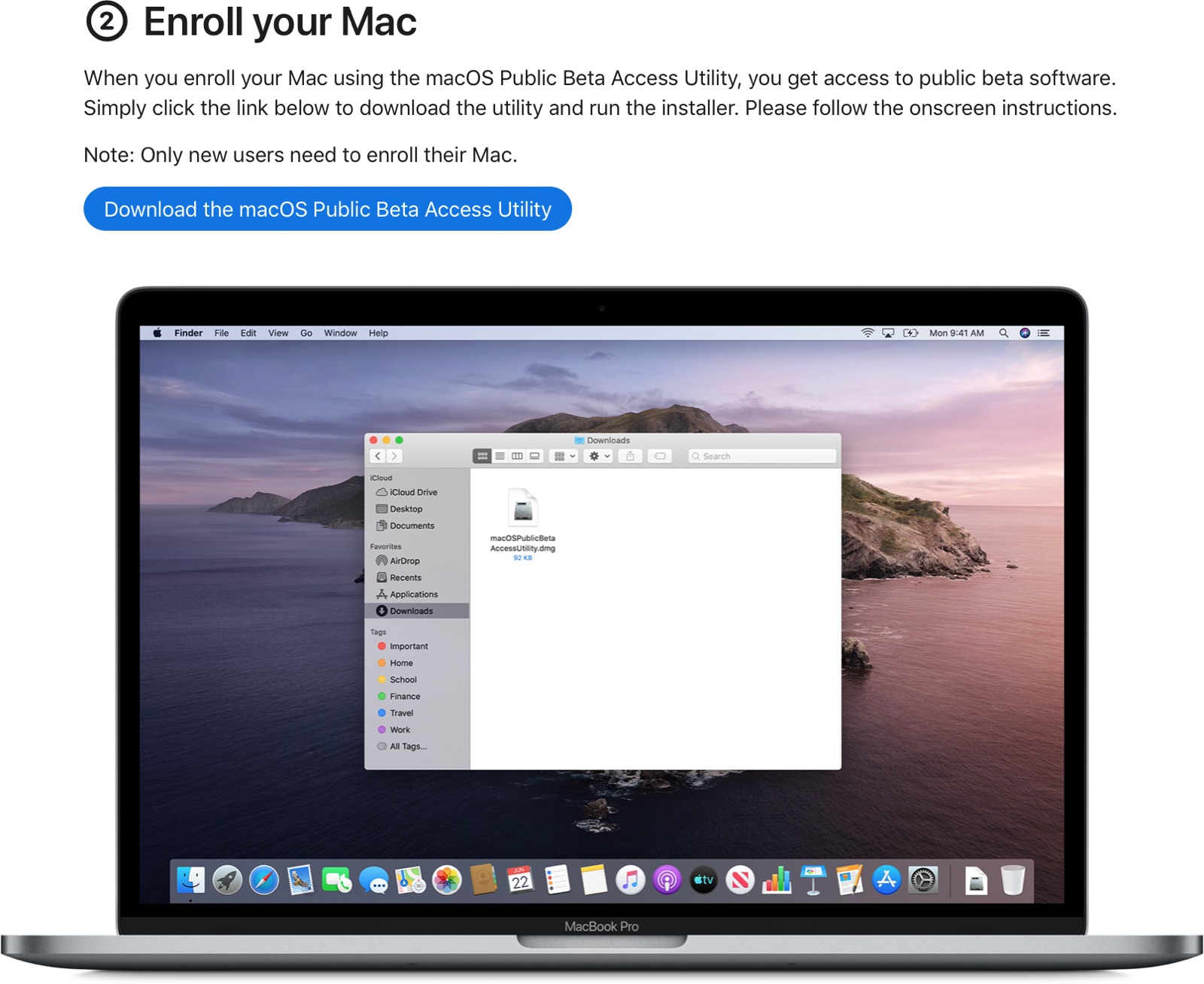
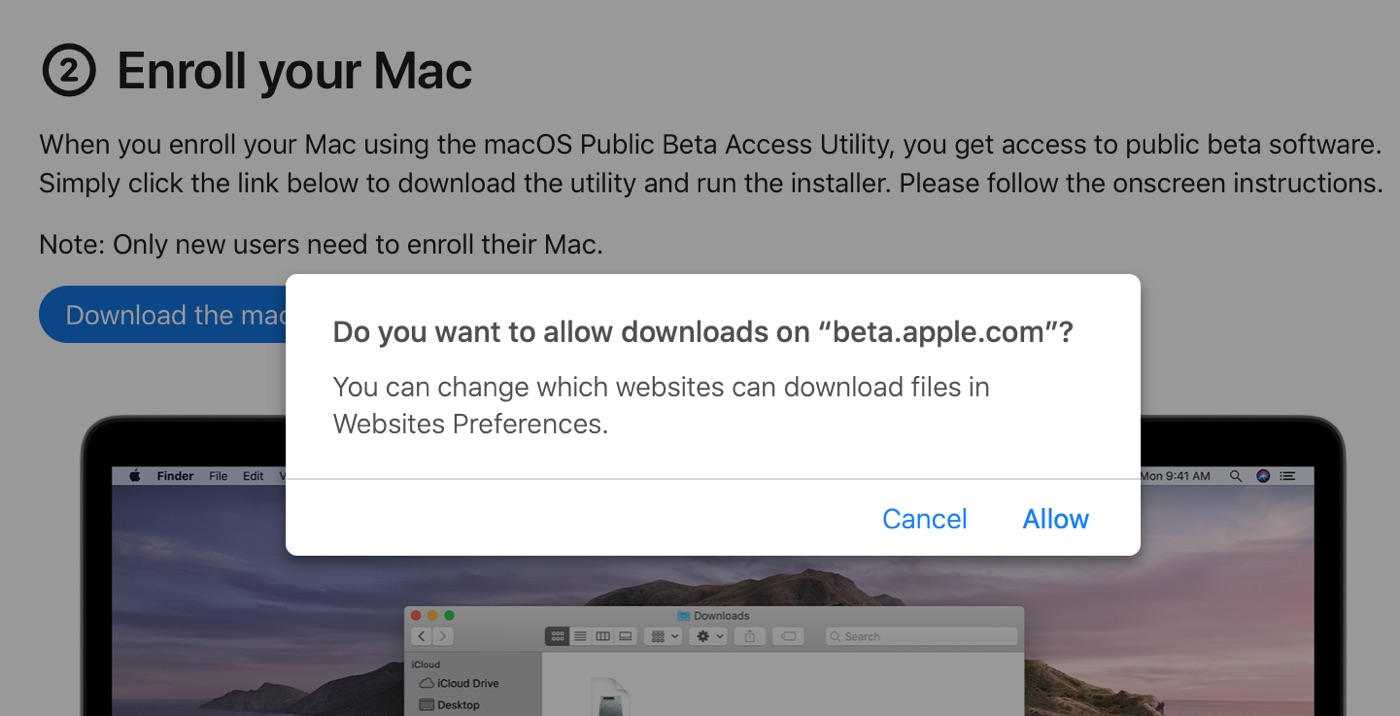
  1. Make sure you've made your backup as outlined above, and then scroll down to "Enroll your Mac" option.
  2. Click on "Download the macOS Public Beta Access Utility."
  3. When asked if you want to allow downloads on "beta.apple.com" click on "Allow."
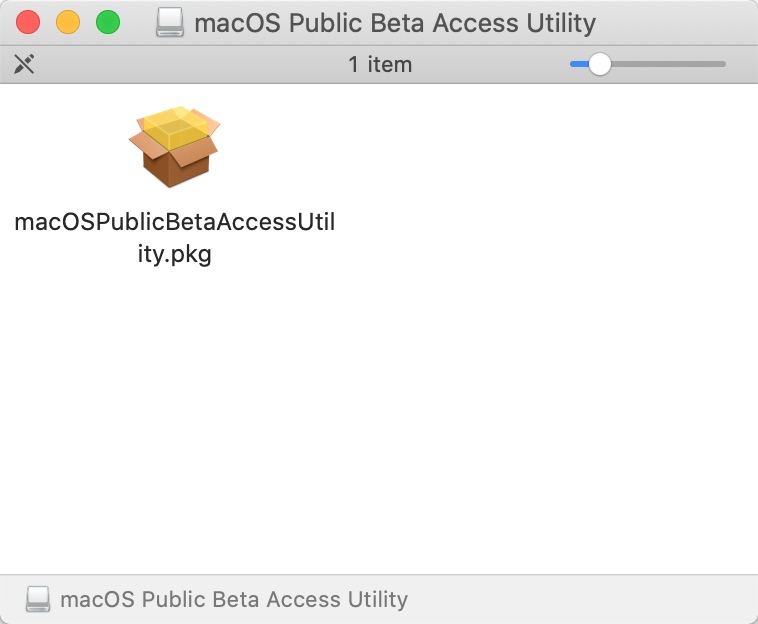
  4. Unless you've changed where files download, the beta installer (macOSPublicBetaAccessUtility.dmg) will show up in your downloads folder. Locate it and double click on it to open it up.
  5. Double click on the .pkg file inside to run the installer.
  6. You may see a warning advising you to back up your Mac with Time Machine. Either stop here and back up, or, if you've already done so, Click OK and then click Continue.
  7. Click Continue again and then click on Agree to accept Apple's software license agreement.
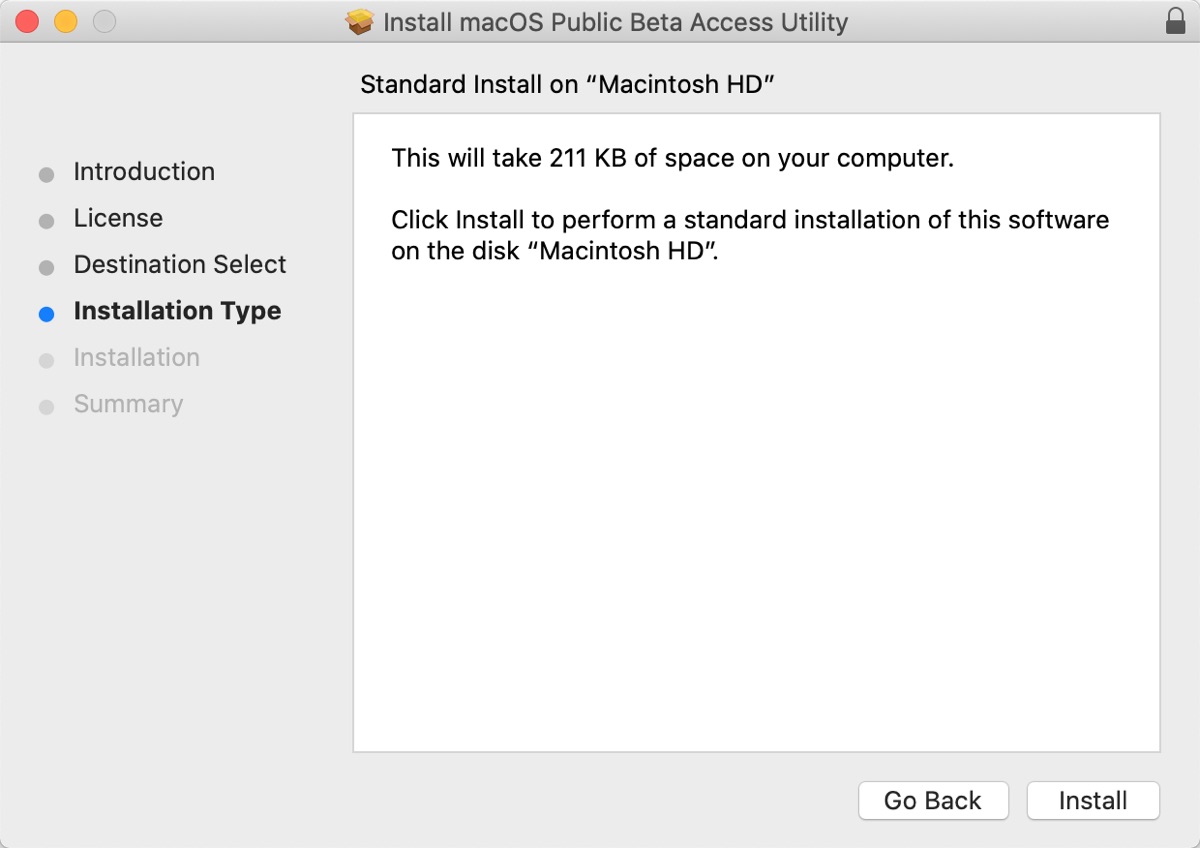
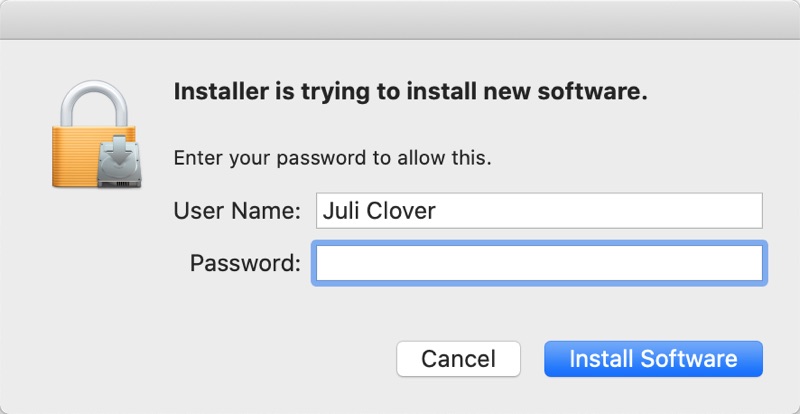
  8. Click on Install. Enter your admin password if prompted.
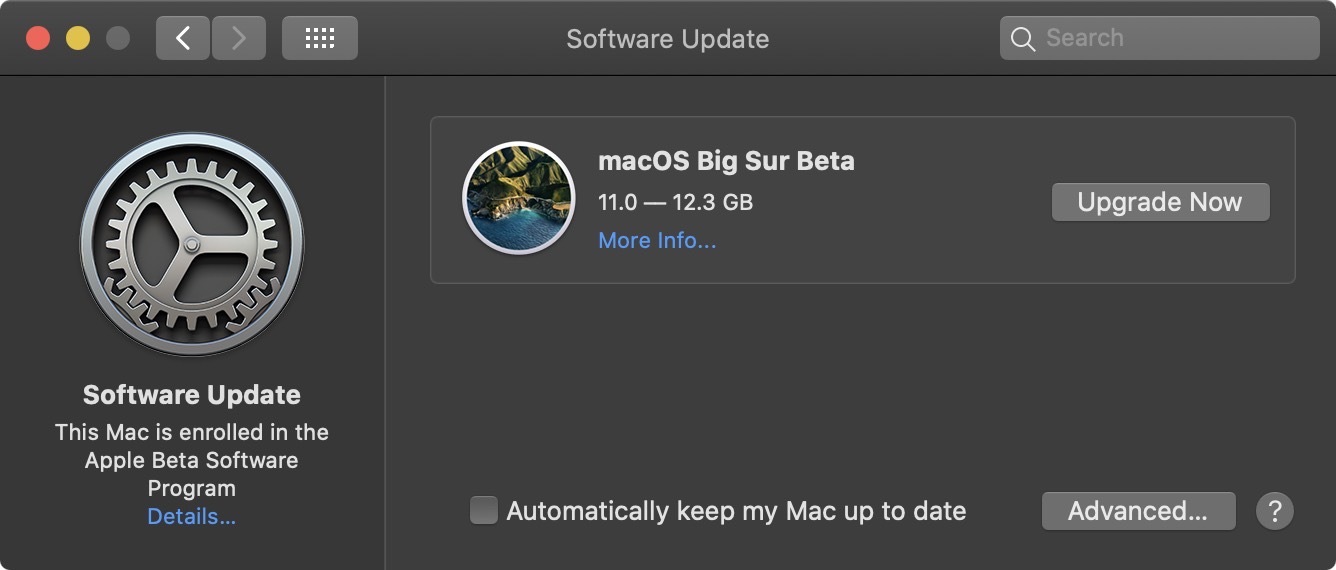
  9. Once the installer has completed the download, the System Preferences Software Update panel will open automatically and display the macOS Big Sur Beta download as available. Click on Upgrade Now to download the public beta software when prompted. It will take some time to download the file, which is around 12GB. When the download is complete, your Mac should restart.

Install the macOS Big Sur Public Beta


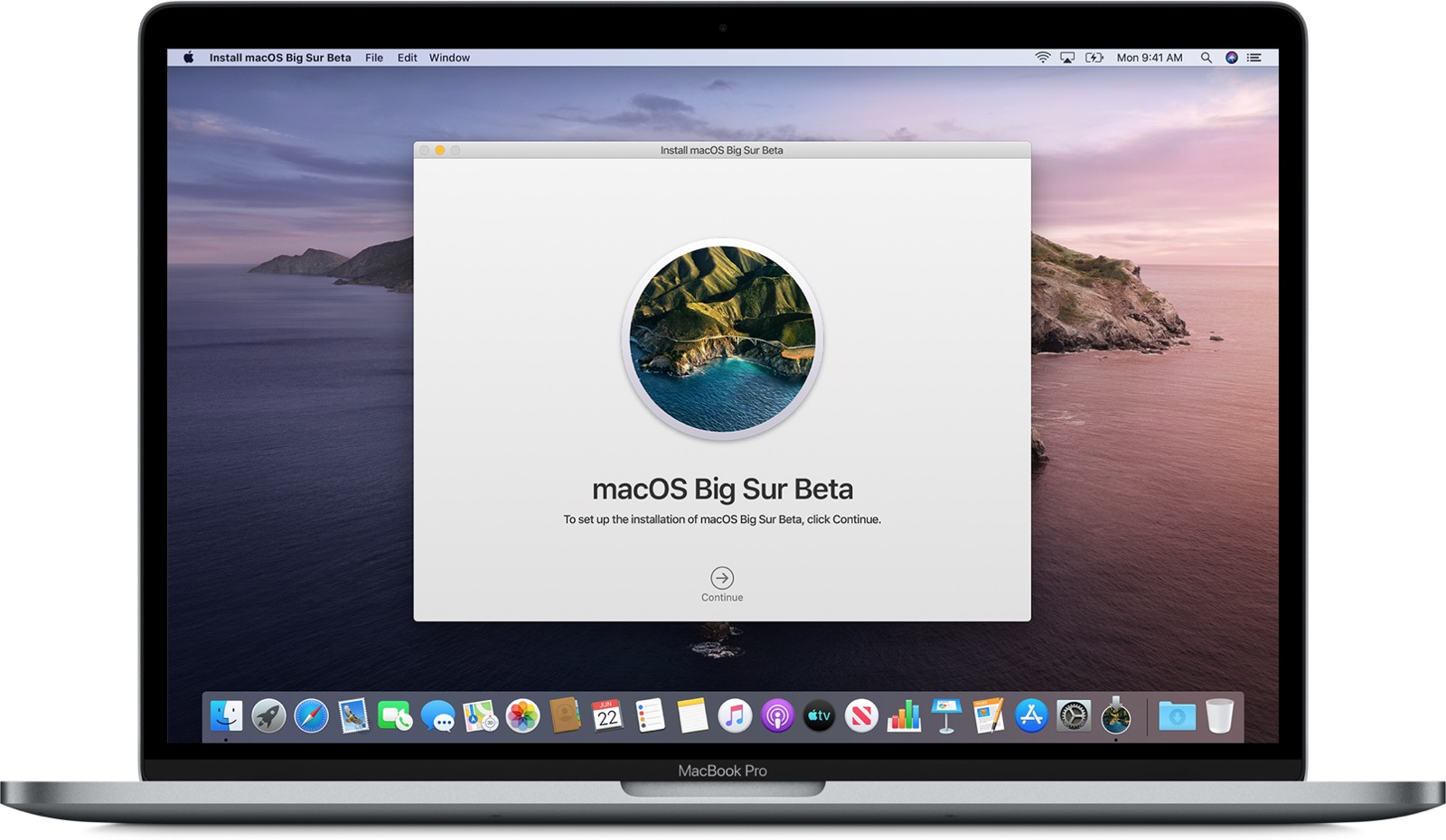
After you restart, you will see the macOS Big Sur installer launch automatically. If it doesn't, find it in the Applications folder using Finder and click on it.


  1. Click Continue at the bottom of the installer.
  2. Click Continue at the bottom once you've finished backing up, or if you already performed a backup.
  3. Click Agree to accept the terms and conditions and then click Agree again to confirm.
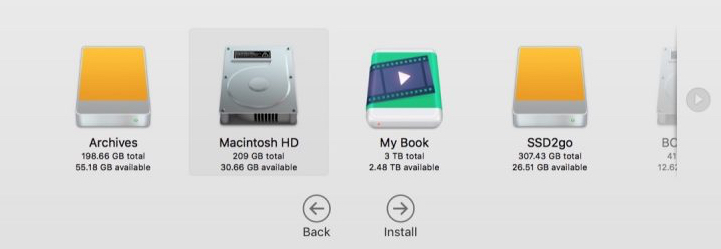
  4. Select the drive that you want to install the public beta on. You can choose your main drive or a partition that you've created.
  5. Click Install, enter your administrator password, and click OK.
  6. Click Restart, or wait for your Mac to reboot automatically.

After clicking on restart, the macOS Big Sur installation process will begin. It will take some time, but when the Mac boots up again, it will be running the macOS Big Sur Public Beta. For a list of everything that's new in macOS Big Sur, make sure to check out our macOS Big Sur roundup.
Related Roundup: macOS 11 Big Sur

This article, "How to Install the macOS Big Sur Public Beta" first appeared on MacRumors.com

Discuss this article in our forums


from MacRumors: Mac News and Rumors - All Stories https://ift.tt/2XDKX3Q

Nearby Share file feature on Android now, Chromebooks in the “coming months”


via About Chromebooks https://ift.tt/30B4YtM

A glimpse into how Windows app file management via Parallels on Chromebooks will work


via Chrome Unboxed – The Latest Chrome OS News https://ift.tt/2C9Qac8

Apple Seeds First Public Beta of macOS Big Sur to Public Beta Testers

https://ift.tt/3kiI8i5

Apple today seeded the first beta of the upcoming macOS 11 Big Sur update to its public beta testing group, allowing non-developers to give the software a try ahead of its public release this fall.


Beta testers who signed up for Apple's beta testing program can download the macOS Big Sur beta through the Software Update mechanism in System Preferences after installing the proper profile.

Mac users who want to be a part of Apple's beta testing program can sign up to participate on the beta website, which gives users access to iOS, macOS, watchOS, and tvOS betas. Potential beta testers should make a full backup before installing ‌macOS Big Sur‌, and it may not be wise to install the update on a primary machine because betas can be unstable.

macOS Big Sur introduces a refined design for the macOS operating system, which is more similar to iOS but immediately familiar to Mac users with tweaks to window design, color palette, app icons, system sounds, menu bars, and sidebars.

The update brings Control Center to the Mac for the first time, providing quicker access to system controls for things like volume, keyboard brightness, screen brightness, Wi-Fi connection, and more.

An updated Notification Center includes more interactive notifications and redesigned widgets that mirror the new ‌widgets‌ in iOS 14. Notifications are now grouped by app, and you can customize which ‌widgets‌ show up.

Safari has a new customizable start page, built-in translation, and a Privacy Report feature that lets you know which trackers each website is using to follow you across the web. There's a new Mac App Store category for extensions, and you can now control the specific sites that extensions are able to work with for more privacy.

The Messages app for Mac has been overhauled to bring it more in line with the Messages app for iOS and it supports features like pinned conversations, mentions, inline replies, Messages effects, and Memoji creation and Memoji stickers. Search is also better to make it easier to find old conversations, photos, links, and more.

A redesigned Maps app in macOS Big Sur adds support for Look Around, indoor maps, Guides, and Shared ETA updates, plus it can be used to generate cycling routes and routes with charging stops for electric vehicles, which can be sent to iPhone.

There are also smaller updates for apps like Photos, Music, and Home, with a full list of everything new in macOS Big Sur available in our roundup.
Related Roundup: macOS 11 Big Sur

This article, "Apple Seeds First Public Beta of macOS Big Sur to Public Beta Testers" first appeared on MacRumors.com

Discuss this article in our forums


from MacRumors: Mac News and Rumors - All Stories https://ift.tt/2DpC5aU

Apple Seeds iOS 14 and iPadOS 14 Public Beta 4 to Testers

https://ift.tt/2Xw9vvq

Apple today seeded new public betas of upcoming iOS 14 and iPadOS 14 updates to its public beta testing group. Today's software releases, which Apple labels as fourth betas to keep them in line with developer betas, are actually the third betas that Apple has provided and they come two weeks after the prior beta releases.

iOS 14 Public Beta 4
Public beta testers who have signed up for Apple's beta testing program can download the iOS/‌iPadOS‌ 14 updates over the air after installing the proper certificate from the Public Beta website on an iOS device, with instructions available in our how to. The updates should not be installed on primary devices as this is beta software and could have serious bugs.

‌iOS 14‌ brings changes to the Home Screen, including widget support. Widgets can now be placed right next to your apps, and with the focus on widgets, Apple has introduced new ‌widgets‌ from default apps and is allowing them to be customized in three sizes.

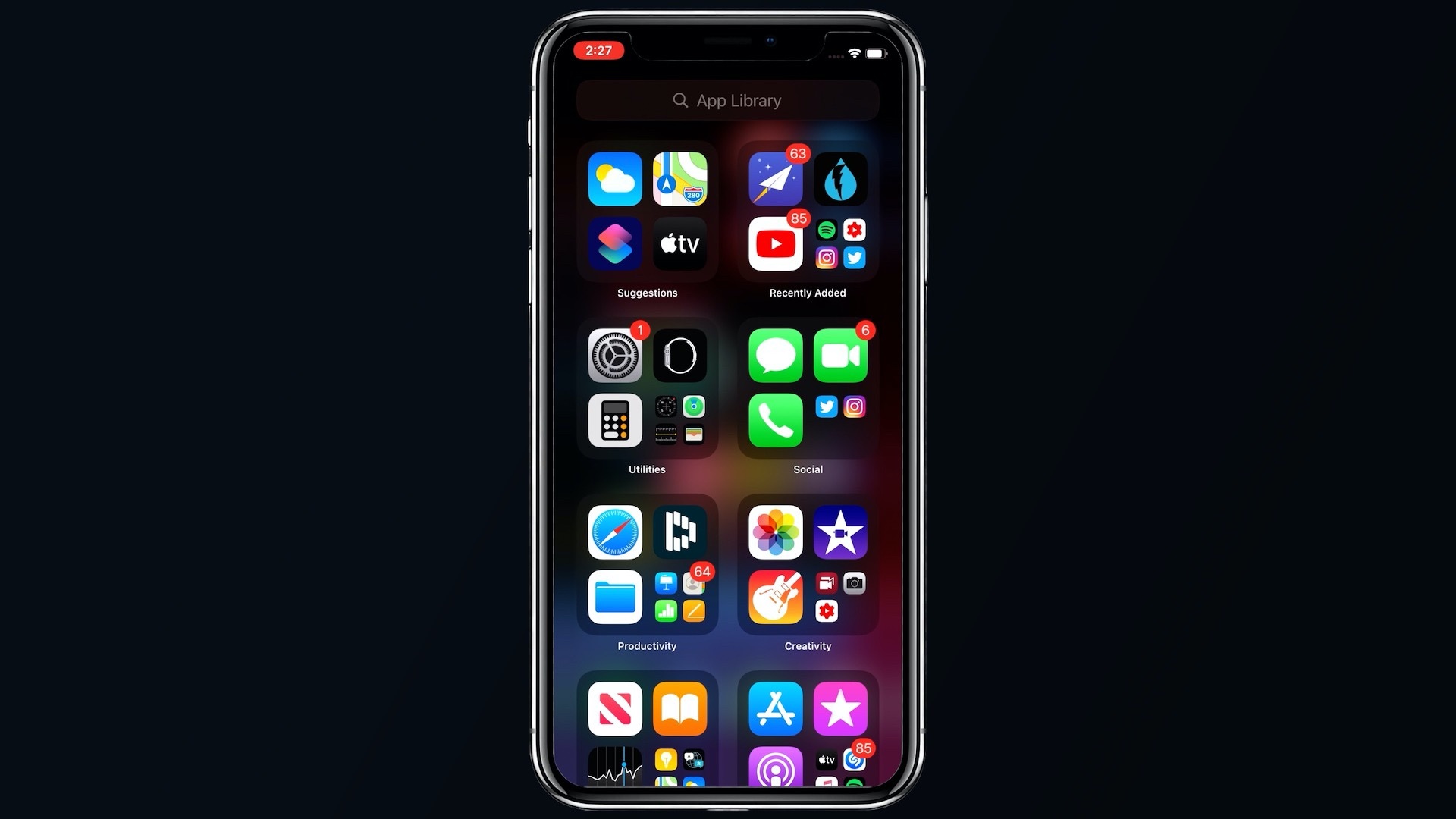
You can put ‌widgets‌ anywhere on any app page, with new ‌widgets‌ able to be found in the widget gallery. Along with ‌widgets‌, Apple has introduced an App Library, which is an interface that shows all of the apps on your iPhone both in smart folders that are created automatically and in an alphabetical list.

iOS 14 App Library
With the App Library providing access to all your apps, there's now an option to hide entire app pages from your ‌iPhone‌, so you can avoid a cluttered Home Screen.

Apple has worked to make the ‌iPhone‌'s interface more compact, and incoming phone calls and Siri requests no longer take over the whole screen and are instead presented in a banner style, a feature also available on ‌iPadOS‌.

There's a Picture in Picture mode for watching videos or using FaceTime while doing something else at the same time on the ‌iPhone‌. The Messages app has new features focused on group conversations like pinned conversations, mentions, and inline replies.

A new App Clips feature lets you use small bite sized bits of an app without the need to download the whole app, useful for times when you need an app to buy a coffee, rent a scooter, or make a restaurant reservation. App Clips will work through Apple-designed App Clip codes, NFC tags, or QR codes, and can also be shared in Messages or from Safari.

The Health app supports the Sleep Tracking feature added in watchOS 7, and the ‌iPhone‌ will support the Sleep Mode and Wind Down features designed to help you get a better night's sleep. There's also a new Health Checklist that makes it easier to manage health and safety features like Emergency SOS, Fall Detection, and Medical ID.

The Weather app now provides info on severe weather events and minute-by-minute precipitation readings (U.S. only), and the Maps app supports cycling directions for the first time so bike riders can plan routes with info like busy streets, elevation changes, stairs, and more. Maps also now lets electric vehicle owners plan routes with EV charging spots.

The Home app is smarter with automation suggestions and an Adaptive Lighting feature that lets HomeKit lights adjust their color temperature throughout the day, plus there are new features for ‌HomeKit‌ Secure Cameras.


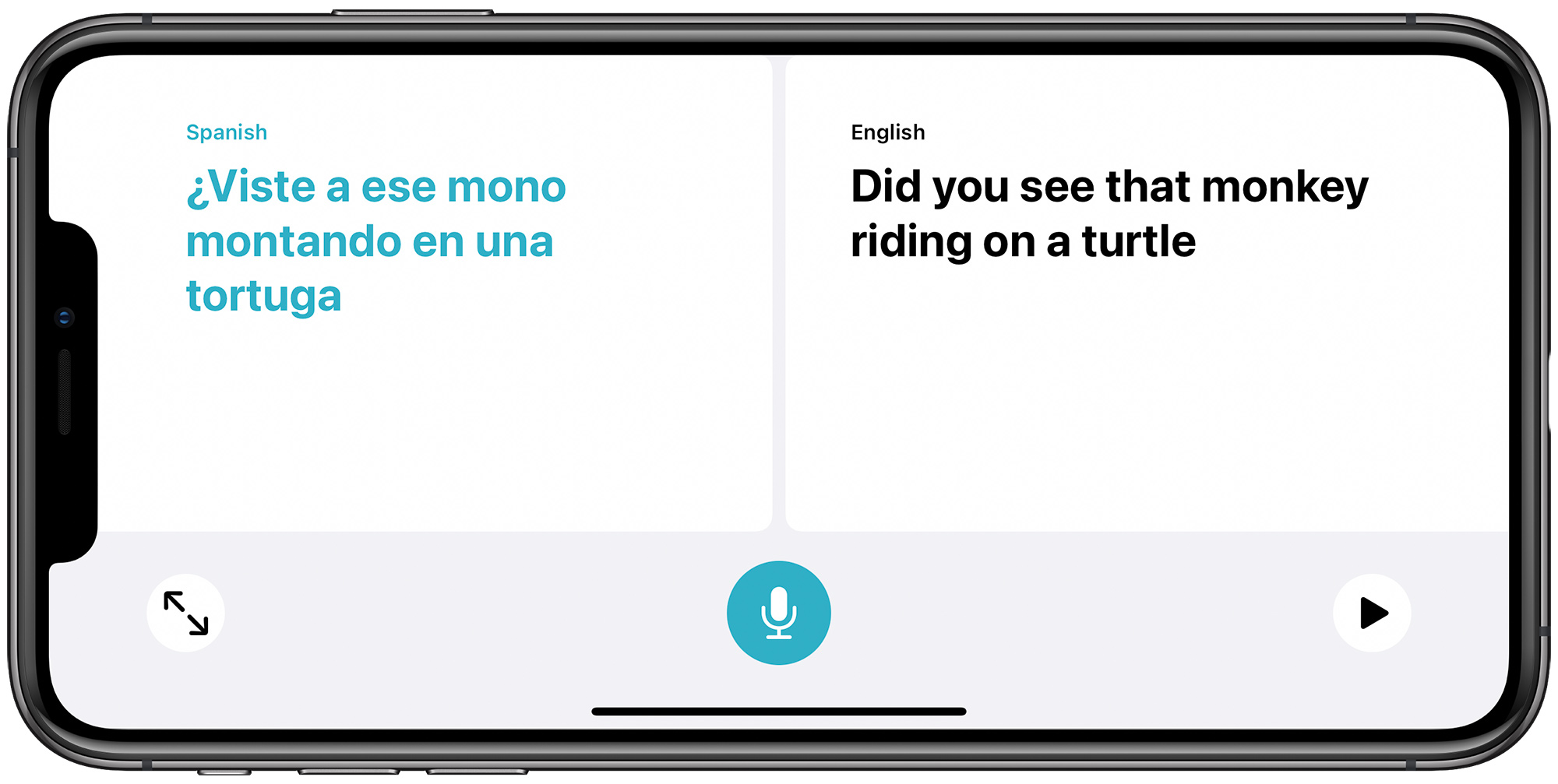
A new Apple-designed Translate app provides text and voice translations to and from 11 languages, and with an on-device mode, translations can be done entirely on your phone.

Tons of new privacy features have been added in iOS and ‌iPadOS 14‌. Apps need permission before accessing devices on a local network, you get notified when an app accesses the clipboard, and there are little icons in the status bar of the ‌Home Screen‌ when an app is using the camera or the microphone.

There are also new options for limiting access to select photos and providing apps with an approximate location rather than an exact location for better privacy protection. Safari has Privacy Report that tells you which trackers sites are using, and in the future, the App Store will include a summary of developers' privacy practices in an easy-to-read format.

AirPods can now seamlessly and automatically switch between devices, and AirPods Pro gain a new spatial audio feature for surround sound complete with dynamic head tracking.


As for ‌iPadOS 14‌, it includes most of the new ‌iOS 14‌ updates, minus the ‌Home Screen‌ redesign. The biggest change is the new Scribble feature that lets you use the Apple Pencil to write on any text field, with the written text converted to typed text.

Scribble works throughout the operating system so you can use the ‌Apple Pencil‌ for Safari searches, adding new items in Calendar and Reminders, sending Messages, handwriting in the Notes app, and more.

The fourth developer beta added a new TV widget and introduced the Exposure Notification API for ‌iOS 14‌ users, and these features are also in the new beta available to public testers.

For more on everything that's new in iOS and ‌iPadOS 14‌, make sure to check out our iOS 14 and iPadOS 14 roundups, which have a detailed look on all of the new features.
This article, "Apple Seeds iOS 14 and iPadOS 14 Public Beta 4 to Testers" first appeared on MacRumors.com

Discuss this article in our forums


from MacRumors: Mac News and Rumors - All Stories https://ift.tt/2C2YABR

2020 27-Inch iMac Reviews: A Great Machine for Working From Home With Upgraded Camera, Speakers, Microphone and More

https://ift.tt/30vdQ48

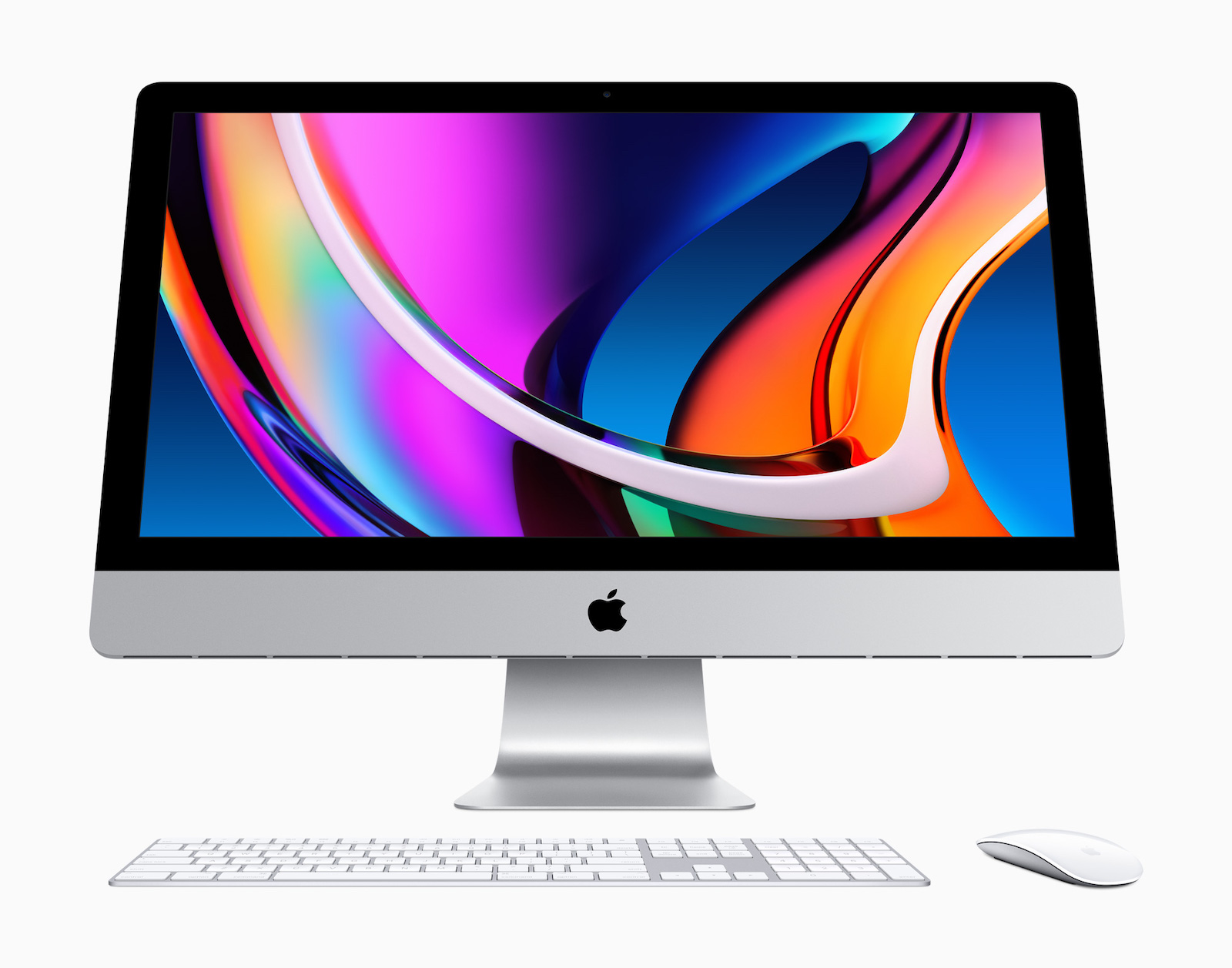
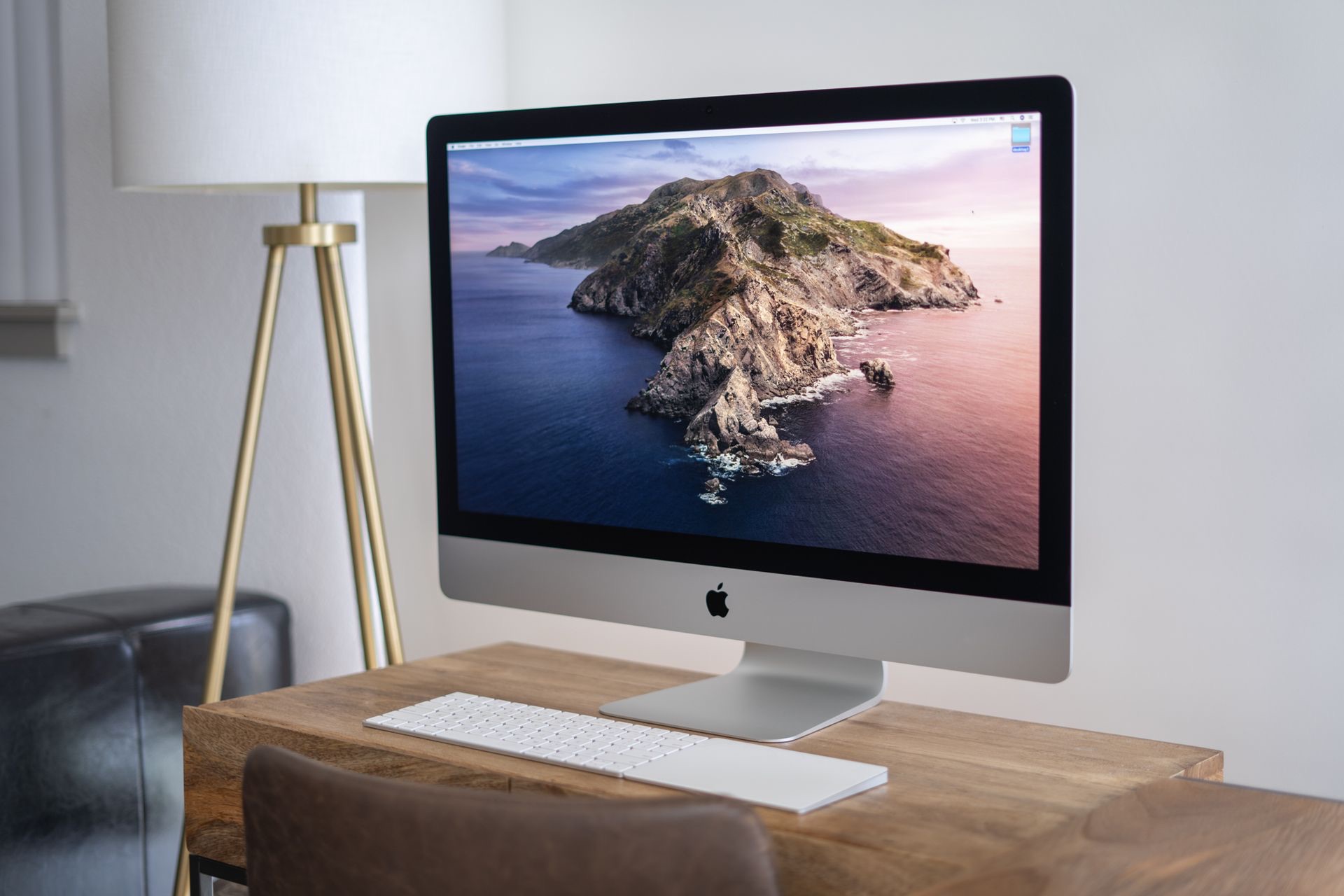
The 2020 27-inch iMac was announced earlier this week with updated 10th-generation Intel chips, new AMD 5000 graphics, a True Tone display, and an improved webcam, but unfortunately, the machine features no design changes. Apple began shipping ‌iMac‌ orders out earlier this week, and as the new devices arrive to customers, media sites have also released their own reviews.


Many of the reviews have pointed out that the new ‌iMac‌ is great for working from home, highlighting the upgraded 1080p webcam, improved speakers, and new microphone array as noteworthy features.

True Tone Display


The ‌iMac‌ features the same 5K display that's been used in prior generations with millions of colors, 14.7 million pixels, and 500 nits brightness, but it also features True Tone for the first time, allowing the color temperature of the display to be adjusted to the ambient lighting.

Most reviewers didn't have too much to say about True Tone because we've been using it for years in other Apple products, but TechCrunch called it a nice addition:
This is the first time the company has brought True Tone technology to the ‌iMac‌, using light sensors to adjust the screen to more true to life colors. It's a nice addition, and it all leads to a screen that positively pops. At the end of a long day, I've taken to swiveling the ‌iMac‌ around and using it to watch movies from my couch.

Nano-Texture Glass


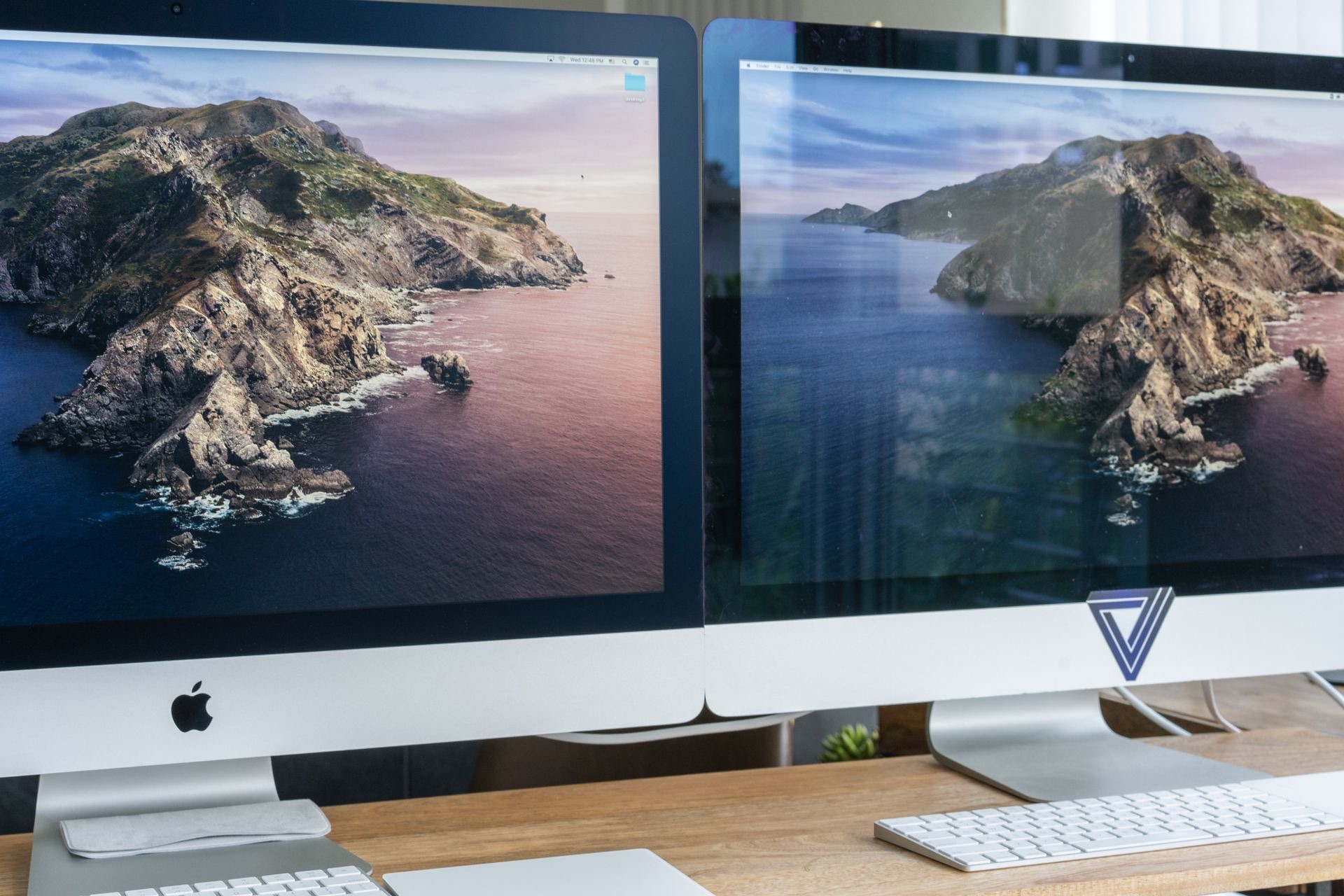
Apple added the same nano-texture matte glass option to the ‌iMac‌ that it first introduced with the Pro Display XDR.

Image via The Verge

Not all reviewers received an ‌iMac‌ with nano-texture glass, but those that did were impressed. From Gizmodo:
I absolutely love this glass, though. There's absolutely no glare, at any angle, regardless of what I'm watching or the ambient light in the room. Bright light streaming in from the giant window to my left while watching Tom Hanks' dimly lit drama-on-the-high-seas flick Greyhound (on Apple TV+, natch) was no match for the nano-textured glass. Late afternoon sun hitting the display from behind my shoulder wasn't reflected in the screen one bit. I need this on every device in my life.
The Verge said the nano-texture is "great," but questioned whether it was worth the $500 price tag given that there are unknowns about durability.
My first two big reservations are, unfortunately, the sorts of things that can't be resolved with just two days of testing. One is the price: at $500, it's a super expensive upgrade, and only your tolerance for glare can tell you if it's worth the price. Another thing that might help you decide if it's worth is whether the finish is durable. That's my second reservation: I just don't know. [...]

I asked Apple about the durability of the finish. I was told that they don't want to give anybody the impression that it's fragile, but that, yes: over time, using something too abrasive could mess up that finish. Unlike other screens, there's really no coating on top of the nano finish; it's just etched, bare glass.
Mashable said the nano-texture glass gives the ‌iMac‌ "an updated look" and said it's fingerprint resistant.
While it's not all that noticeable unless you physically feel it, it gives the ‌iMac‌ an updated look. More importantly, it reduces glare and reflectivity, and makes everything look a lot more vibrant. And, unlike the standard glossy display, it's not a fingerprint magnet.

10th-Generation Processors and Radeon GPUs


Gizmodo was impressed with the performance and called the 10-core ‌iMac‌ it tested a "powerhouse" that will last for years to come.
The couple of benchmarks I've run since the ‌iMac‌ arrived on Tuesday indicate that this desktop is a powerhouse. In the Blender test of CPU performance, the ‌iMac‌ rendered an image in 2 minutes and 19 seconds, which is incredibly fast--it's more than two minutes faster than when we benchmarked Intel's 10th-gen Core i9-10900K processor on its own. On Geekbench 4, a synthetic test of overall system performance, the ‌iMac‌'s single-core score of 6382 and multi-core score of 42417 impressed us all. Joanna Nelius, Gizmodo's resident PC and processor expert, exclaimed: "What the hell did Intel do to this CPU?" We plan to run more benchmarks in addition to real-world tests, but these early numbers are promising.
Mashable said that its 10-core review unit with 32GB RAM and Radeon Pro 5700 XT graphics card was too powerful for everyday use.
My review unit was a bit too powerful for my everyday tasks: a 3.6 GHz 10-Core Intel Core i9 processor, 32GB of storage, and that aforementioned Radeon Pro 5700 X graphics card. I can easily say it handled everything I threw at it with ease, but my typical workday doesn't require all that much heavy lifting in terms of hardware.

1080p Camera


The ‌iMac‌ uses an upgraded 1080p camera that's also been improved with the T2 chip, which adds an image signal processor that includes tone mapping, exposure control, and face detection.

Image via The Verge

TechCrunch says the camera is clear and "more than acceptable for teleconferencing needs."
The system sports a number of on-board sensors designed to augment the experience, including face tracking for better shot framing and increased performance in low light.

CNBC liked the face tracking feature that was included because it keeps your face in focus.
Apple tweaked the camera software so that your face is always in focus, even if you move it around the screen, and it does a good job keeping you well-lit even in a relatively dark environment. That's important, say, when you're on a video chat with your team during a cloudy day and don't want it to look like you live in a cave.
The Verge said that for videoconferencers, the 1080p webcam is likely to be the biggest day-to-day improvement.
But there's one spec bump that is wildly out of character for Apple, even in this pandemic year: the quality of the webcam has finally been improved. If you're videoconferencing a lot, the new 1080p webcam is likely going to be the thing that improves your day-to-day the most. I hate to tell you this, but you really do look more professional to your colleagues when your camera is just a little sharper. I don't think it's worth upgrading to a new ‌iMac‌ just for the webcam, of course, but I am glad that Apple has made it better. I also don't know that I'd say it's the best I've used, but it's no longer vaguely embarrassing like most of Apple's other webcams.

Microphone and Speakers


The microphone also got a boost, with Apple adding a studio quality microphone array to accompany the higher-end camera, while the speakers benefitted from the T2 chip, gaining variable EQ for improved balance, higher fidelity, and deeper bass

Image via TechCrunch

TechCrunch deemed the microphone "clear and perfectly suited to teleconferencing," and had the same thing to say about the speakers.
The speakers, too, fill roughly the same needs. They're perfectly good for a teleconference, audio playback and even casual movie watching and music listening. As someone who's slightly obsessive about music listening, I would likely invest in some external speakers to pair with the desktop in the home setting, but the computer audio is well suited for an office.

CNBC: Called the microphone excellent, and said that it a recording made with the microphone sounded like it came from a studio.
The microphones are excellent. Previous iMacs had two front-facing microphones but the new 27-inch ‌iMac‌ adds a third rear-facing one to cut down on background noise. I had a 90-minute video chat last night with folks who were also using the new 27-inch ‌iMac‌ and they sounded really clear. I also heard a demo track recorded by a musician named Mary Spender who recorded herself singing and playing guitar in front of the ‌iMac‌. I'm no audiophile, but it sounded really clear to me, like it was recorded in a studio.

Complaints


There were few complaints about the new ‌iMac‌, but almost all of them focused on the outdated design of the machine. The ‌iMac‌'s design has not been overhauled since 2012 and it continues to feature thick borders.

Some reviewers also expressed interest in the addition of a Touch ID Home Button, which is on Macs like the MacBook Air and MacBook Pro, but not the new ‌iMac‌. From The Verge:
One thing that doesn't feel modern at all with the 2020 ‌iMac‌ is logging in. Unless you have an Apple Watch and use it to unlock your computer, the only way to get in is to type out your password like an animal. Apple's T2 chip controls ‌Touch ID‌ fingerprint login on Mac laptops, but Apple opted not to add a fingerprint sensor to the keyboard or a Face ID array in this ‌iMac‌.

Review Videos


A number of YouTubers made hands-on videos with the new ‌iMac‌ for those interested in seeing it in action.


Full Reviews to Read: Six Colors, Mashable, CNBC, TechCrunch, Gizmodo, Pocket-lint, and The Verge.
Related Roundup: iMac
Buyer's Guide: iMac (Buy Now)

This article, "2020 27-Inch iMac Reviews: A Great Machine for Working From Home With Upgraded Camera, Speakers, Microphone and More" first appeared on MacRumors.com

Discuss this article in our forums


from MacRumors: Mac News and Rumors - All Stories https://ift.tt/3fGtaiI