https://ift.tt/2rCoDHj

In macOS Mojave, you can choose to encrypt and decrypt disks on the fly right from the desktop. Using this convenient Finder option, we're going to show you how to encrypt a USB flash drive (or "thumb drive"), which is useful if you're traveling light and want to take sensitive data with you for use on another Mac.
Finder uses XTS-AES encryption, the same encryption that FileVault 2 uses to prevent access to data on a Mac's startup disk without a password. Note that the following method is only compatible with Macs – you won't be able to access data on the encrypted drive using a Windows machine.
If this is a requirement, you'll need to use a third-party encryption solution like
VeraCrypt. With that in mind, here's how to securely encrypt your USB flash drive.
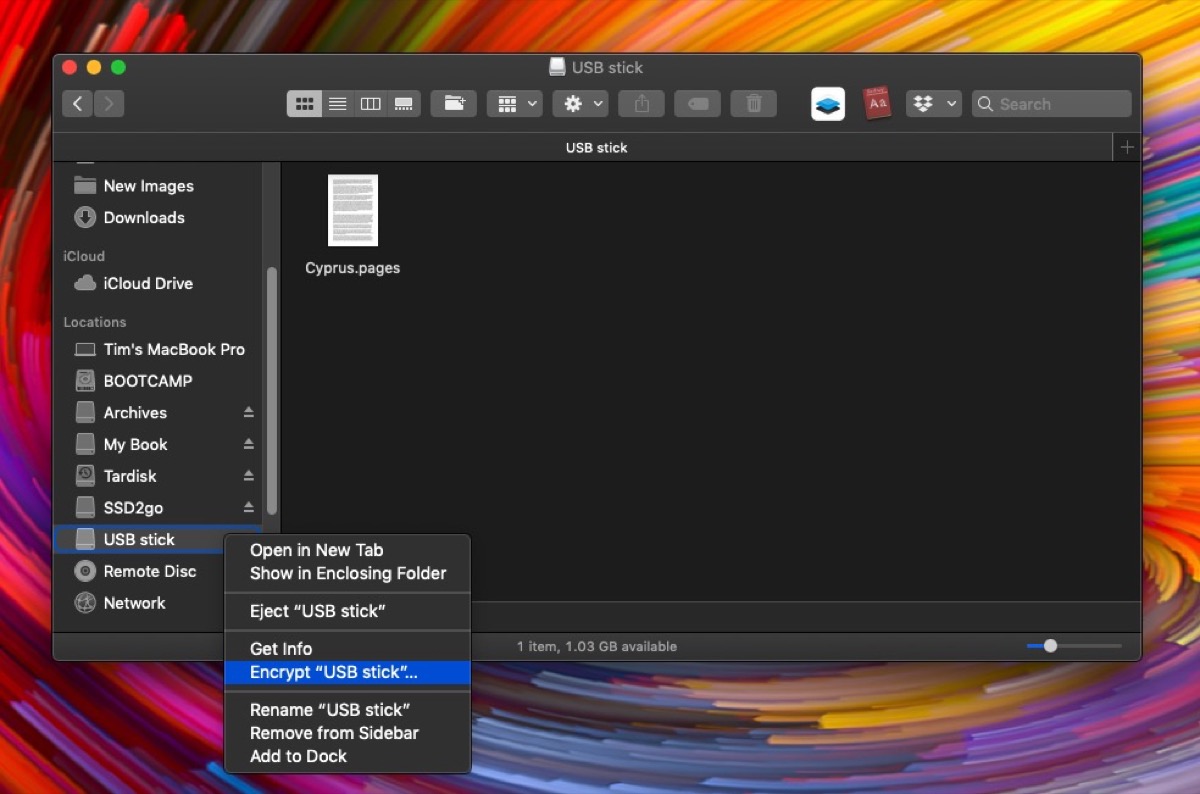
Attach the USB flash drive to your Mac and locate its disk icon on your desktop, in a Finder window, or in the Finder sidebar, then right-click (or Ctrl-click) it and select
Encrypt "[USB stick name]"... from the contextual menu.
(Note that if you don't see the Encrypt option in the dropdown menu, your USB flash drive hasn't been formatted with a GUID partition map. To resolve this, you'll need to
erase and encrypt the USB drive in Disk Utility – before that though, copy any data on the drive to another location for temporary safekeeping.)

When you select
Encrypt, Finder will prompt you to create a password, which you'll need to enter the next time you attach the USB flash drive to a Mac. (Don't forget this, otherwise you'll lose access to any data stored on the USB drive!) Once you've chosen a password, verify it, add a meaningful hint if desired, and click
Encrypt Disk.
The encryption process depends on how much data you have on the USB flash drive, but you'll know it's completed when its disk icon disappears and re-mounts. You'll now be able to access the contents of the USB flash drive as usual, but if you physically detach it and re-attach it to your Mac you'll be prompted to enter the password.

Note that the prompt includes an option for macOS to
remember this password in my keychain. Check the box, and whenever you attach the USB stick to your Mac again you won't be prompted to enter the password and you'll have automatic access to it, just like any other drive.

If you ever want to decrypt the USB flash drive in future, right-click (or Ctrl-click) its disk icon, select
Decrypt "[USB stick name]" from the contextual menu, and enter the password to turn off encryption protection.
How to Encrypt a USB Flash Drive in Disk Utility
Before proceeding, make sure you've copied any data on the USB flash drive to a safe location, like your Mac's internal disk.
- Launch Disk Utility, located on your Mac in Applications/Utilities.

- In the Disk Utility toolbar, click the View button and select Show All Devices if it isn't already ticked.
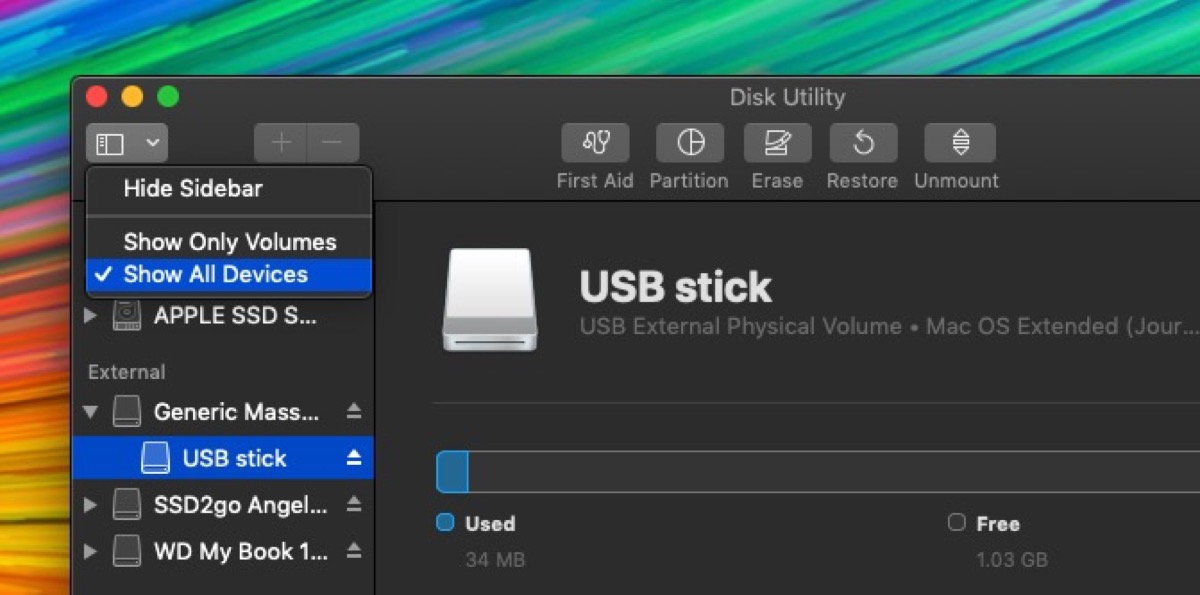
- Select your USB flash drive in the sidebar by clicking its top-level device name (i.e. not the volume name that's listed beneath it).
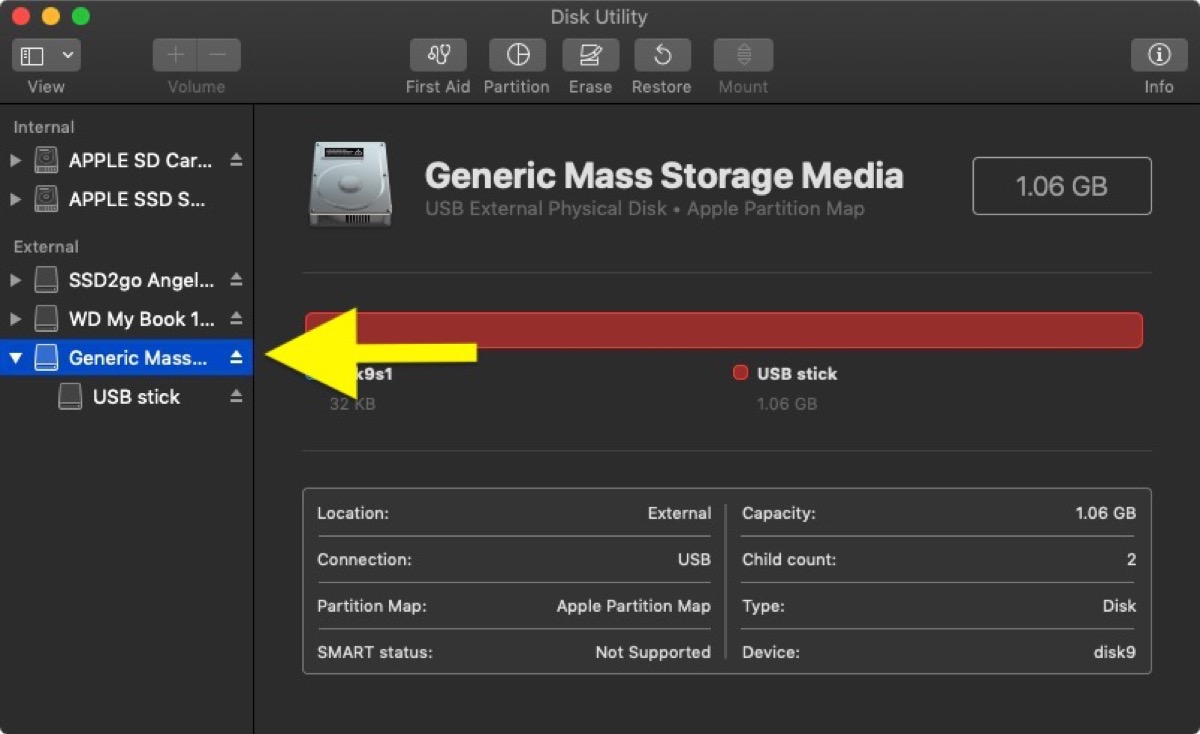
- Click the Erase button in the toolbar.
- Give the USB flash drive a name.
- Next, click the Scheme dropdown menu and select GUID Partition Map. (It's important to do this first before the next step, otherwise you won't see the encryption option in the Format dropdown.)
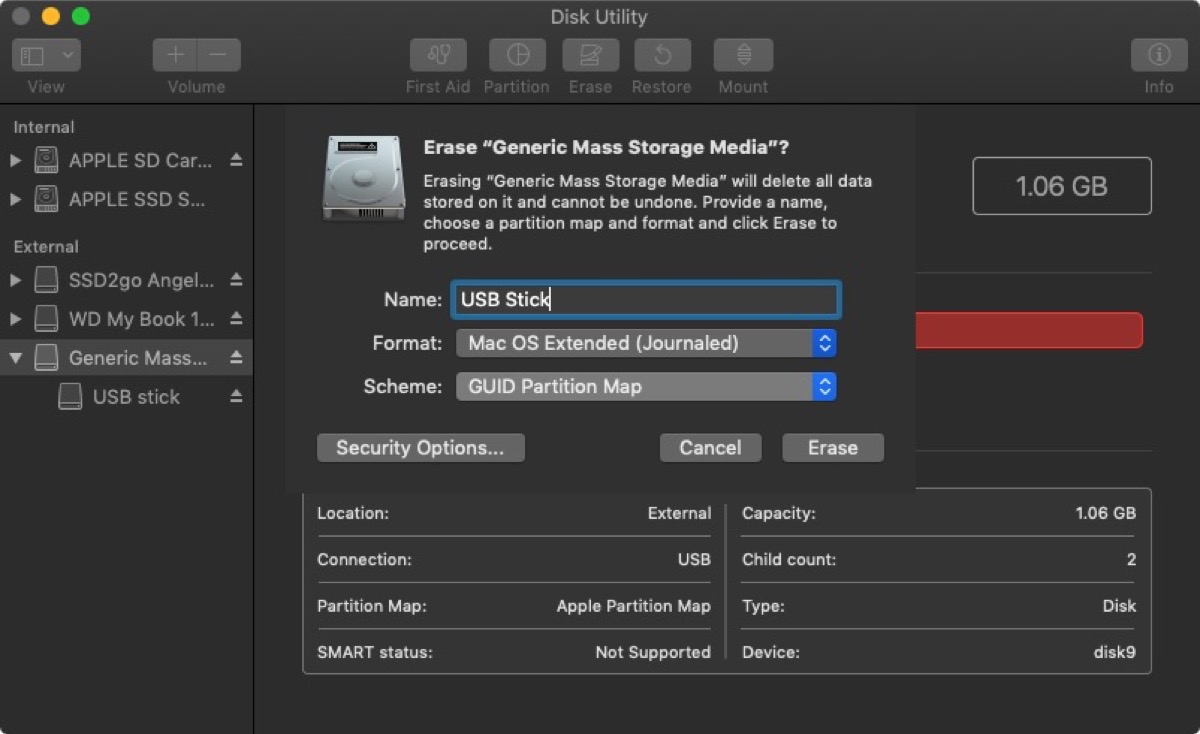
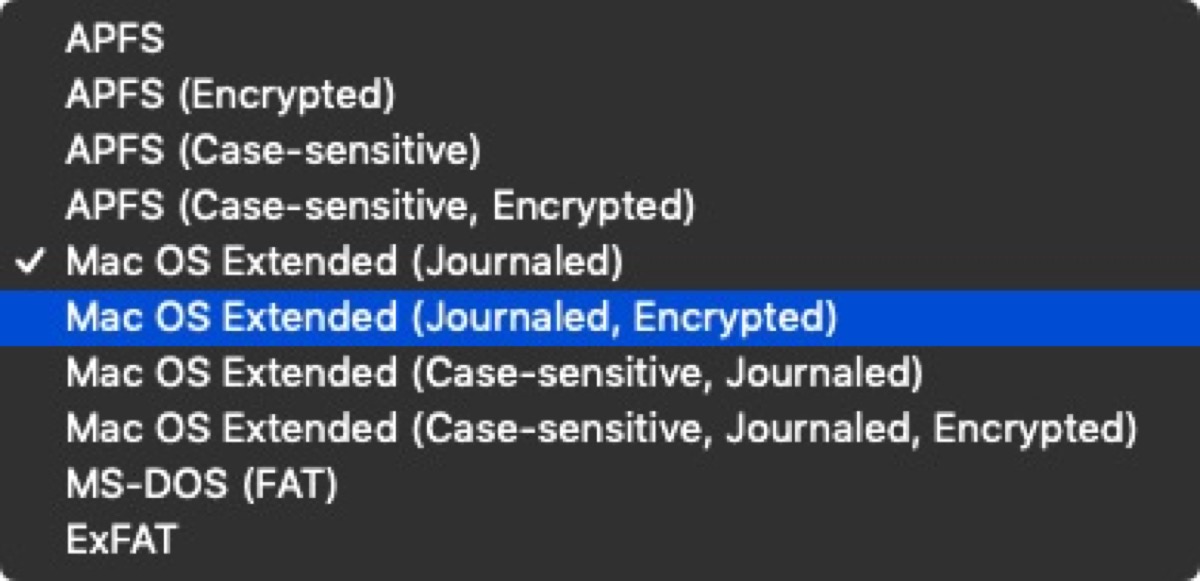
- Now click the Format dropdown menu and select Mac OS Extended (Journaled, Encrypted).
- Click Erase.
- Enter your new password, enter it once more to verify, include a password hint if desired, then click Choose.
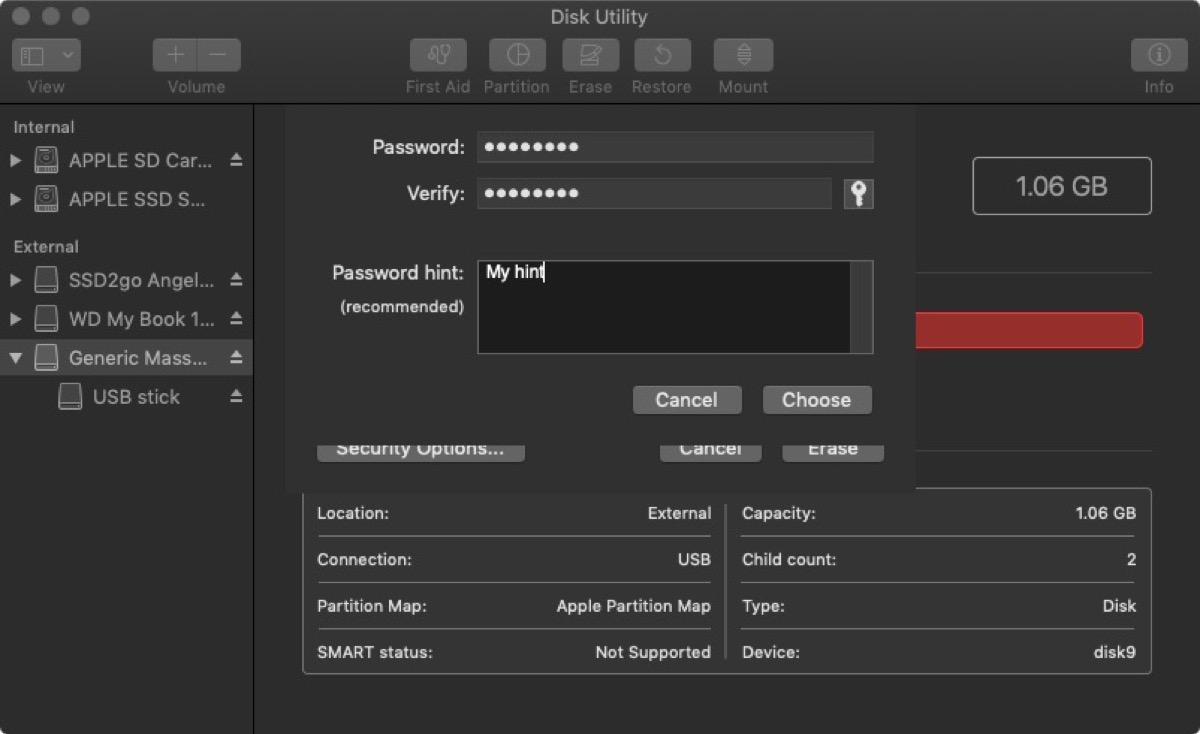
- Click Erase once again, and wait for your disk to be formatted and encrypted.

Once the process is complete, copy across your sensitive data to the blank USB flash drive, where it will be automatically encrypted and secured with a password.
Discuss this article in our forums

from MacRumors: Mac News and Rumors - All Stories https://ift.tt/2GjlLsZ