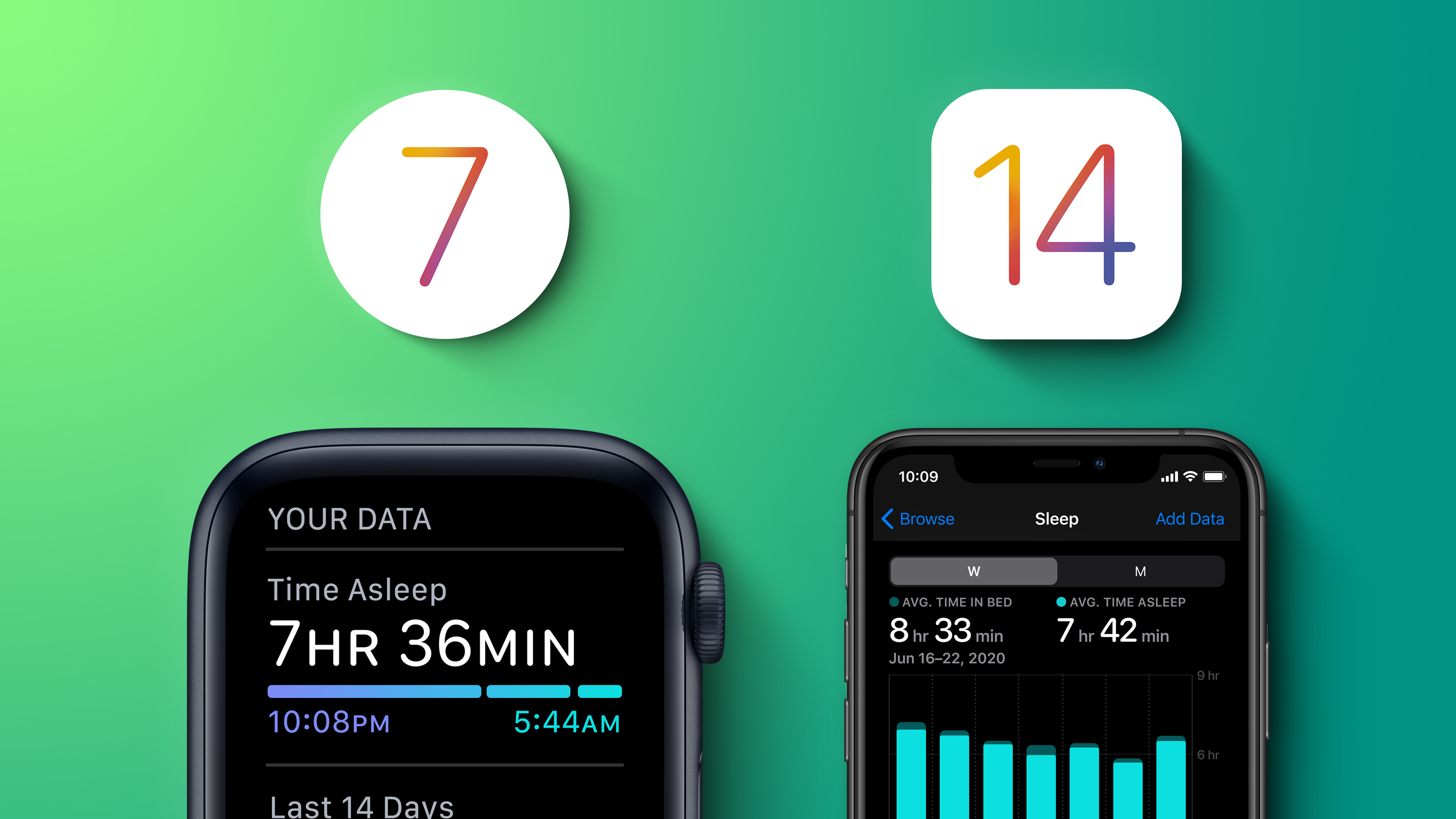
Apple in iOS 14 and watchOS 7 introduced a new Sleep Tracking feature that's designed to help you monitor how much sleep you're getting each night with Apple Watch and improve your sleep habits through bedtime reminders and a winding down process.
This guide walks through all of the Sleep Tracking functionality available on the iPhone and the Apple Watch in Apple's 2020 software updates.
Sleep Schedule
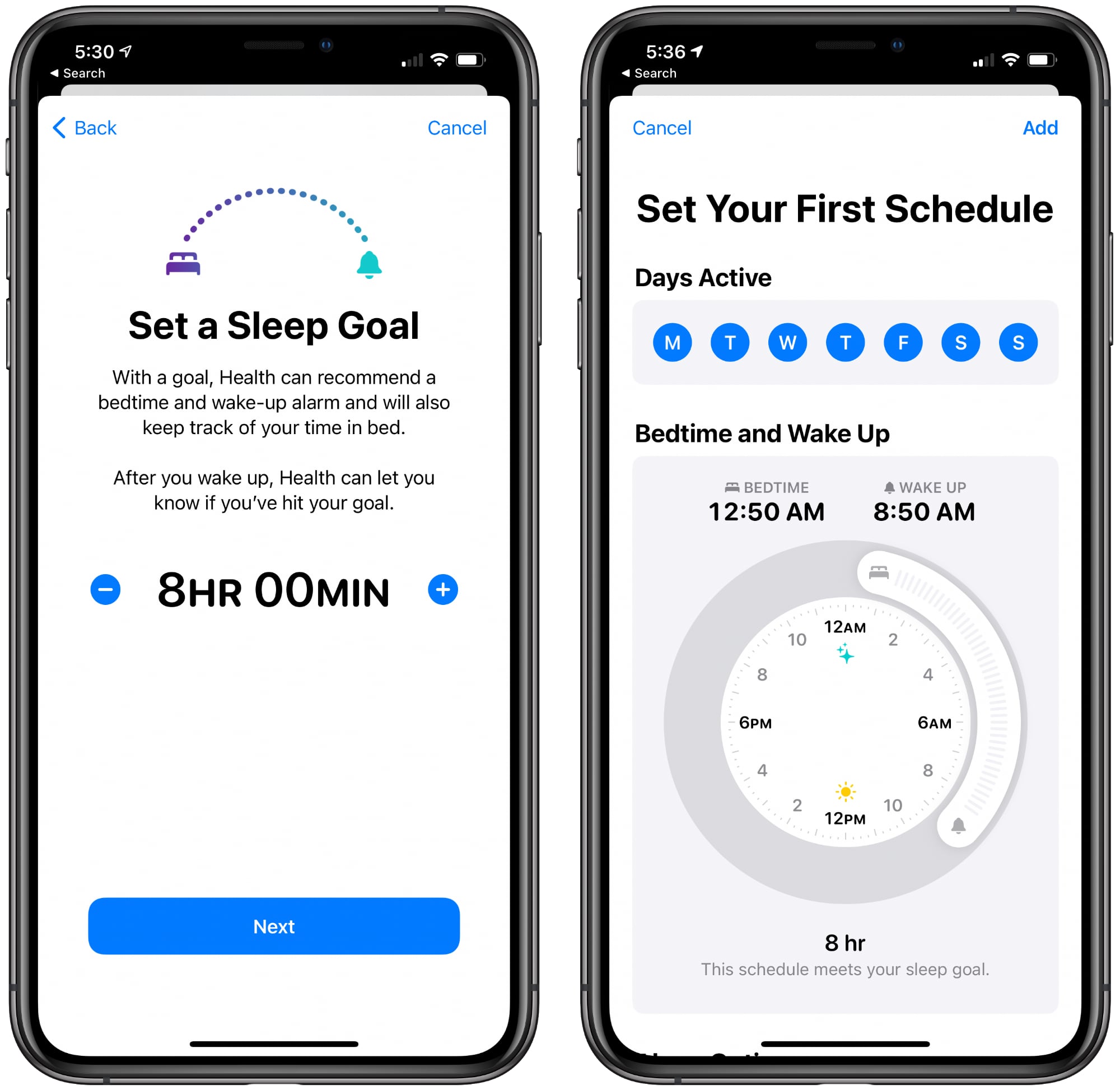
In the Health app on the iPhone or in the Apple Watch, you can set up a Sleep Schedule with the amount of sleep you want to get each night and your standard sleep and wake up goals.
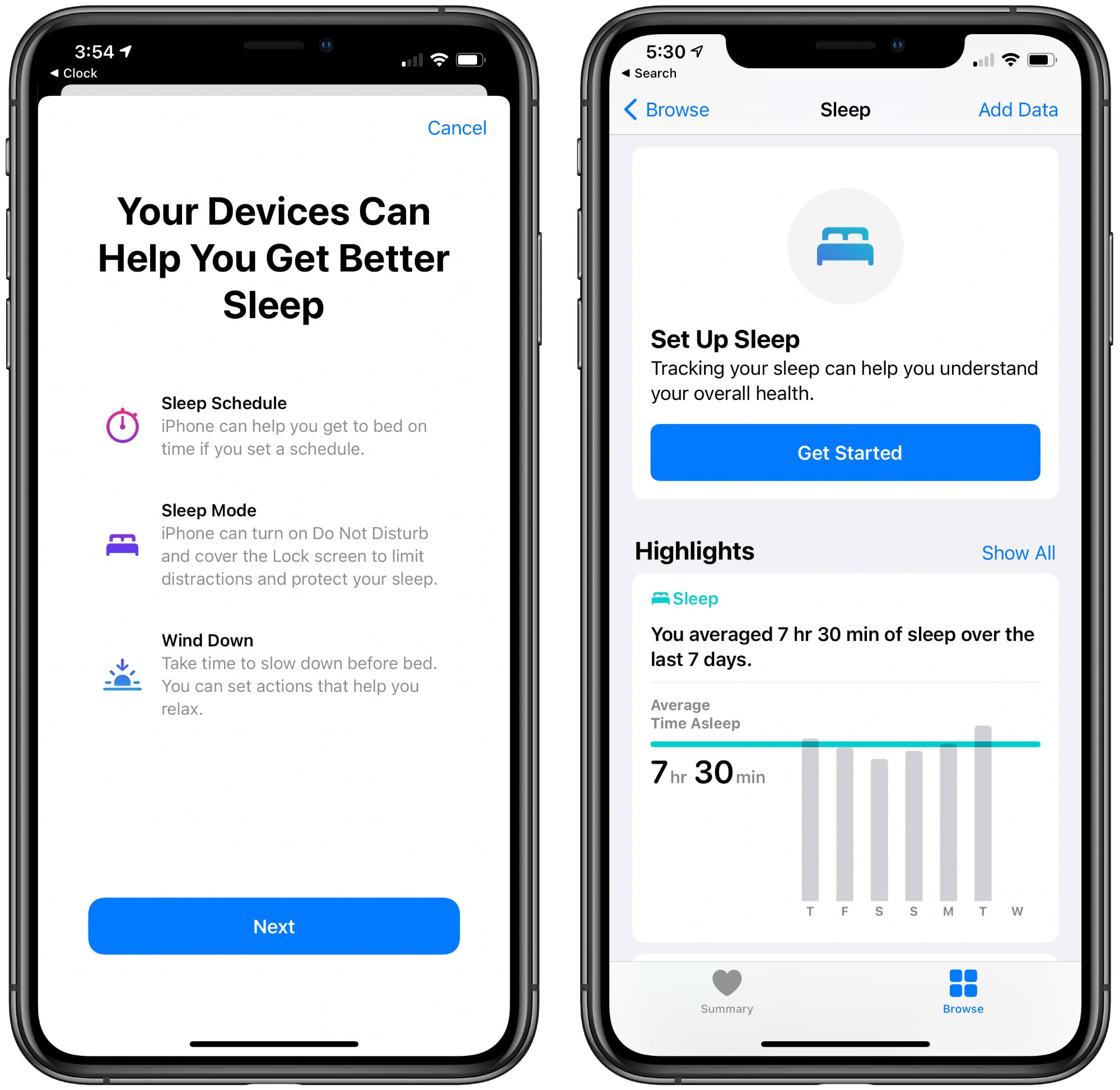
The first step of setting a Sleep Schedule is to set a Sleep Goal, which lets the Health app on iPhone (and Apple Watch) recommend a bedtime and provide a wake-up alarm. It also lets you know if you've hit your sleep goals for the night.
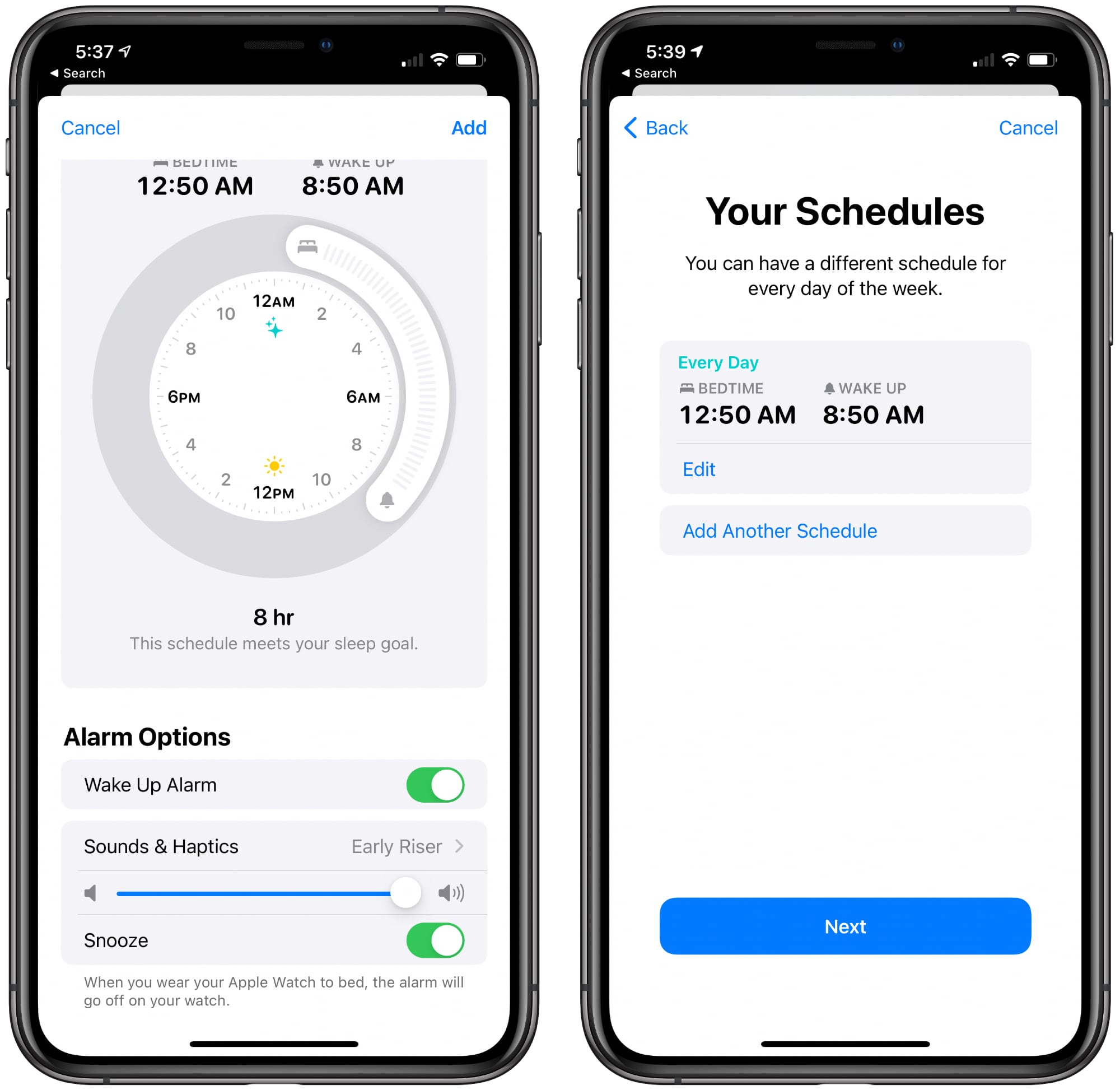
From there you'll want to set up a schedule with the time that you want to go to bed and the time that you want to wake up. Based on the sleep goal you set in the step before, the Health app will let you know if your chosen times will result in adequate sleep.
You can use the same Sleep Schedule every day or choose different schedules for different days. With this feature, you can have a set schedule for workdays and a different schedule for weekends.
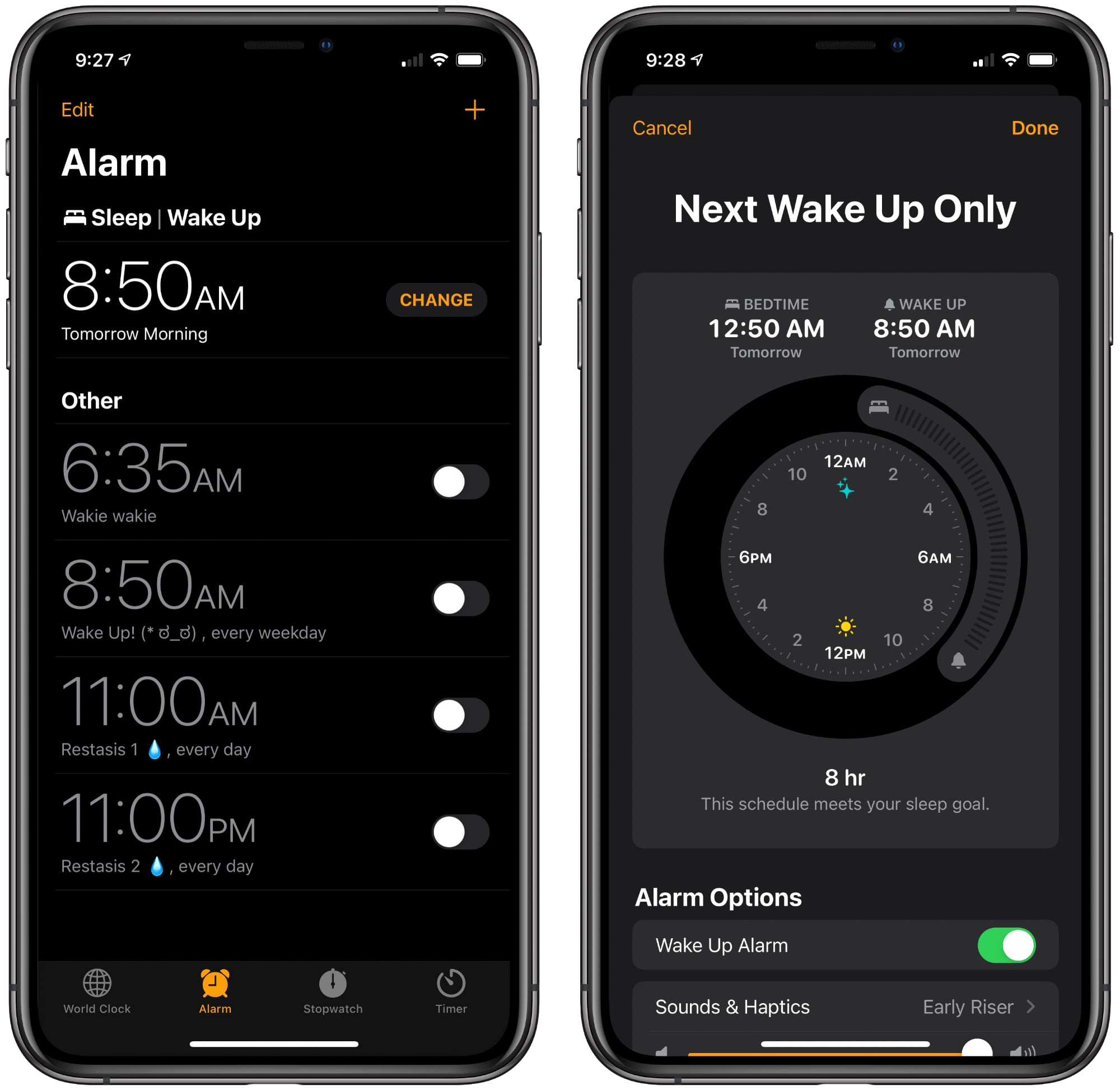
Setting a Sleep Schedule allows you to enable or disable a Wake Up Alarm, and you can customize the sound and whether you want haptic feedback. If you're wearing an Apple Watch for Sleep Tracking, the alarm will go off on the watch instead of on the iPhone. Adjusting Sleep Schedule options can be done in the Health app, or, more conveniently, in the Clock app under Alarm.
Sleep Mode
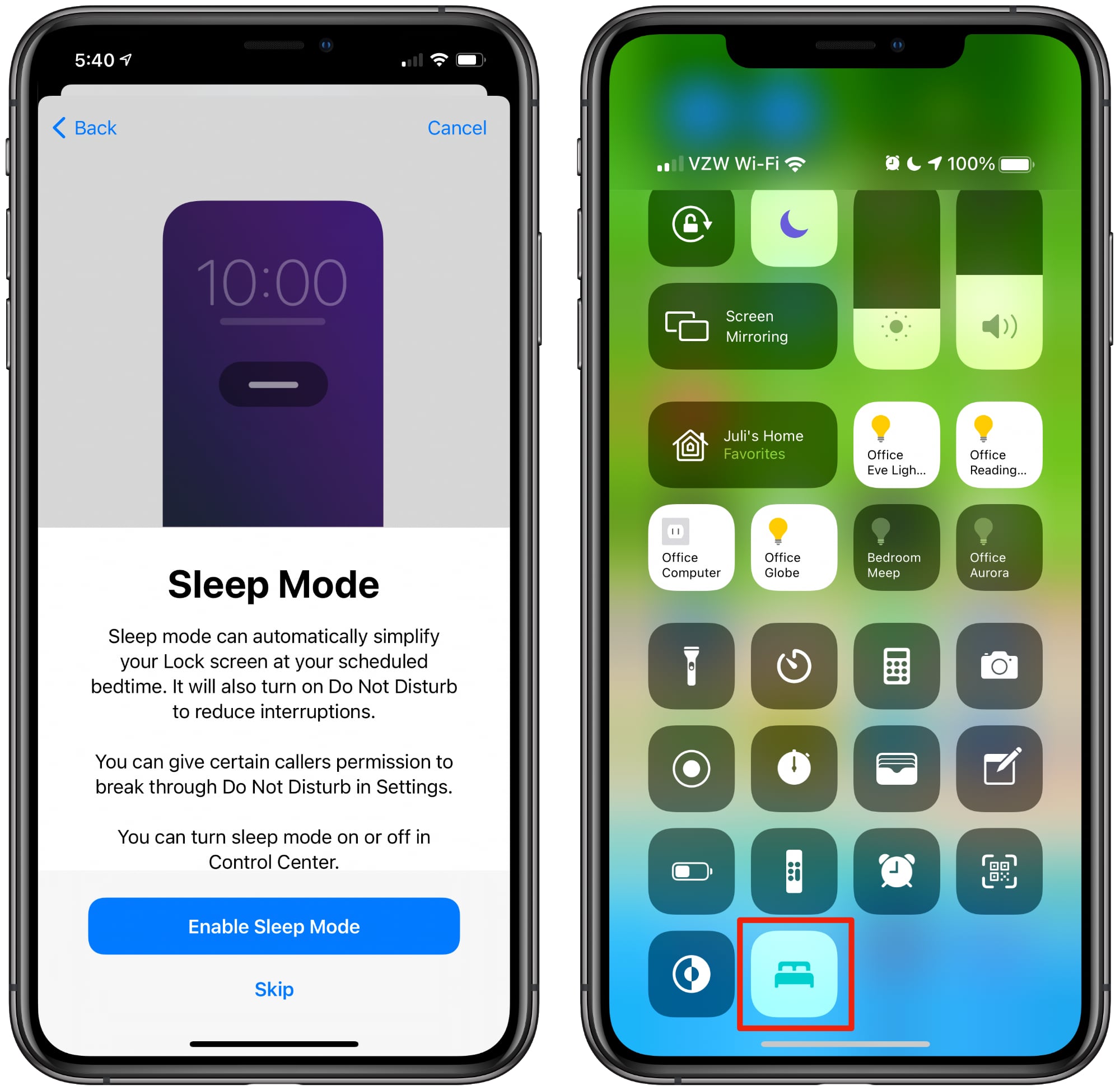
Sleep Mode is an optional mode that goes along with the Sleep Schedule feature. When enabled, it will simplify your Lock Screen at your chosen bedtime, hiding notifications and turning on Do Not Disturb.
Sleep Mode can be set to turn on and off automatically to match your Sleep Schedule, but it can also be toggled on or off in the Control Center.
Wind Down
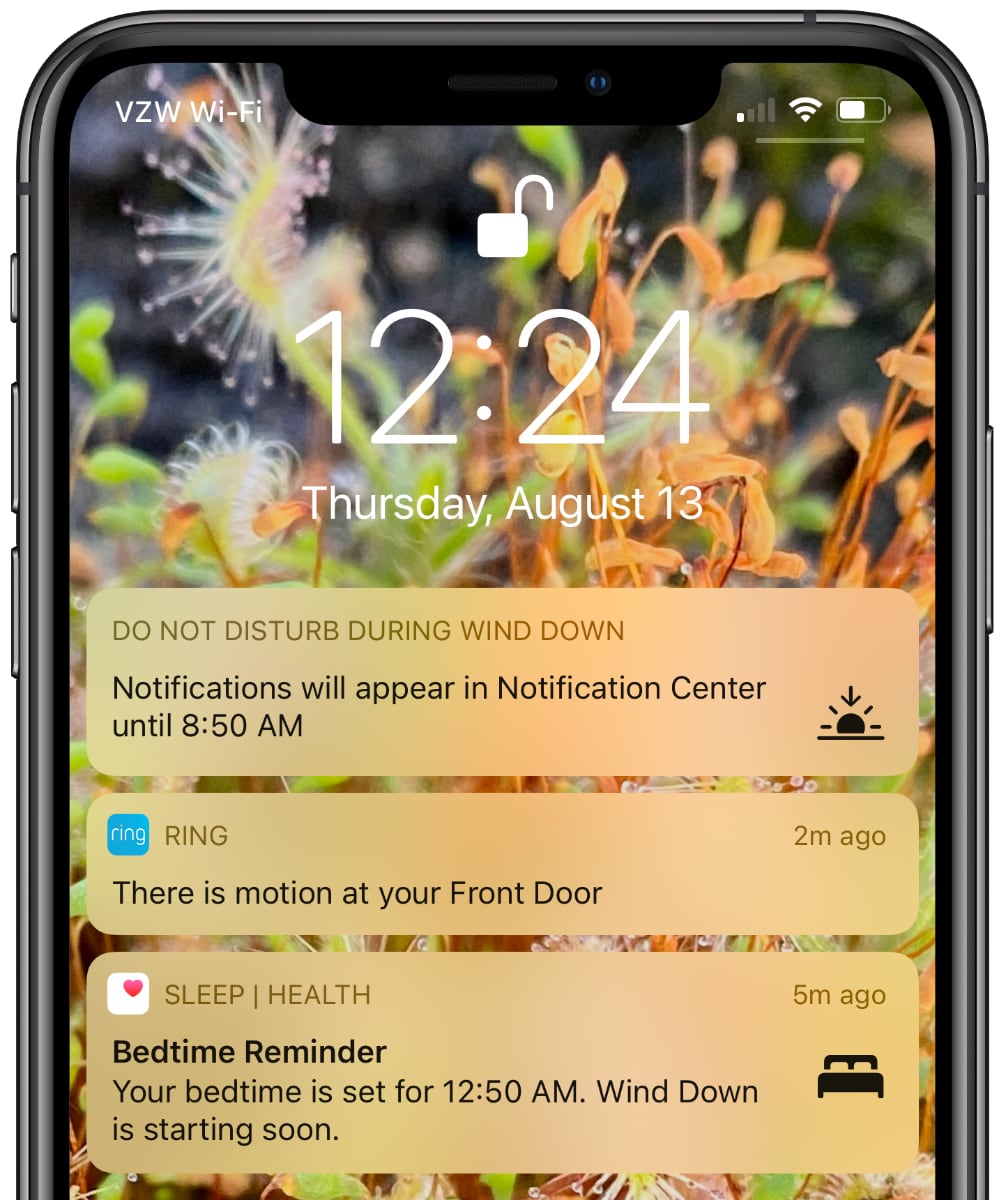
Wind Down accompanies Sleep Mode and Sleep Schedule as an optional feature. If enabled, Wind Down allows Sleep Mode to begin before bedtime to help reduce distractions and help you relax.
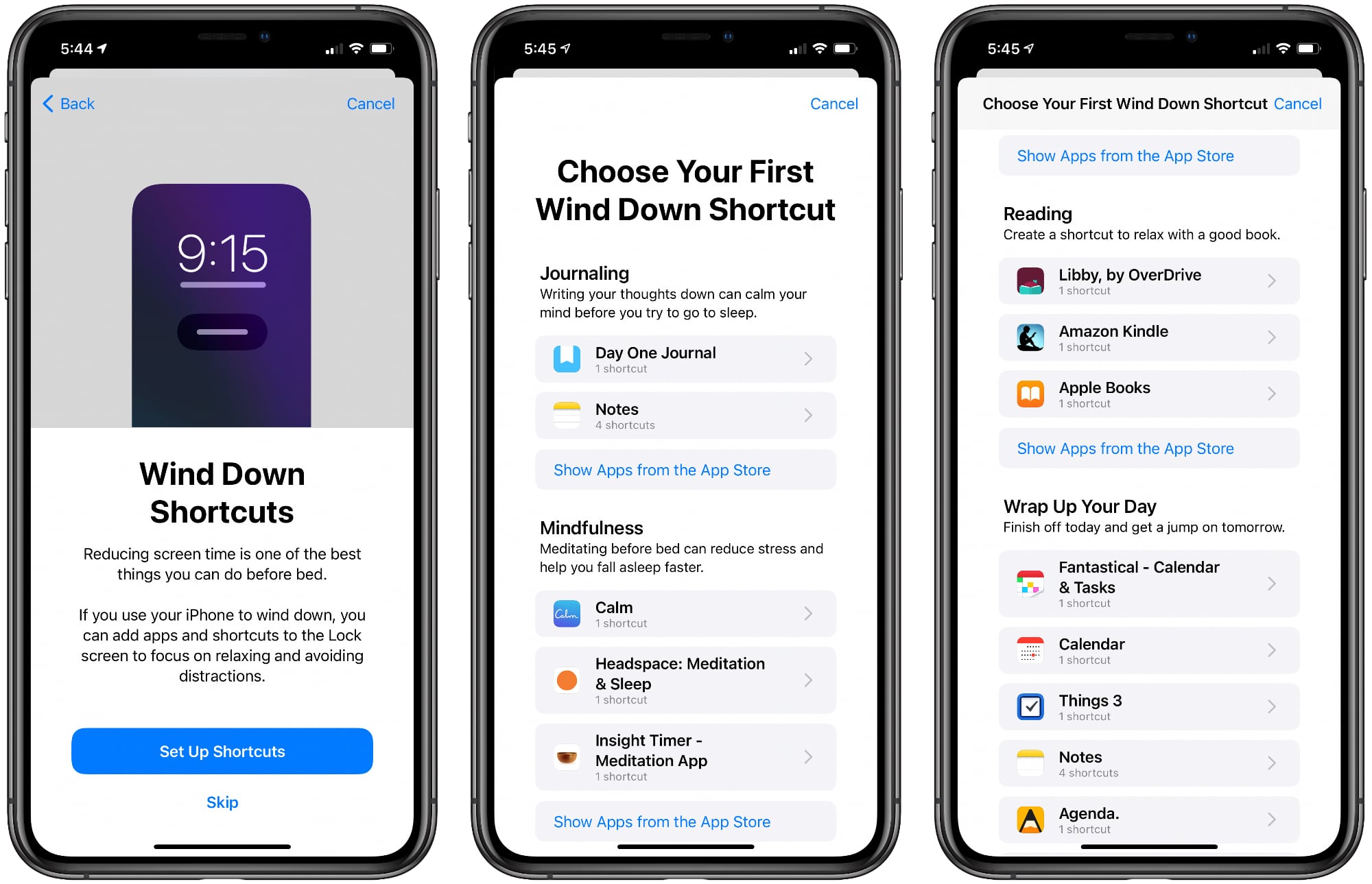
Like Sleep Mode, Wind Down turns on Do Not Disturb, and it can also surface Shortcuts to apps or features that you might want to use as part of your night time routine. If you read before bed, for example, the app might suggest your reading app, or if you like to meditate, it suggests your favorite meditation app.
You need to set these Shortcuts up when activating and customizing the Wind Down feature. The Health app surfaces relevant options based on the selection of apps that you have installed for before bed activities like journaling, meditating, listening to music, listening to a Podcast, reading, checking off tasks on the calendar, yoga, and more.
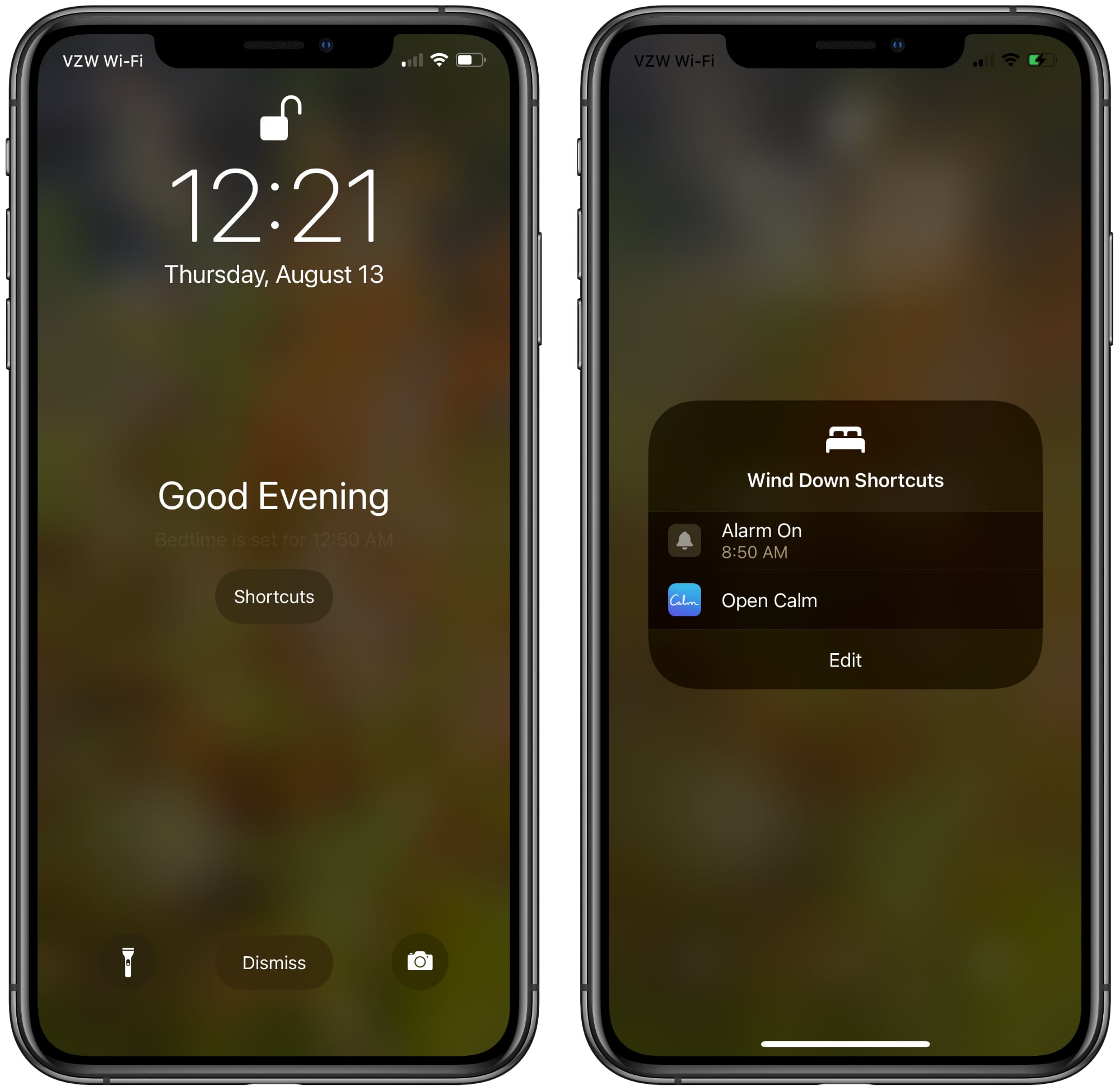
When Wind Down activates at a set time ahead of your set bedtime, it will provide a the time, a note about when bedtime is, and a link to the Shortcuts that you've set up so you can go about your pre-bedtime routine.
Sleep Tracking
Sleep Tracking, which keeps track of how long you sleep each night and wakes you up with a haptic alarm, is available if you have an Apple Watch. You can set up Sleep Tracking on Apple Watch through the Health app, and it uses the same setup process as all of the features above.
With Sleep Tracking enabled, the Apple Watch dims and locks itself based on your Sleep Schedule so it won't wake you up during the night. Sleep data from the Apple Watch can be viewed in the Health app on the iPhone. If your Sleep Schedule is set up with a bedtime and a wakeup time, all you need to do is make sure your watch is charged up and ready to wear at night. Sleep tracking happens automatically during the night as long as your Apple Watch has battery.
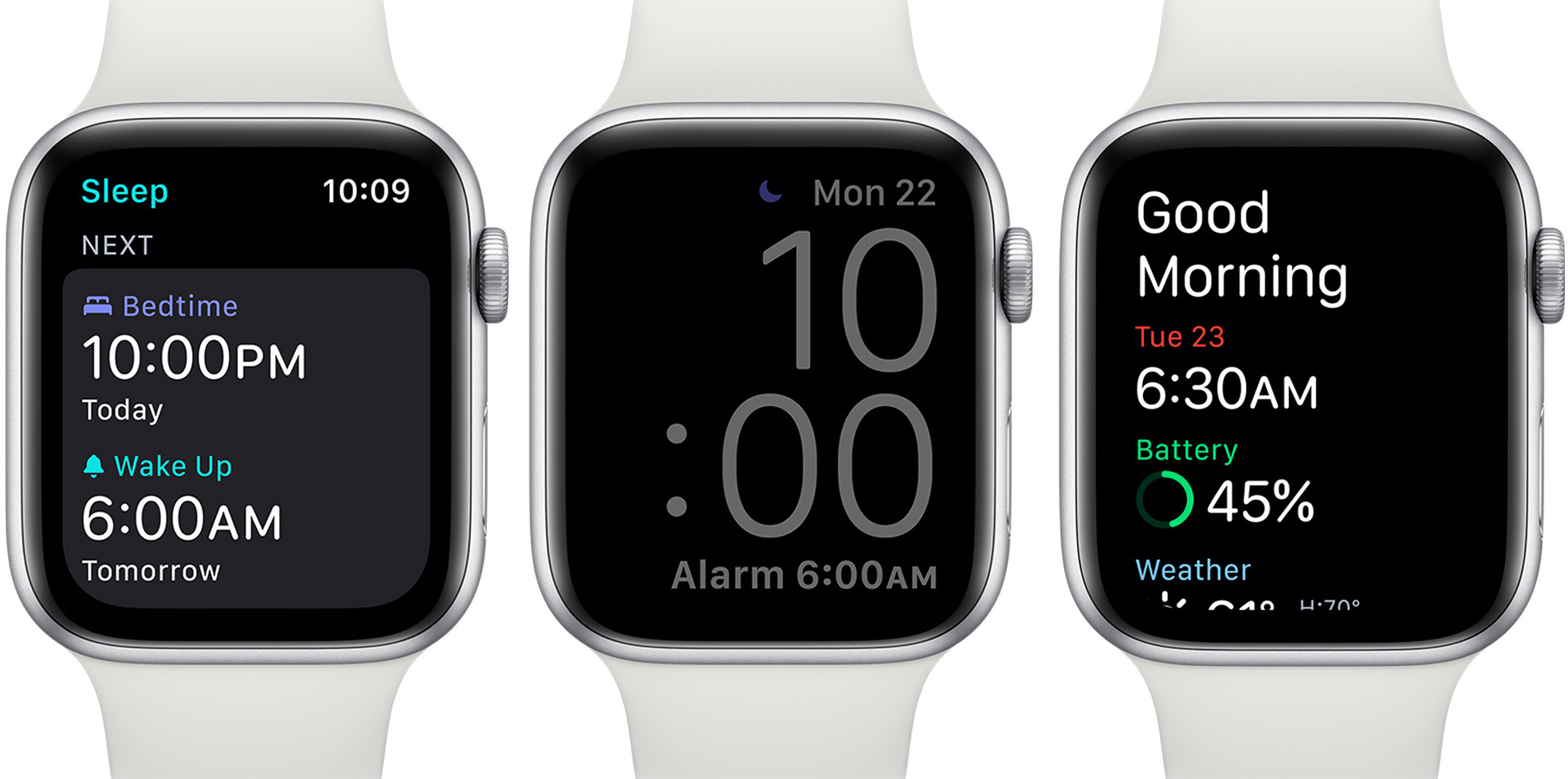
Apple Watch also lets you view summaries of your Sleep Schedule, it will notify you about Wind Down and bedtime settings, and it shows some of the sleep tracking data that's listed in the Health app.
Waking Up
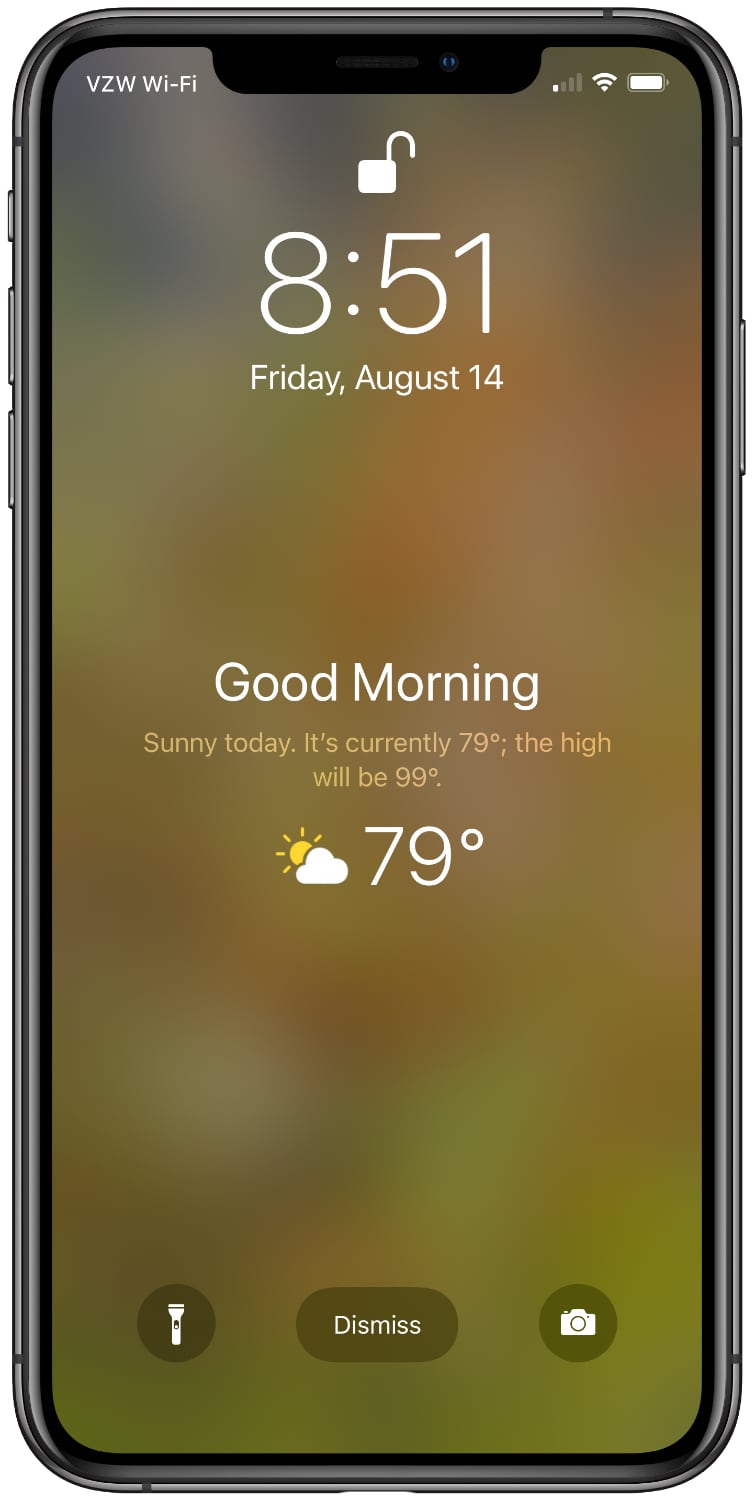
When you wake up in the morning, the alarm that's set will go off on either the iPhone or the Apple Watch and the iPhone will offer up a "Good Morning" message with the time and the weather forecast.
Setup Summary
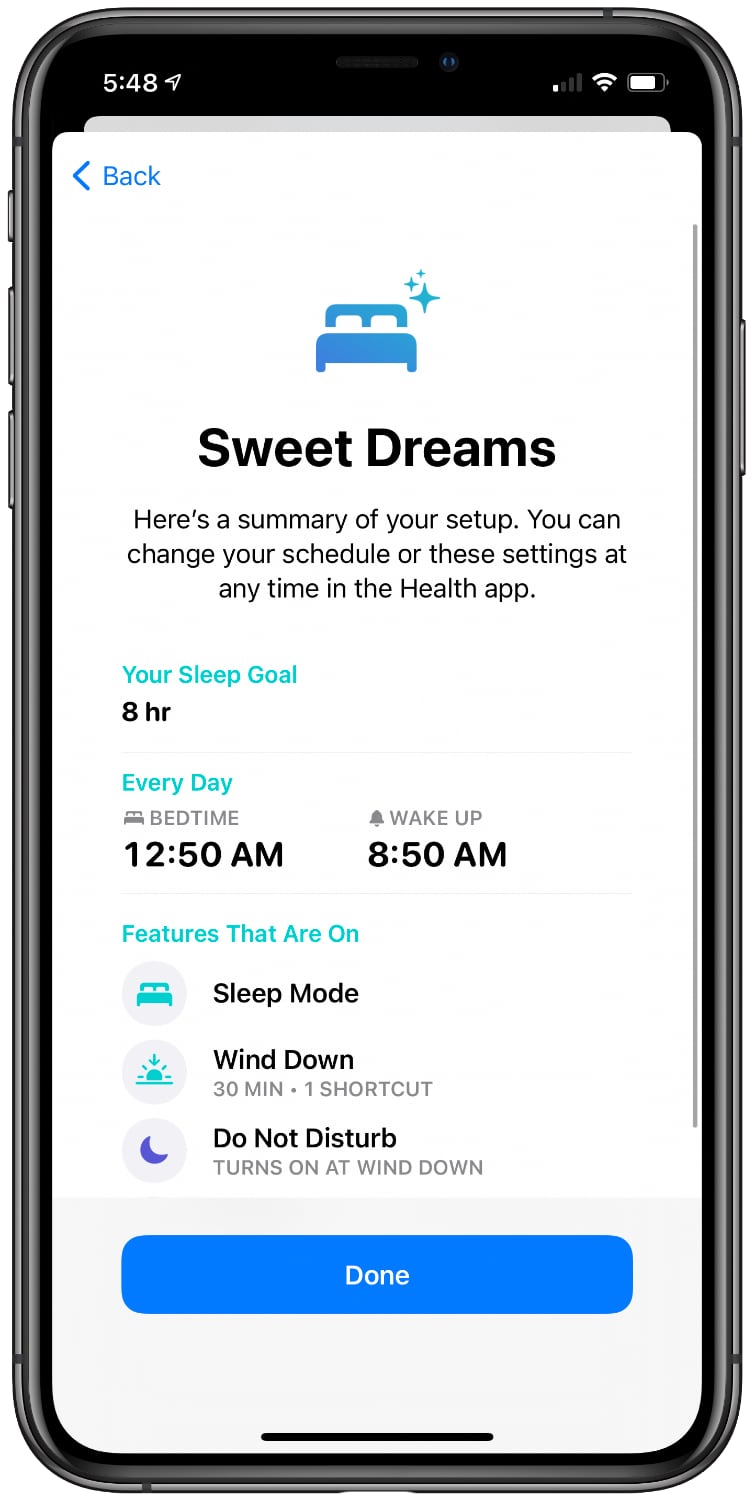
If you've used the setup process in the Health app, at the end, the iPhone provides you with a rundown of all of your settings. From there, the Sleep Schedule, Wind Down, and Sleep Tracking features work automatically when you go to bed each night. Changes can be made in the Sleep section of the Health app.
Third-Party Sleep Sources
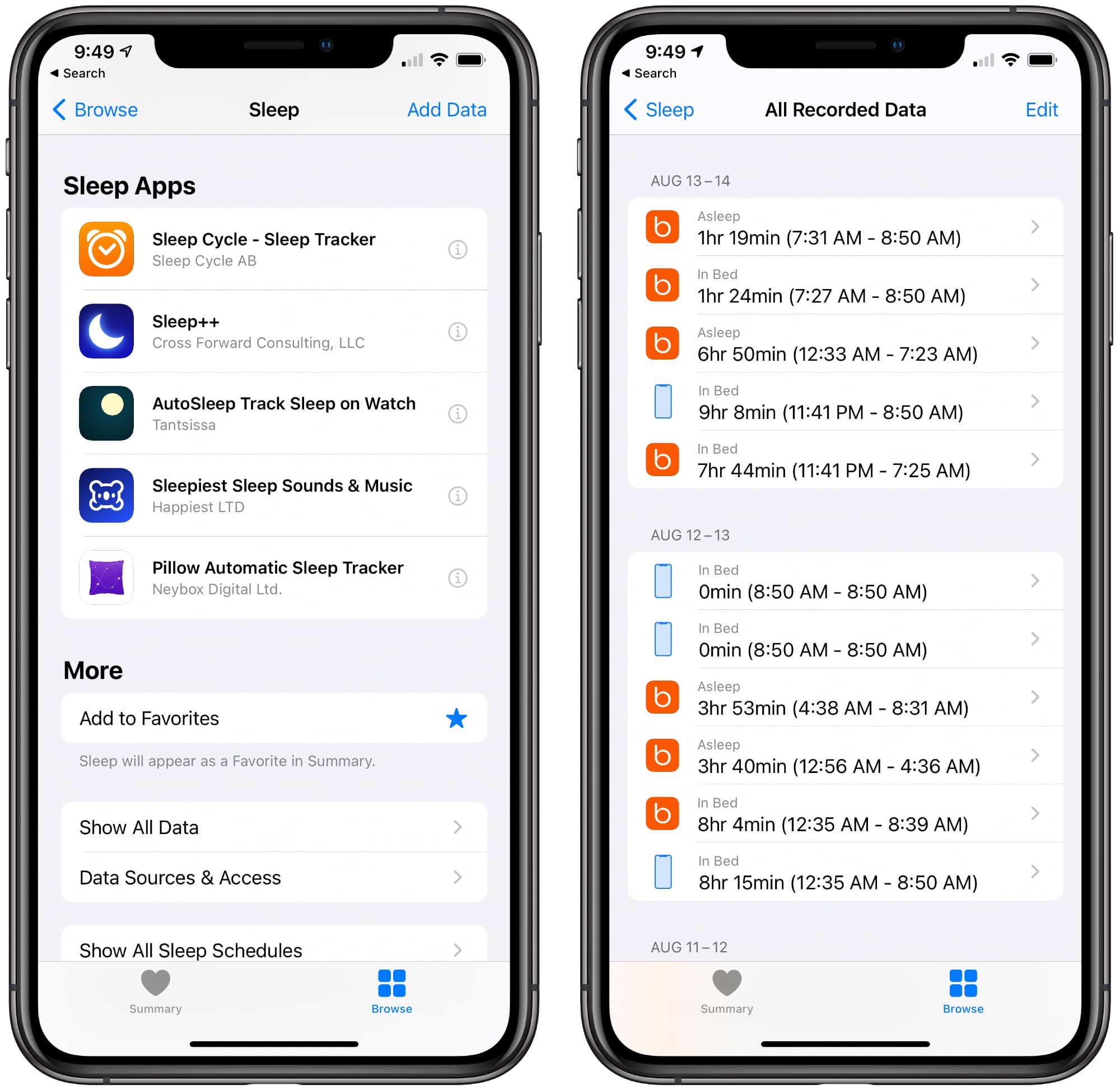
It's worth noting that if you have a device that also contributes sleep data to the Health app, such as the Apple-owned Beddit sleep monitor, this data can be used in lieu of the Apple Watch to power Apple's Sleep Mode features and sleep data section in the Health app.
Sleep data can also be contributed by third-party sleep tracking apps for the iPhone and the Apple Watch.
Viewing Sleep Data
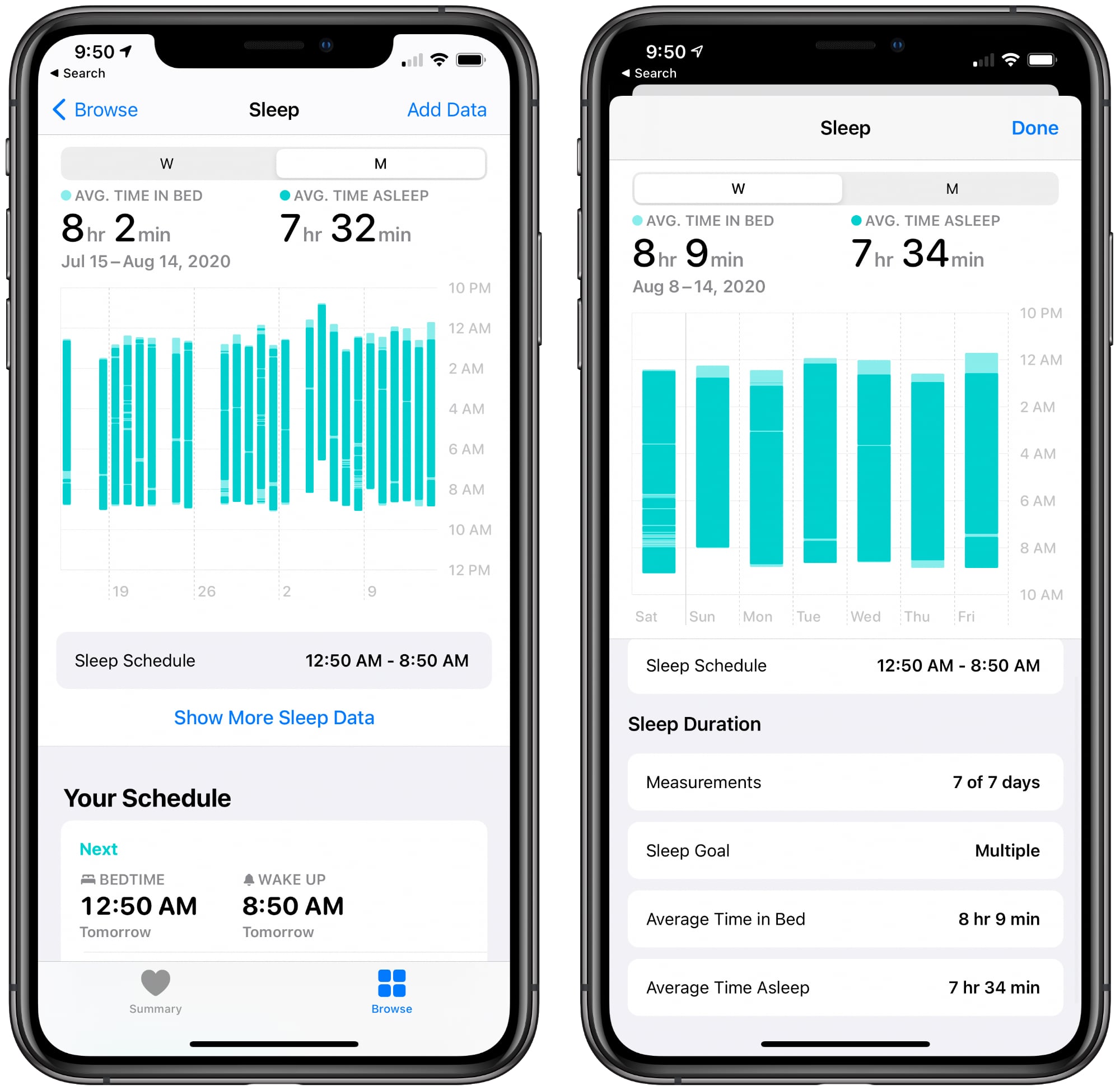
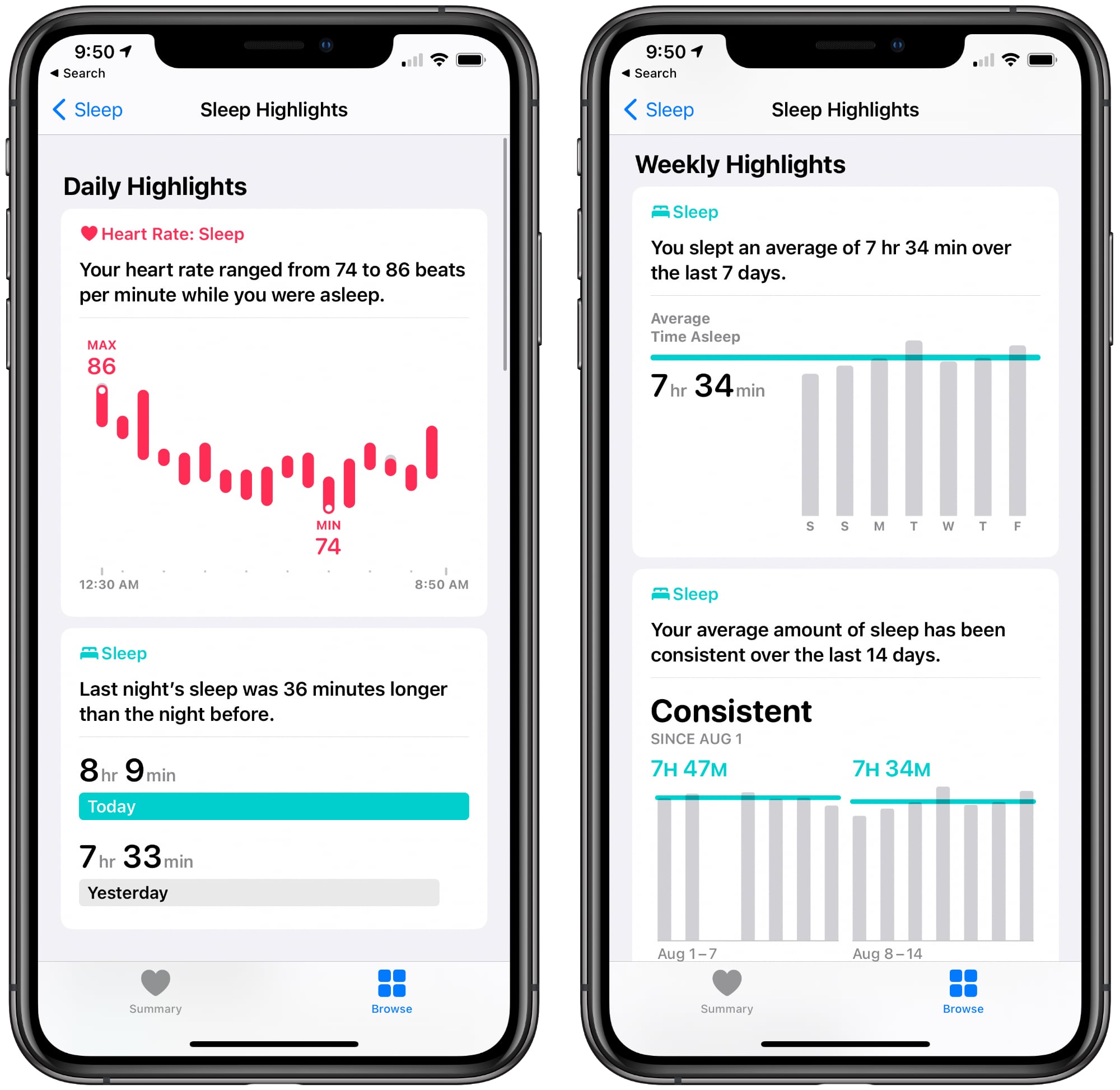
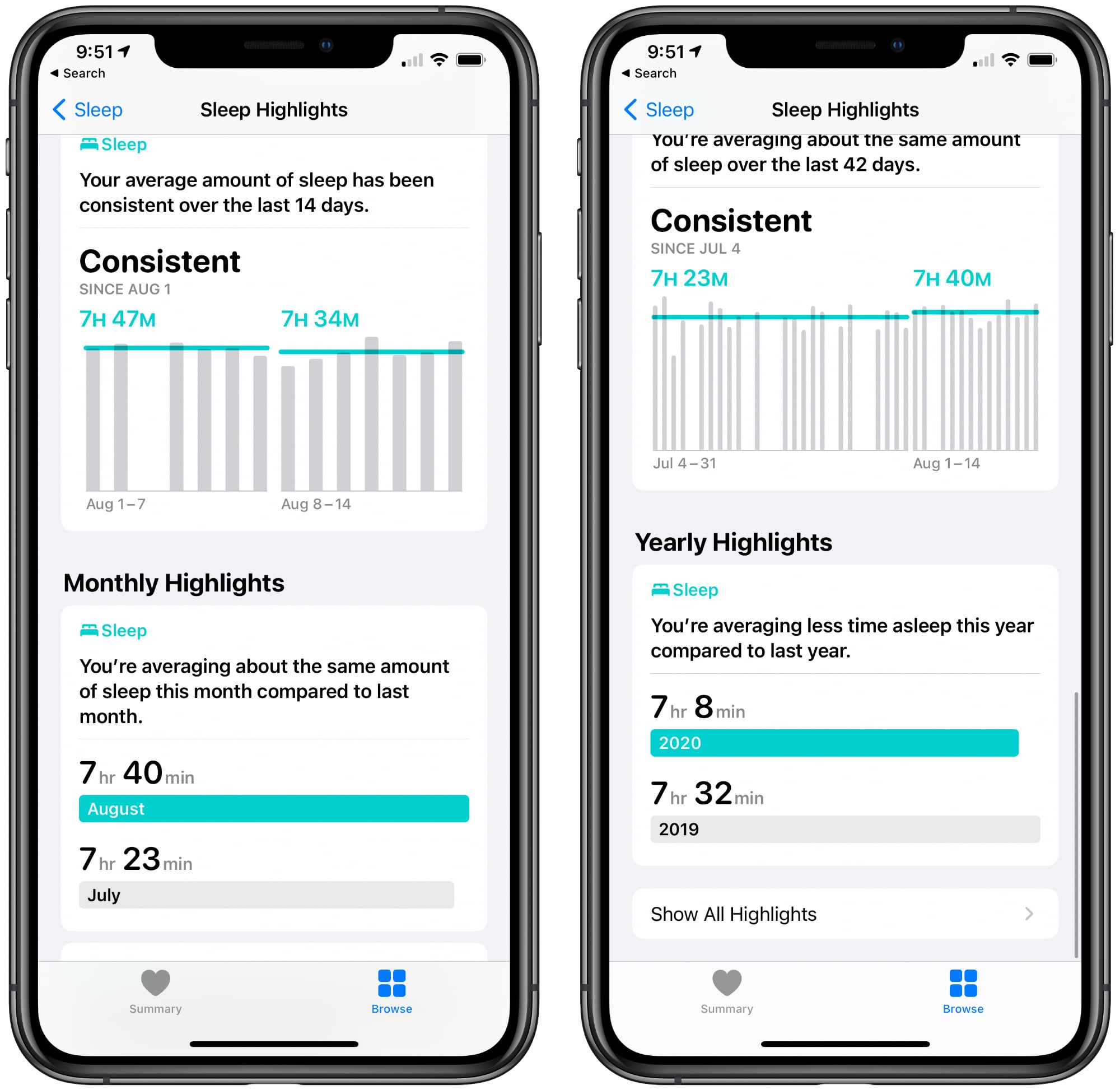
Sleep data collected by the Apple Watch can be viewed in the Sleep section of the Health app. The Health app displays data on a weekly or monthly basis, allowing you to see your sleep trends over time.
The Apple Watch collects sleep time, time in bed, and heart rate, but it doesn't provide data beyond that. Some other fitness trackers include information on light sleep, deep sleep, and other parameters, but the Apple Watch sleep tracking functionality does not.
The Sleep section of the Health app offers charts on sleep length over time, heart rate while sleeping, and weekly, monthly, and yearly highlights. It also shows average sleep time over the past week and has a chart on sleep consistency over time.
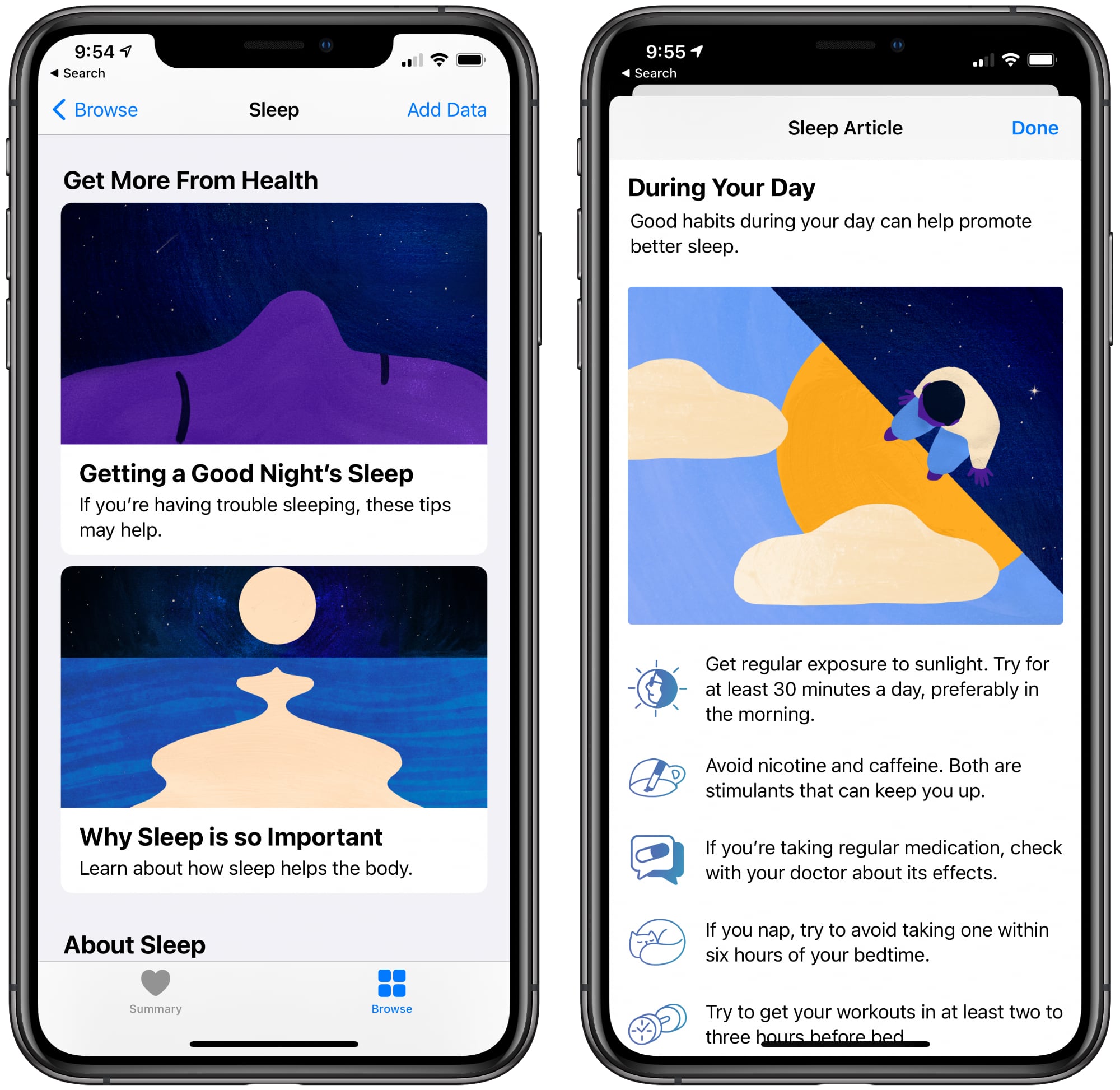
Along with this data, Apple offers articles that iPhone users can take advantage of to improve their sleep such as "Why Sleep is so Important" and "Getting a Good Night's Sleep" with sleep tips and info.
Battery Level Notifications for Apple Watch
iOS 14 and watchOS 7 include new notifications that are designed to let you better track the battery level of your Apple Watch so that it can be used both during the day and at night. There's a notification when the battery level is low and another notification that's sent when an Apple Watch has reached its full charge level so you know when it can be removed from the charger for a night's sleep.
Battery usage when sleep tracking varies, but the feature appears to use somewhere around 30 percent battery during the night.
Features You Can Use Without Apple Watch
The actual sleep tracking feature that measures how long you've slept is limited to the Apple Watch, but all of the other related features like Sleep Mode and Wind Down are available even if you don't have a watch.
As mentioned up above, you can get started setting these up in the Health app. Just open up the Health app, tap Browse, scroll down to Sleep, and then tap it. From there, tap on "Get Started" to set parameters that include a sleep goal, a schedule, and an alarm.
Guide Feedback
Have questions about the sleep related features in iOS 14 and watchOS 7, know of a feature we left out, or or want to offer feedback on this guide? Send us an email here. If you want to know more about what's coming in iOS 14, make sure to check out our iOS 14 roundup.
When Apple introduced updated iPad Pro models earlier this year they came with a new accessory, the Magic Keyboard. Priced starting at $299, the Magic Keyboard for iPad Pro is Apple's most advanced keyboard yet, offering backlit full-size keys and, more importantly, a trackpad.
At launch, there was no third-party equivalent to the Magic Keyboard because trackpad support for the iPad Pro was new, but last month, Logitech unveiled the Folio Touch, a $160 keyboard case that works with 2018 and 2020 iPad Pro models.
The Folio Touch is more affordable than the Magic Keyboard while offering much of the same functionality, and in some cases, design choices that are more convenient, making it a worthy alternative to Apple's own keyboard option. There's one caveat -- at the current time, the Folio Touch is only available for the 11-inch iPad Pro, with no 12.9-inch model.
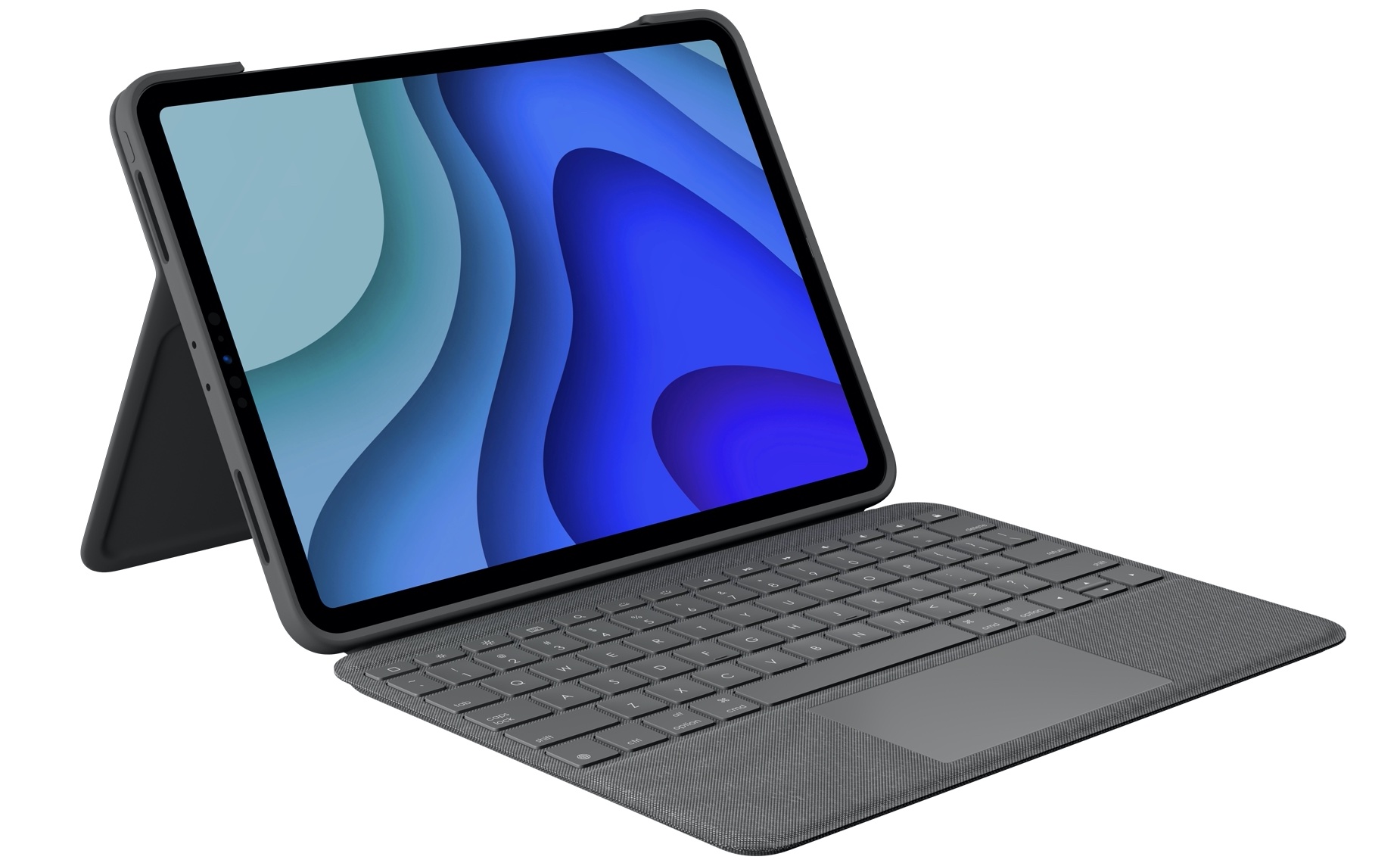
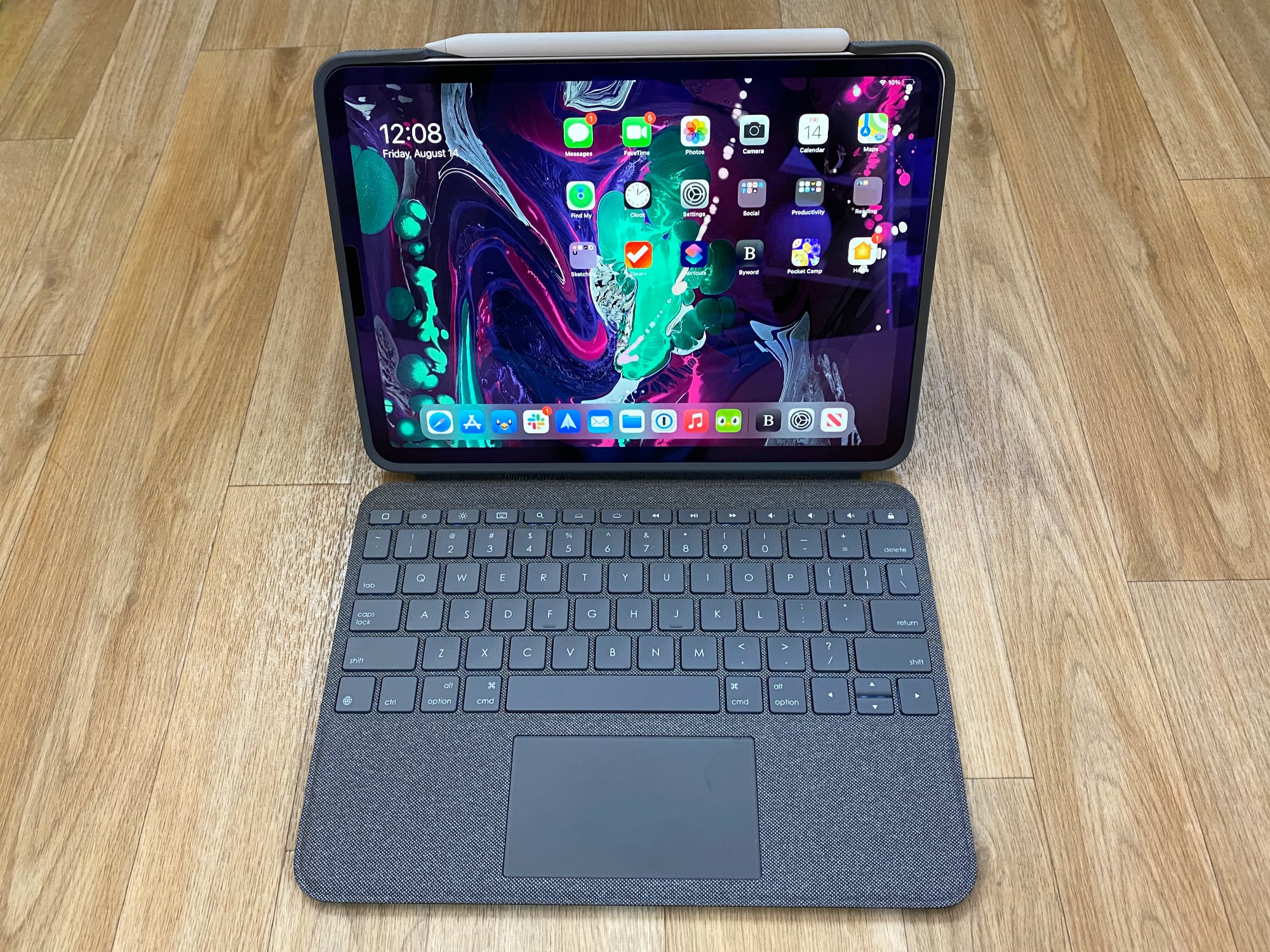
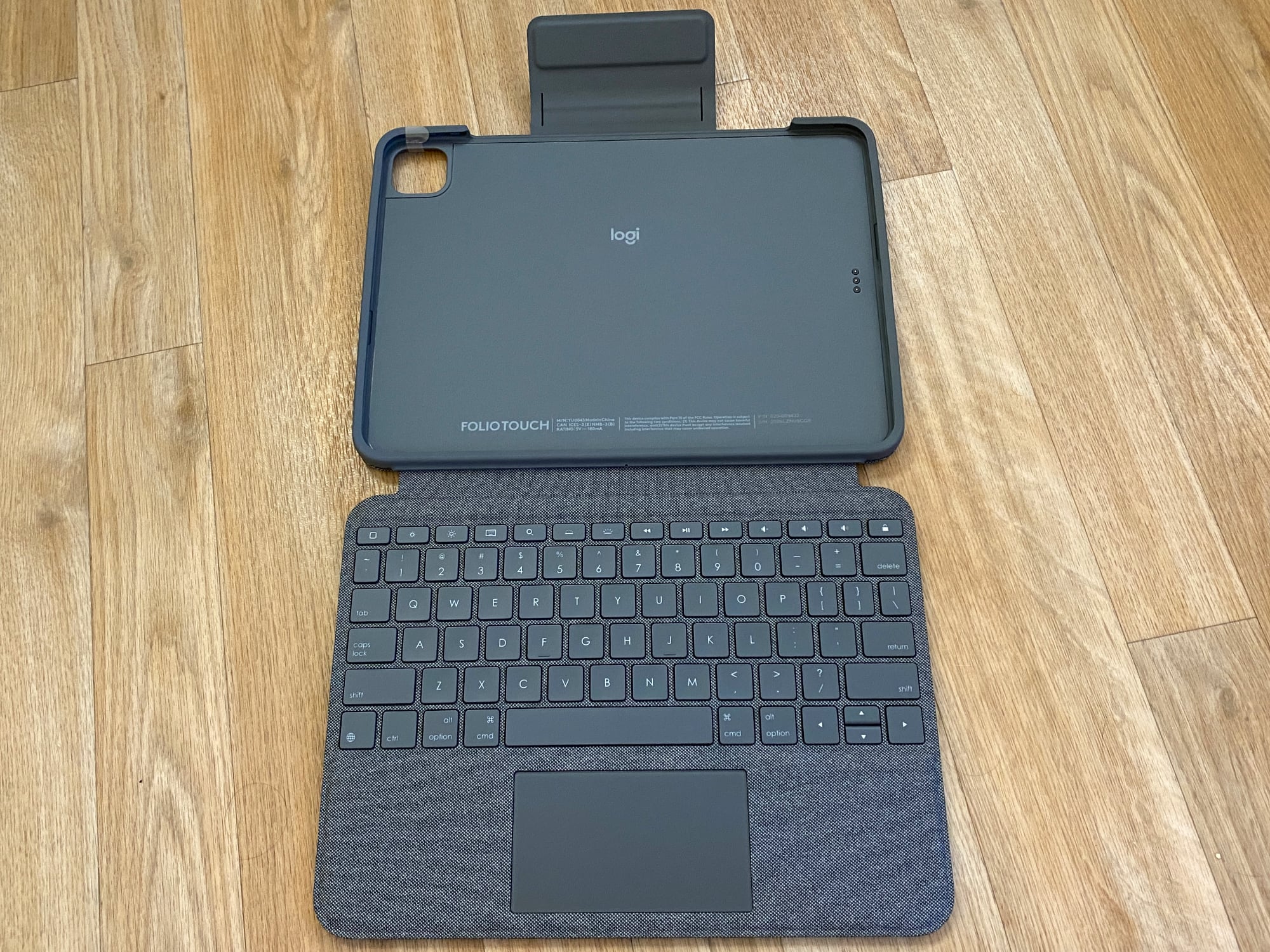
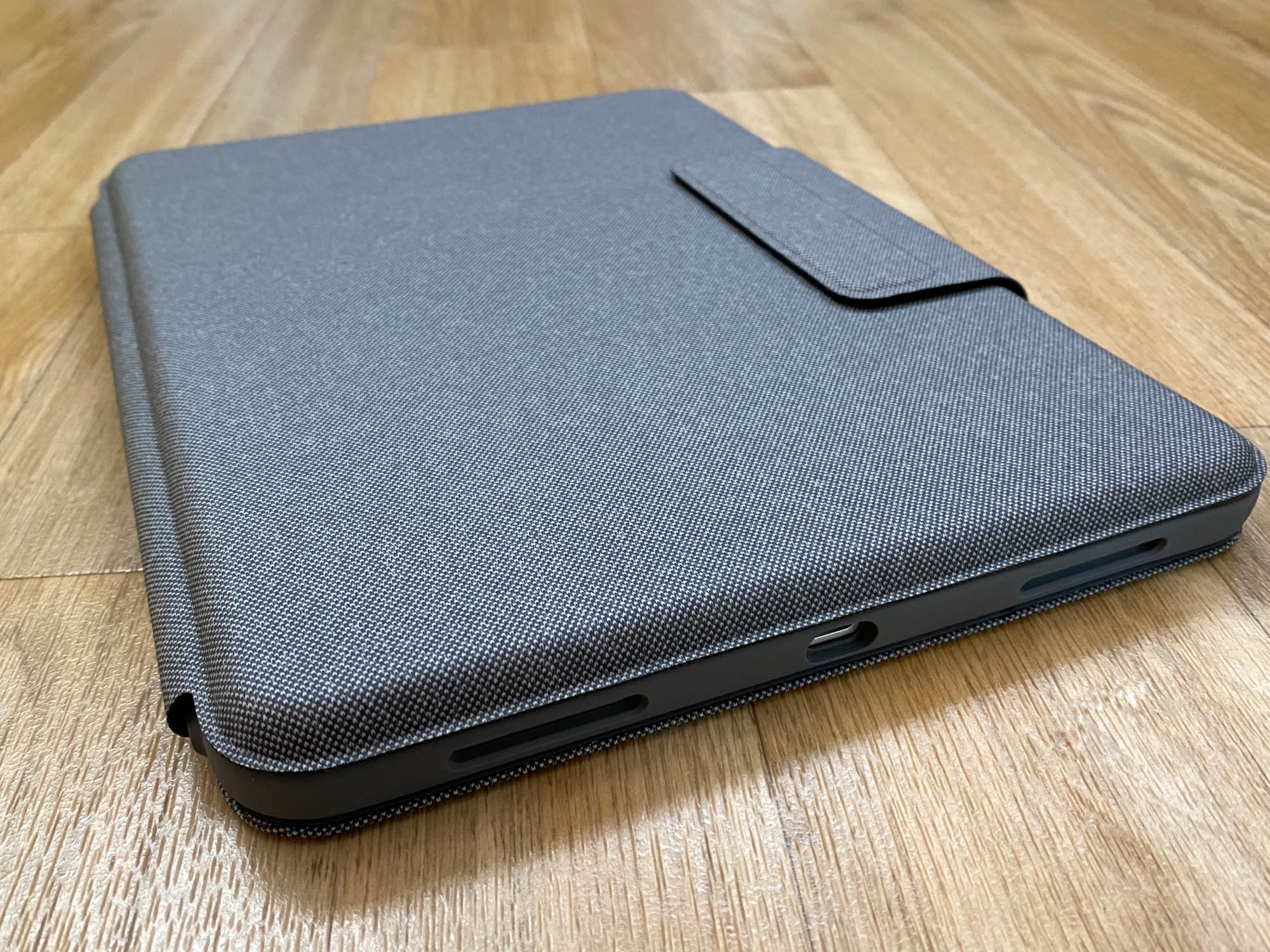
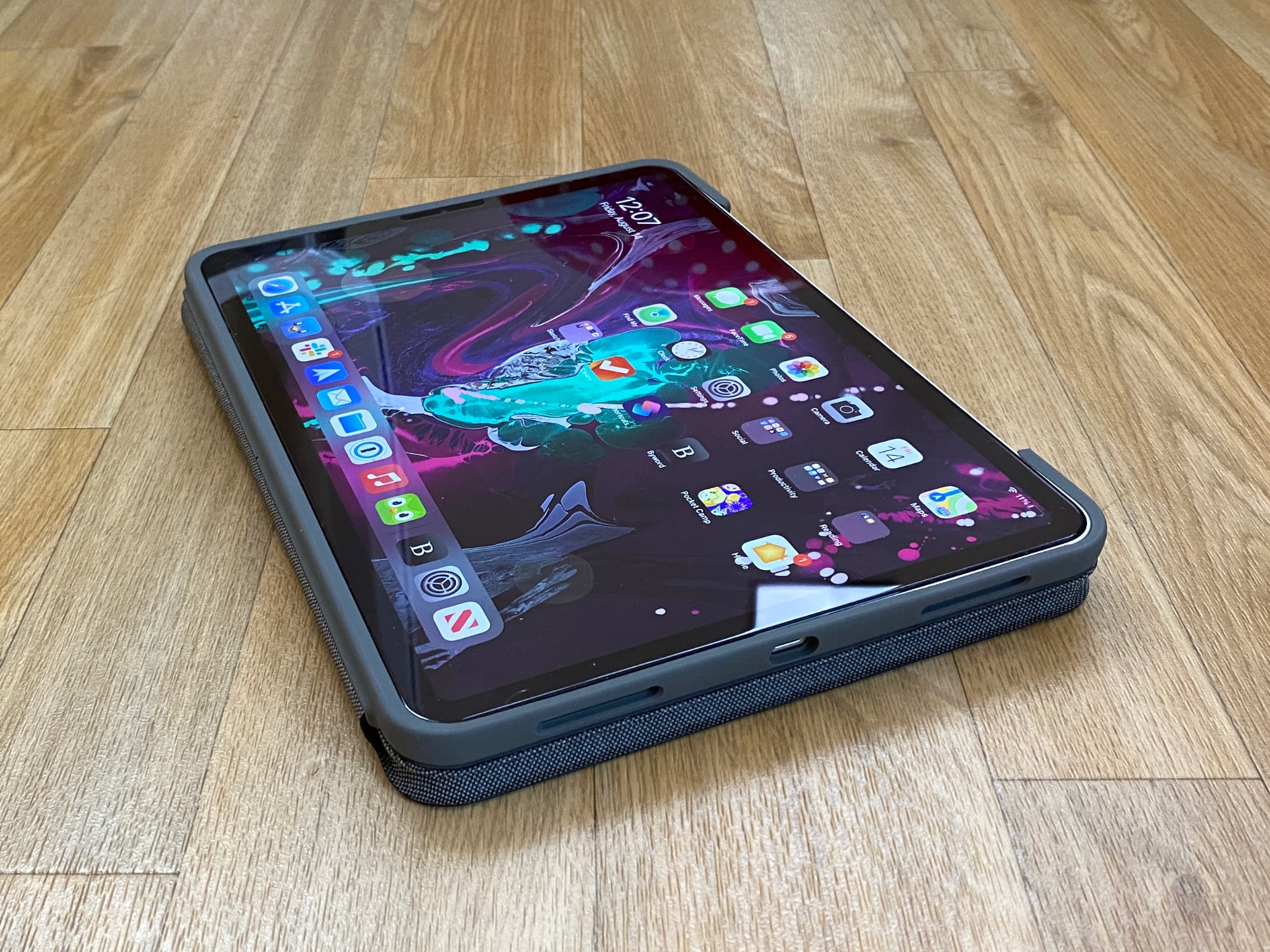
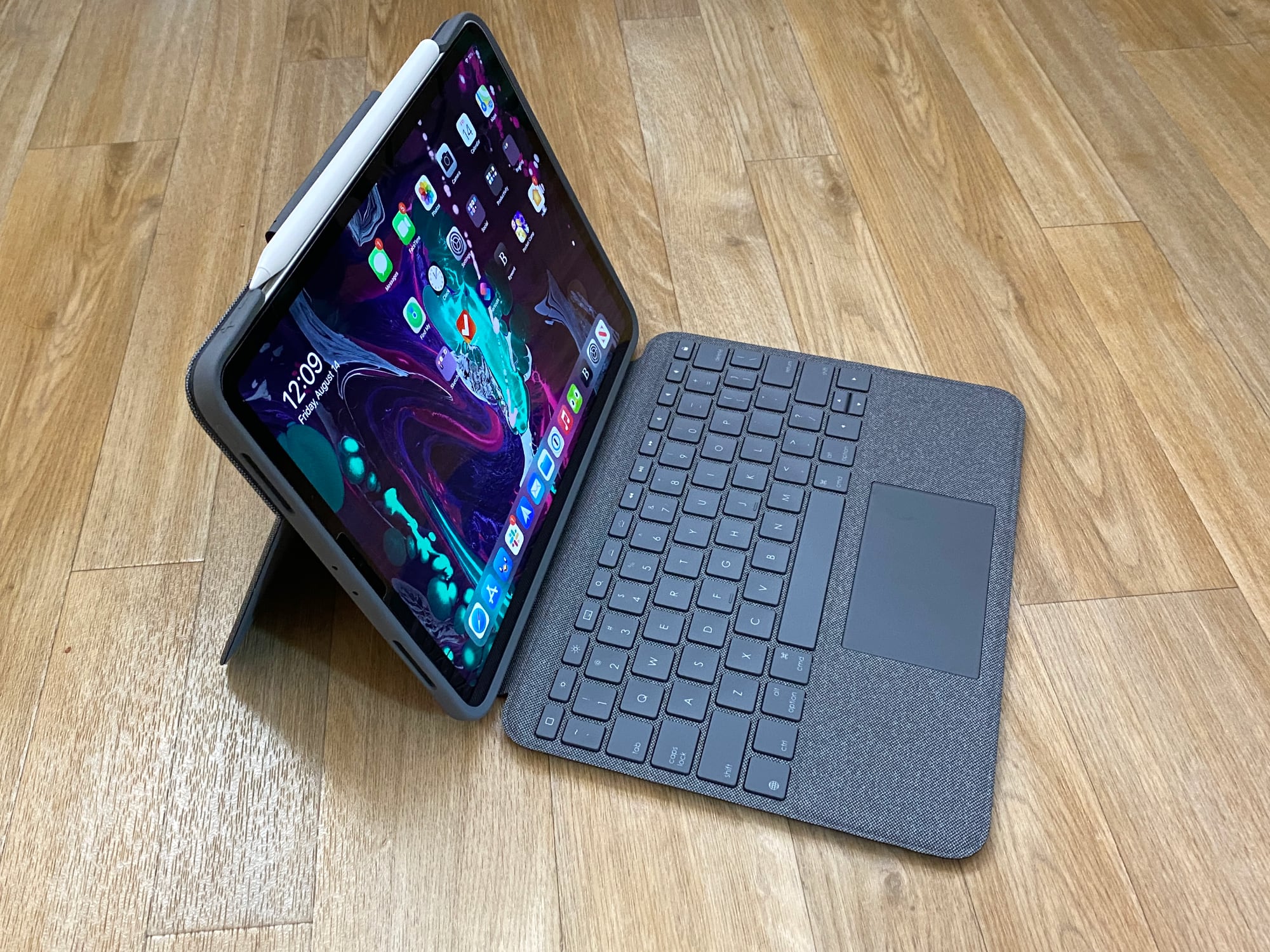
Design wise, the Folio Touch features a case that attaches to the iPad Pro along with an attached keyboard, all of which is covered with a soft gray fabric-like material. It feels pleasant to the touch, and isn't too far off from the fabric material that Microsoft uses for its Surface Pro accessories. I prefer the fabric feel of this case to the more rubbery feel of the material that Apple uses for the Magic Keyboard, and it is less prone to spots, dust, and scuffs.
Even as a person that makes an effort to keep the Magic Keyboard clean, my iPad Pro Magic Keyboard's cover still has some spots from water drips and scuffs from day to day usage, and while it's not too difficult to clean, those spots and marks don't always come off. The Folio Touch isn't going to show spots like these and the color and pattern will mask grime, too.
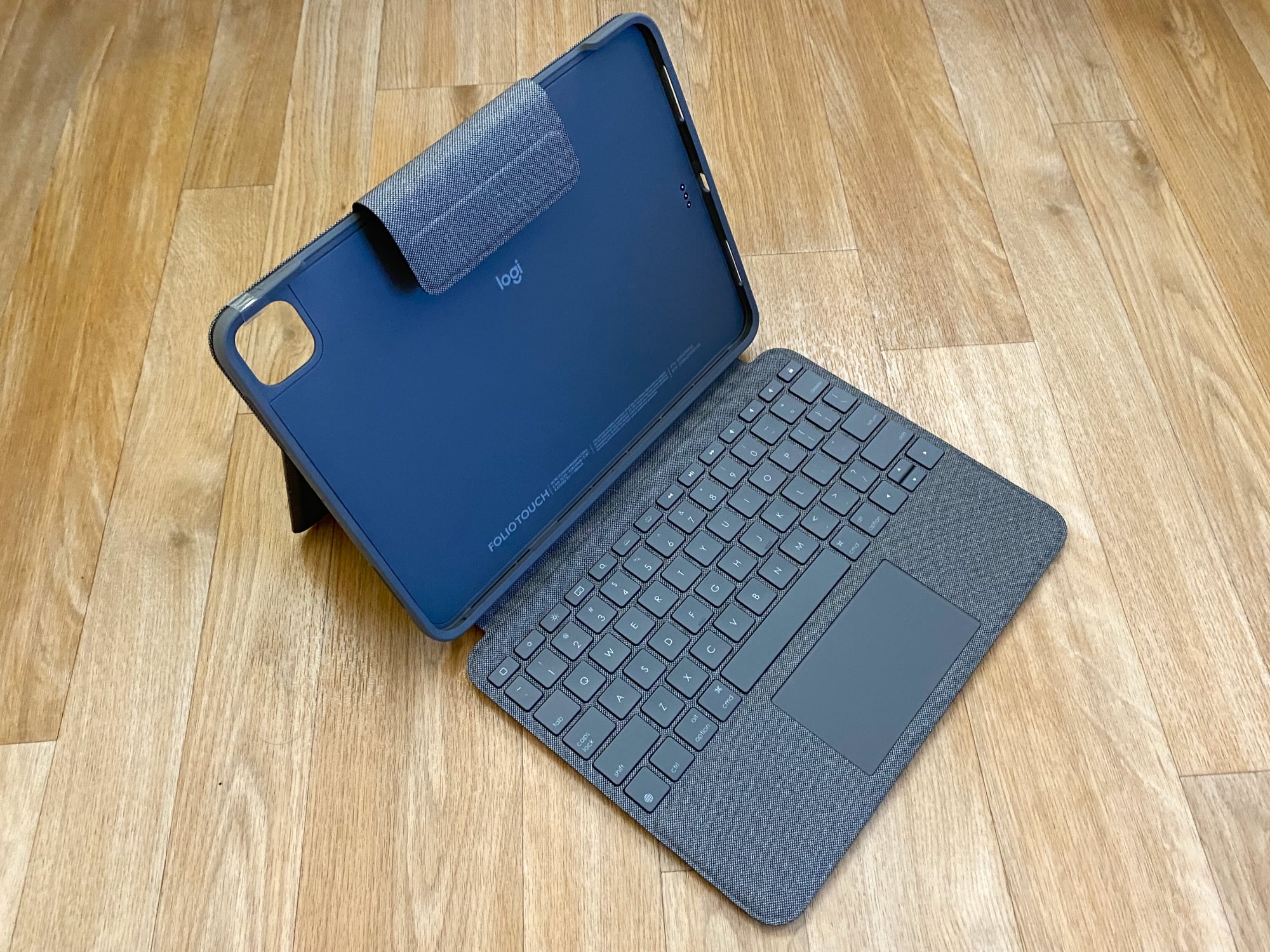
The iPad Pro is designed to fit into the case portion of the Folio Touch, which is made from a malleable rubber material. There's a square-shaped camera cutout that's able to accommodate both the 2018 and 2020 iPad Pro models, plus there's a cutout at the side where the USB-C port on the iPad is located, a Smart Connector attachment point, and a cutout for Apple Pencil charging.
With the Smart Connector, the Folio Touch is powered by the iPad Pro and does not need to be recharged nor does it need Bluetooth to connect. The Magic Keyboard has a passthrough charging feature that lets the iPad Pro be charged through the case through an extra USB-C port - this is not present on the Folio Touch and the standard USB-C port on the iPad must be used. There's a cutout for the USB-C port, but it's small, so if you're using a dock or dongle that's wider than a USB-C connector, you're going to run into trouble.
Because it's a case and a cover, the Folio Touch is a little bit thicker than the Magic Keyboard, which is not ideal because the Magic Keyboard is already bulky. It's still thinner and lighter than most laptops, though, and it can always be removed when not in use. I didn't find it too difficult to get my iPad Pro in and out of the Folio Touch, and it fits like a traditional case. The Folio Touch is a bit longer and wider than the Magic Keyboard, but they're ultimately similar enough in size that there's not much difference using one over the other.
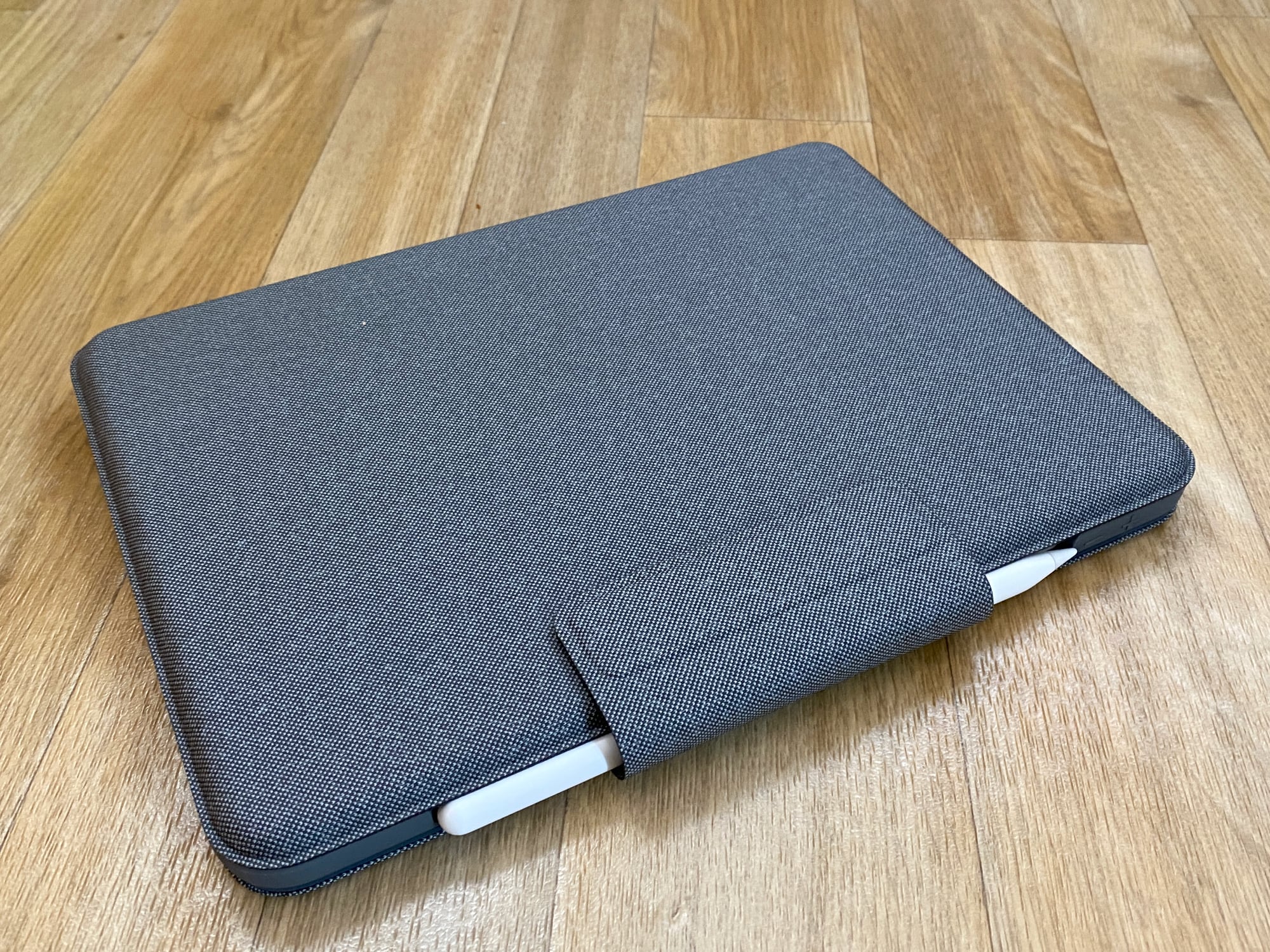
The case feels protective, especially when the keyboard portion is closed, and there is a strong magnetic flap that keeps it shut and holds an Apple Pencil in place. If you have a Logitech Crayon instead of an Apple Pencil, there's a slit in the flap where you can store it so it never gets lost or misplaced.
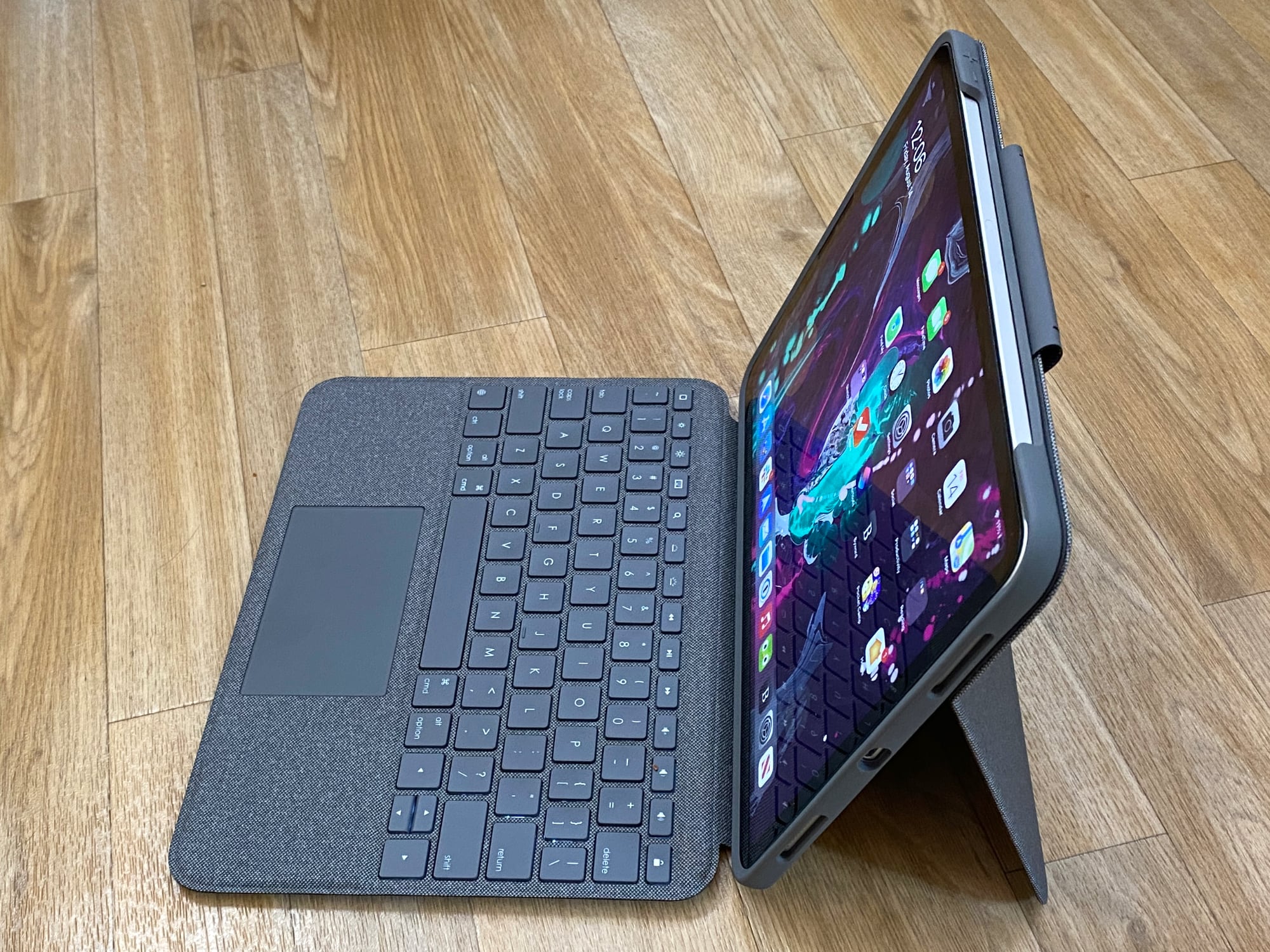
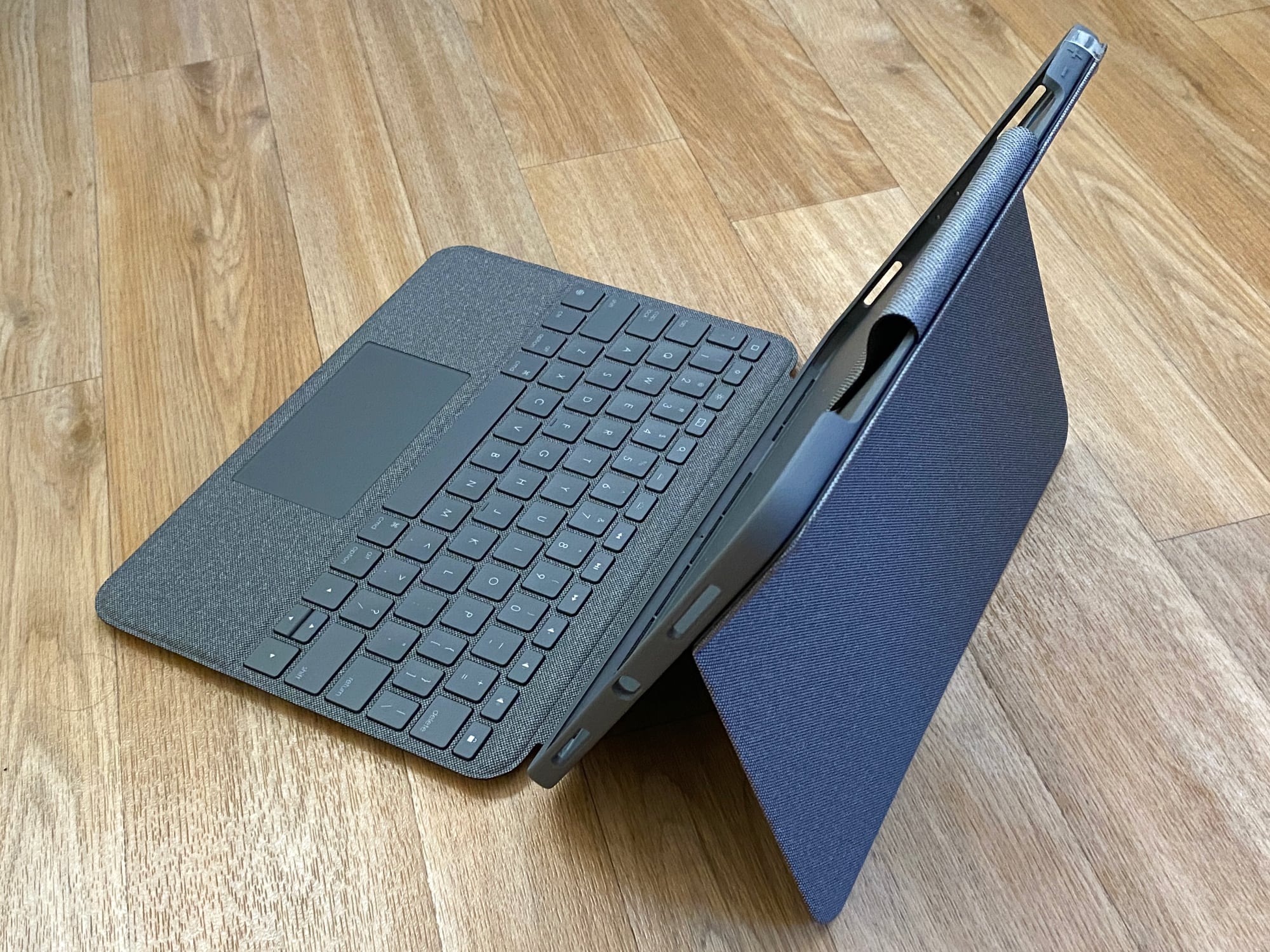
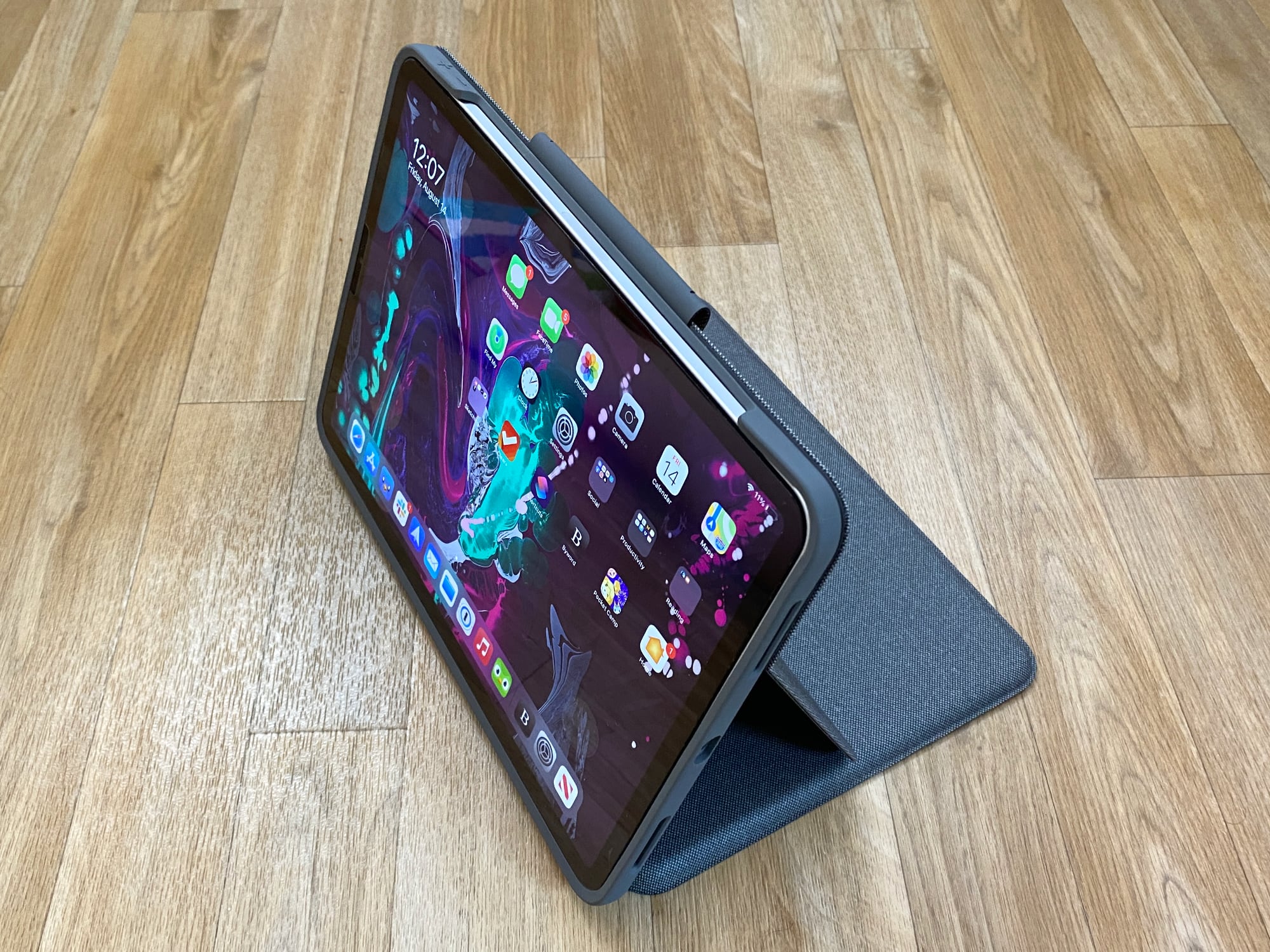
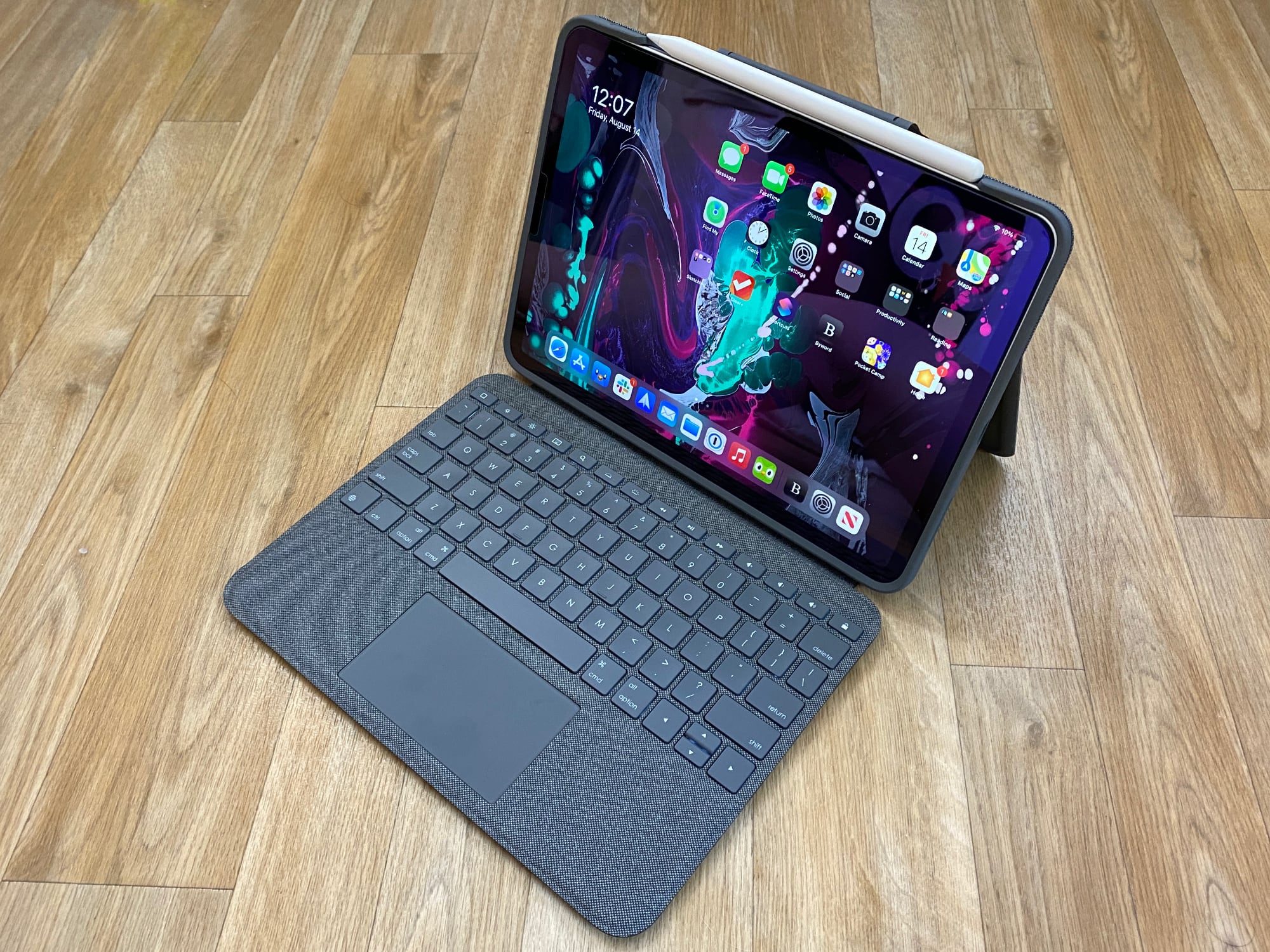
There's a pull-out stand that's at the back of the case that's designed to prop the iPad Pro and upright while you type on the keyboard. The stand is okay. It's not the sturdiest platform and I wasn't a fan of using it in my lap because of the flex of the stand, but it works well enough on a flat surface. I'm not sure that the Folio Touch would be comfortable to use in a lap for a longer period of time due to the instability of the stand, which is something to keep in mind.
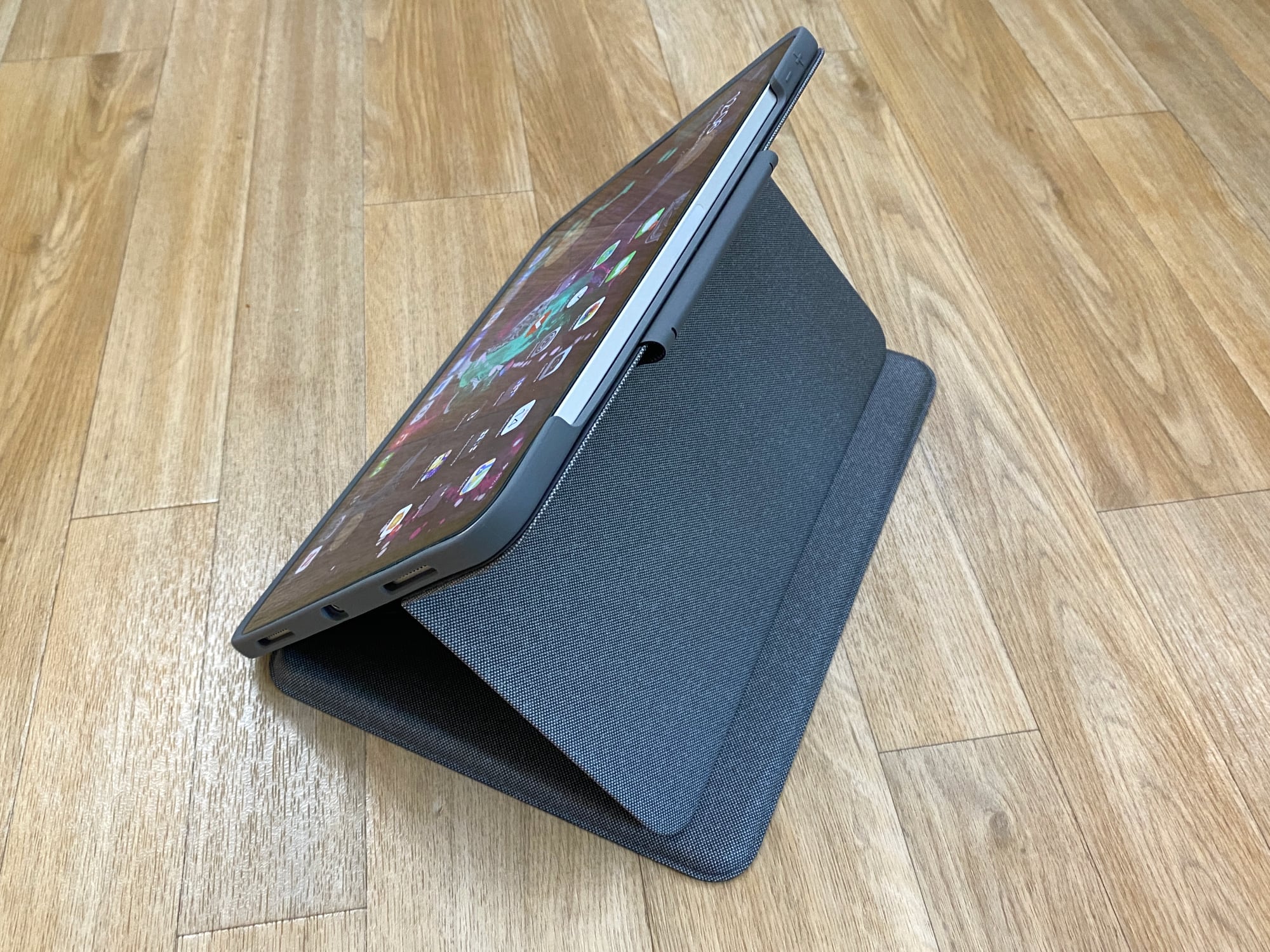
The stand and case have several viewing and usage modes. There's Type Mode where the keyboard is extended and the iPad Pro is propped up with the stand, which is the most obvious way of using the Folio Touch, along with three modes where the keyboard is folded back.
View Mode for watching videos works by folding the keyboard and kickstand backward, Sketch Mode is similar to View Mode but with the stand pushed down to make a slightly angled surface ideal for drawing, and Read Mode is where the keyboard and the stand are both collapsed and the keyboard can be folded back so the iPad can be used in a standard tablet mode without the need to remove the case.
This is one area where the Folio Touch outshines the Magic Keyboard because Apple's keyboard does not fold back and needs to be removed if you want to use the iPad in a flat orientation. The stand offers 40 degrees of adjustment, but since it doesn't operate with a hinge or a locking mechanism, I'm a worried about how it's going to hold up over time. It uses tension, and it seems like a mechanism that could loosen over time, but I don't yet know if this will be the case.
I've been using the Magic Keyboard for iPad Pro for several months, and while it's not difficult to take it off, it's a hassle, so I appreciate the versatility the Folio Touch offers. The design of the case allows the Apple Pencil to be attached to the iPad Pro for charging purposes, and there is sleep/wake functionality for activating the iPad's display when the cover is opened.
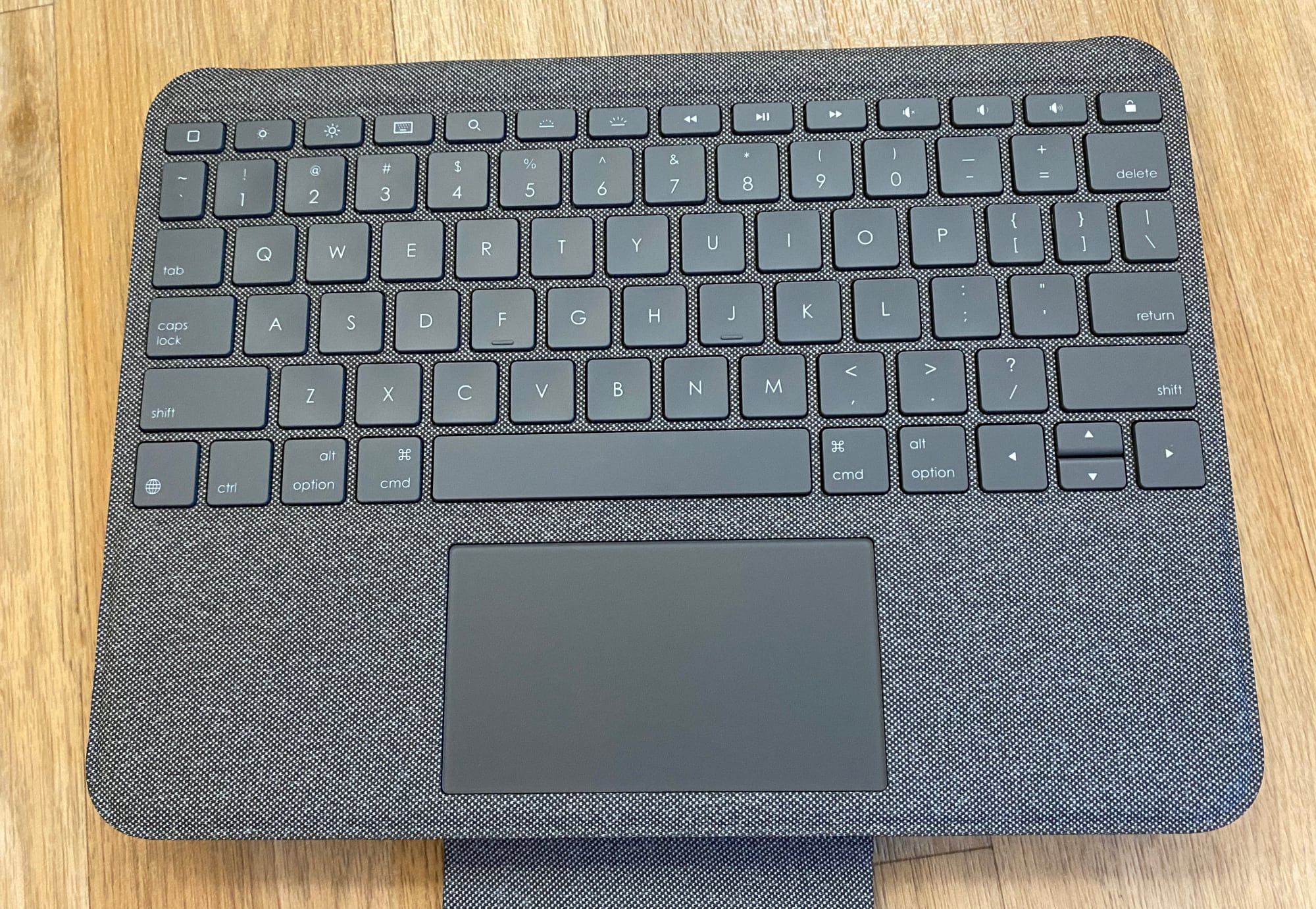
Those who have used a Logitech iPad keyboard before will probably be familiar with the feel of the keys. They're clicky, satisfying to press, and offer a decent amount of travel so there's no serious compromise using the keyboard case over a standard keyboard. The feel is similar to the feel of the keys on the Magic Keyboard, but with a touch less travel and a touch more softness.
If forced to choose, I would say I prefer the feel of the keys on the Magic Keyboard, but the Folio Touch isn't too far off, and it's easy to adjust to a different key feel. The Logitech keyboard offers a function row of keys for adjusting screen brightness, accessing the Home Screen, searching, and controlling sound and media playback, which is something Apple's keyboard doesn't have and a feature I've missed with day to day usage.
The lack of these easy access function keys is one of the negatives to the Magic Keyboard, so anyone who uses those keys frequently might want to consider the Folio Touch. The Folio Touch also has backlit keys, much like the Magic Keyboard. The keys adjust to the ambient lighting but can be adjusted directly on the keyboard.
There's a small trackpad at the bottom of the keyboard on the Folio Touch, which is what puts the case on par with Apple's Magic Keyboard. The trackpad has a smooth, plastic like feel that's hard to distinguish from the trackpad of the Magic Keyboard. Usage is close identical too, but you do need to press harder on the Folio Touch for it to register a click. With Tap to Click turned on, a feature I always use, it doesn't matter.
Both trackpads support the exact same gestures and features that are baked into iPadOS, so there's not much difference between them. Below, I've listed the pros and cons of each keyboard to make it easier to see the difference at a glance and to outline why you might want to choose one over the other.
Magic Keyboard Pros and Cons
Costs $300+
Available for 11 and 12.9-inch models
Adjustable viewing angles, but case must come off for tablet mode
Works well in the lap
Silicone material picks up dust, grime, and fingerprints but feels more premium
Thinner than Folio Touch, but not by too much
No full iPad Pro coverage
Space for charging Apple Pencil
No function keys
Backlit keys
Keys have good travel and feel sturdy under the fingers
Trackpad is responsive and easy to use
Has extra USB-C port built into hinge for accessories
Connects with Smart Connector
Logitech Folio Touch Pros and Cons
$160 price point ($140 cheaper than Magic Keyboard)
Only available for 11-inch iPad Pro
Stand with multiple viewing angles and usage modes, including an option to fold case back
Does not work well in the lap
Soft fabric cover material is less prone to showing dirt
Thicker and heavier than Magic Keyboard
Rubber case protects iPad Pro
Cutout for charging Apple Pencil plus flap to hold it in place when case is closed
Full row of function keys
Backlit keys
Solid key feel with good travel, but not quite as nice as Magic Keyboard keys
Trackpad takes more force for a click
USB-C port is accessible, but doesn't offer an extra port
USB-C port cutout is small and doesn't accommodate all accessories.
Connects with Smart Connector
We also did an article and video that compare the Magic Keyboard to the Logitech Folio Touch, and the video is worth watching if you want to see both keyboards side by side.
Bottom Line
The Magic Keyboard is $300 and the Folio Touch is $160, so going by price alone, it's a good deal and a solid alternative to Apple's iPad Pro keyboard. I appreciate the versatility of the Folio Touch's stand and the cover, and my only complaint is that it's not ideal for lap use.
With the Magic Keyboard, I have to take it all the way off if I want to use my iPad for anything other than typing or watching videos, which isn't the case with the Folio Touch. That's a huge factor for someone who prefers a case that can be left on all the time. There are also function keys that are absent from the iPad Pro.
The Folio Touch doesn't have a USB-C port built in for more convenient charging, but it's still possible to charge with the standard USB-C port on the iPad Pro, so I didn't miss this feature. I like the floating style of the Magic Keyboard, the hinge design, and I prefer the feel of the keys and the trackpad, but it's so close that I think most people will want to save $140 and choose the Folio Touch.
If you've been holding off from purchasing a Magic Keyboard because of its price point, the Folio Touch is a solid alternative. Unfortunately, Logitech only makes the Folio Touch for the 11-inch iPad Pro models at this time, so 12.9-inch iPad Pro owners are stuck with Apple's Magic Keyboard.
As Apple battles with Epic Games over its App Store fees, Facebook is joining the fight over its new Paid Online Events feature, which allows small businesses in 20 countries to charge Facebook users to attend online classes and events.
Facebook wants Apple to waive its 30 percent fee taken from in-app purchases or let Facebook process event payments with Facebook Pay, both of which Apple has refused.
We asked Apple to reduce its 30% App Store tax or allow us to offer Facebook Pay so we could absorb all costs for businesses struggling during COVID-19. Unfortunately, they dismissed both our requests and SMBs will only be paid 70% of their hard-earned revenue. Because this is complicated, as long as Facebook is waiving its fees, we will make all fees clear in our products.
When a business owner schedules an event through Facebook on iOS, Facebook will make it clear that Apple is taking a 30 percent cut of the purchase price. Facebook is waiving its own fees for the feature "for at least the next year."
Transactions done on the web or on Android where Facebook Pay is available will allow business owners to keep 100 percent of revenue generated from paid online events. The feature is meant to allow Facebook Page owners to create an online event, set a price, promote the event, collect payment, and host the event all on Facebook.
Without calling out Apple directly, Facebook's announcement for the new feature says that businesses "shouldn't have to worry about fees charged by platforms" and points out that Apple's fees will make it so businesses will only be paid "70 percent of their hard-earned revenue."
Other companies, including Airbnb and ClassPass, have made similar complaints about Apple's refusal to waive in-app fees for virtual classes and features that have been forced to transition to online due to the ongoing pandemic.
ClassPass, for example, normally allows users to book classes at local gyms, but has instead moved its business online and started offering virtual classes. Under Apple's App Store rules, virtual classes require providing Apple its 30 percent commission, which ClassPass has balked at. ClassPass ultimately pulled virtual classes from the iPhone app.
Airbnb offers online experiences like virtual cooking classes and meditation sessions, which Apple also collects fees from. Apple has refused to grant special permission to apps like ClassPass, Facebook, and Airbnb in the name of fairness for other developers who are subject to the fees.