https://ift.tt/2PTPHjb
This article shows you how to change the icon of any file or folder on your Mac. Apart from adding a bit of personal style to your desktop, there are good practical reasons why you might want to do so.

For example, perhaps you've dragged some folders to your Dock so that you can easily drop items into them, but you don't want to have to keep hovering your mouse over their generic blue icons to identify which is which.
 Carbon Folders by necramar
To customize a file or folder icon, simply follow the steps below. You can use your own pictures as icons. Alternatively, there are a wealth of icon libraries hosted online, so you could try a web search for free icon pack downloads for Mac.
- Double-click the picture or icon you want to use to open it in your Mac's built-in Preview app.

- Choose Edit -> Select All in Preview's menu bar, or use the keyboard shortcut Command-A.

- Choose Edit -> Copy in Preview's menu bar, or use the keyboard shortcut Command-C.
- Next, right-click (or Ctrl-click) the file or folder whose icon you want to change and select Get Info from the contextual menu.

- Click the icon in the top left of the Info panel to select it.
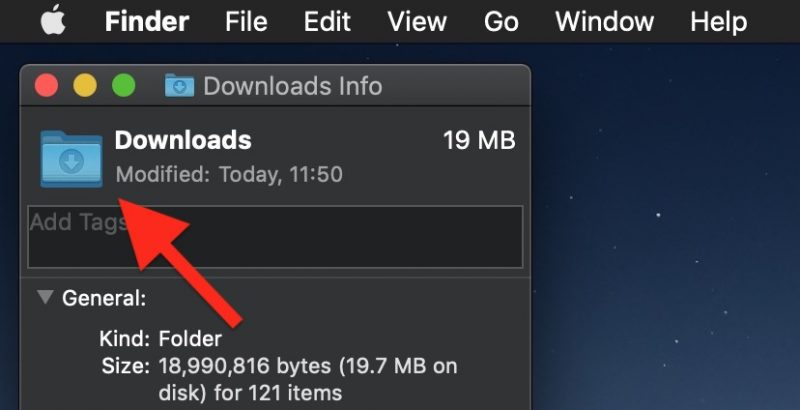
- Choose Edit -> Paste from the menu bar, or use the keyboard shortcut Command-V.

- Click the red traffic light to close the Info panel.
If you want to revert a file or folder to its default icon, open its
Get Info panel again, click the icon in the panel to select it, and choose
Edit -> Cut or use the keyboard shortcut
Command-X. Finally, you can also select and copy (
Edit -> Copy) a file or folder's icon in its Info panel for use elsewhere.
Discuss this article in our forums

from MacRumors: Mac News and Rumors - All Stories https://ift.tt/2PpzkLI