Tuesday, February 12, 2019

Five of the Best Camera Apps on iOS

http://bit.ly/nvEILJ

There's nothing wrong with the stock Camera app that comes on every iPhone, but there are many third-party camera apps available in the App Store that add additional functionality, filters, and other effects that are worth checking out.

For our latest YouTube video, we asked MacRumors readers for their favorite camera apps, and compiled a list of the best and most popular options. If you're looking to take your iPhone photography up a notch, make sure to check these out.

Subscribe to the MacRumors YouTube channel for more videos.

Halide


Halide, priced at $5.99, was the top pick when we asked for preferred camera apps. More MacRumors readers chose it than any other camera app, which is no surprise because Halide offers a rich feature set.

Halide offers up full manual controls for shutter speed, ISO, and white balance, along with a live histogram for perfecting exposure. The swipe-based interface is easy to use, and you can capture photos in RAW, JPG, TIFF, or HEIC formats.

There are depth controls for newer iPhones, manual and autofocus tools, and for iPhone XR, there's a Depth Capture feature that works with pets, food, and other items, unlike the native Depth Control feature. Halide just added a new color histogram, which is a nifty option that lets you make sure you have the right exposure to preserve color detail and make colors pop. Halide has a new app coming out in the near future, so keep an eye out for that.

ProCam 6


ProCam 6, priced at $5.99, was also a popular choice with MacRumors readers. ProCam offers full manual control options for shutter speed, ISO, focus, and white balance, along with tap-based manual focus assist, built-in warnings for overexposure, and live values for metrics like ISO and shutter speed.

You can choose your video frame rate and resolution when taking video, or choose from multiple shooting modes like Night Mode, Burst Mode, Slow Shutter, and 3D Photos. Like most of the camera apps on this list, ProCam 6 lets you capture RAW, JPG, TIFF, and HEIF images, and there's a live light level histogram.

For editing after capturing a photo, ProCam 6 includes 60 filters, 17 lenses for fun effects, multiple adjustment tools, and video editing capabilities. There are custom profiles for saving your favorite shooting modes and camera settings, and Siri Shortcuts are supported.

Obscura 2


Priced at $4.99, Obscura has a simple swipe-based interface that puts the tools you need right at your fingertips, and it's ideal for one-handed use.

You can capture photos in RAW, HEIC, and JPG formats, take Live Photos, and capture images with depth on newer iPhones. There are tools for adjusting white balance, exposure, and focus, as well as ISO and shutter speed, plus there's a histogram for adjusting exposure.

There are 19 included filters available, which can be used in post processing or with live previews, and there are additional filter packs available for purchase in the app. Swiping down from the top of the app gives you access to your Photo Library, and swiping up on a selected photo shows all the metadata you might need to know.

Focos


Focos is a free download, but charges a fee for pro tools. It costs $0.99 per month or $11.99 for lifetime access. Focos offers full manual controls for capturing images, along with options for depth control, portraits, adjustable bokeh, and more.

You can import your Portrait Photos and adjust the bokeh (aka background blurring) effect, and there are options to simulate lens effects like creamy, bilinear, swirly, and reflex effects. There are also options to add lighting and edit depth maps.

Moment


Moment, like Focos, is a free download but requires a $4.99 purchase to unlock Pro tools. Moment offers tools for manually adjusting exposure, ISO, shutter speed, focus, white balance, and image format, which lets you customize the look of your photos beyond what you can do with the stock Camera app.

RAW shooting is supported, as are HEIF and HEVC, Apple's newest photo and video formats. Moment offers an Anamorphic lens for shooting letterbox style photos and videos, and there's a live histogram for perfecting exposure. You can choose between different lenses and you can get super wide angle shots when capturing video.

You have to pay for manual controls and advanced video tools, but it's worth the $4.99 if you want full control over how your iPhone photos turn out.

Conclusion


All of these camera apps are fantastic, but they're just a small sampling of the photography-oriented app options in the App Store. If we missed your favorite camera app, make sure to let us know which one you prefer in the comments.

Please feel free to share your favorite photo editing apps too, because we'll be covering that in an upcoming video and article.


This article, "Five of the Best Camera Apps on iOS" first appeared on MacRumors.com

Discuss this article in our forums


from MacRumors: Mac News and Rumors - All Stories http://bit.ly/2tfU9f8

Review: 2019 Nissan Altima Offers CarPlay Standard Alongside an Updated NissanConnect Infotainment System

http://bit.ly/2SGFIPB

Since debuting CarPlay in the 2017 Maxima, Nissan has been gradually expanding support for Apple's in-car platform throughout much of the carmaker's lineup, integrating with its NissanConnect infotainment system.

I've had an opportunity to spend some time testing out CarPlay and NissanConnect on a new 2019 Nissan Altima, one of the most popular midsize sedans on the market, and I've found it to be a solid combination.
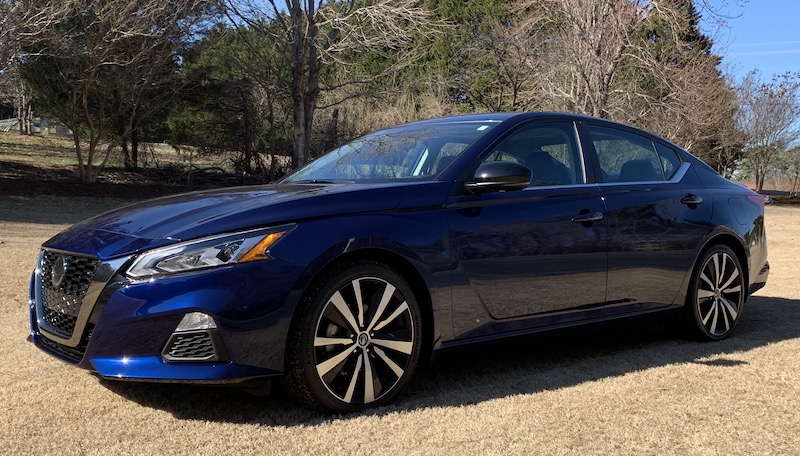

For the redesigned Altima, Nissan is offering CarPlay standard across all trims, meaning that even the base model starting at $23,900 will support it. That's a welcome distinction from many other vehicles where a higher-level trim or a special package is needed in order to get CarPlay. Not all Nissans include CarPlay on the base trims, but the company tells me that it's moving in that direction and the Altima redesign for 2019 was a good opportunity to make it a priority.
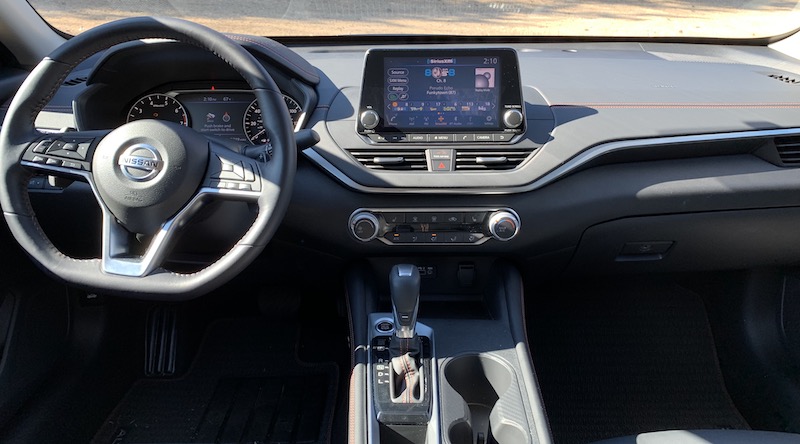

My tester was an Altima SR with front-wheel drive, which represents the model's second-level trim and starts at $25,250. It includes a spacious 8-inch touchscreen display atop the center stack that's standard across the lineup. The SR trim does not include built-in navigation or more advanced NissanConnect subscription services, but it offers a good idea of what you can get at a relatively low-level trim that minimizes the hit to your pocketbook.

NissanConnect


The Altima comes with a standard 8-inch touchscreen and an updated version of NissanConnect that is similar to versions found in other recent Altima models but includes some improvements in visual appeal and performance, although some of the screens do appear a bit busy and cluttered.
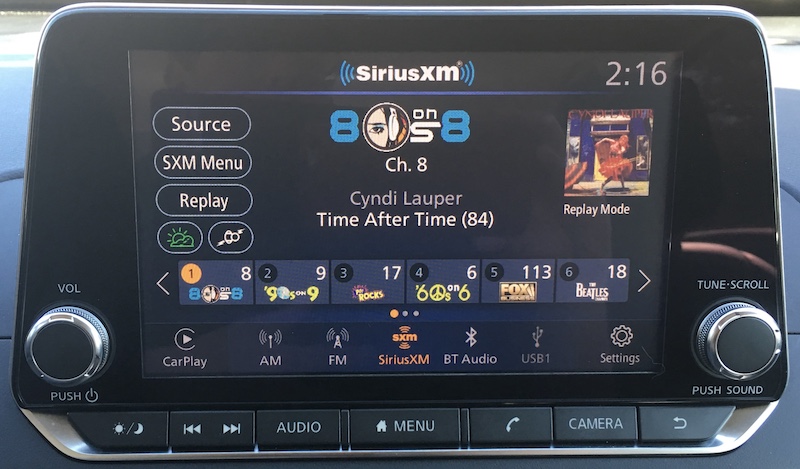

The 8-inch touchscreen is large enough that it's easy to hit most icons on the touchscreen, whether it be in CarPlay or in NissanConnect, and you can customize some of the NissanConnect screens to make it easy to jump to your favorite audio sources or other functions. Nissan has also provided some hardware buttons in a strip below the touchscreen, as well as a volume knob at the left side and a tune/scroll knob at the right side.

Those buttons offer convenient access to some features, such as a prominent Home button to take you back to the NissanConnect home screen, a Phone button to jump into the phone app (either NissanConnect or CarPlay), an Audio button to select sources or see the main audio screen, buttons for switching audio tracks or presets, and of course a Back button to get you out of whatever you're currently doing.
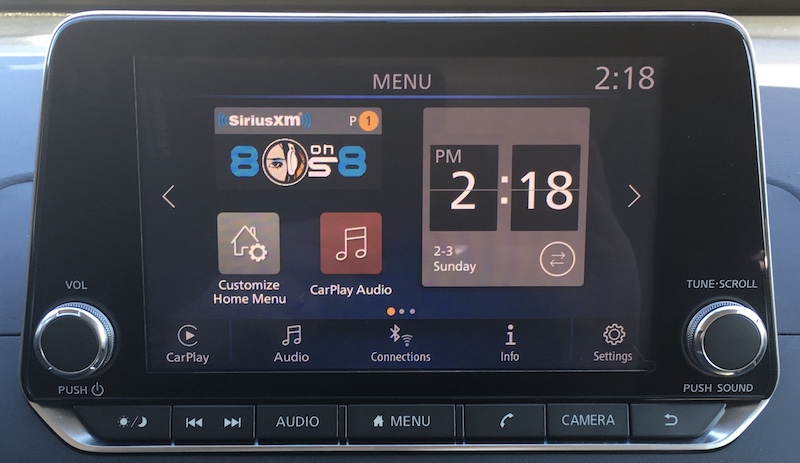
One of three available home screens – clock widget in particular could use an improved design

There's also a dedicated Camera button that on my tester simply allowed for adjusting picture quality for the rear camera but is more useful on higher-level trims that include features such as a front camera or a surround-view camera system.

As in many other vehicles, the Altima's touchscreen can attract some fingerprints that are most visible in direct sunlight, but there's a little bit of a matte finish to help reduce fingerprints and glare.
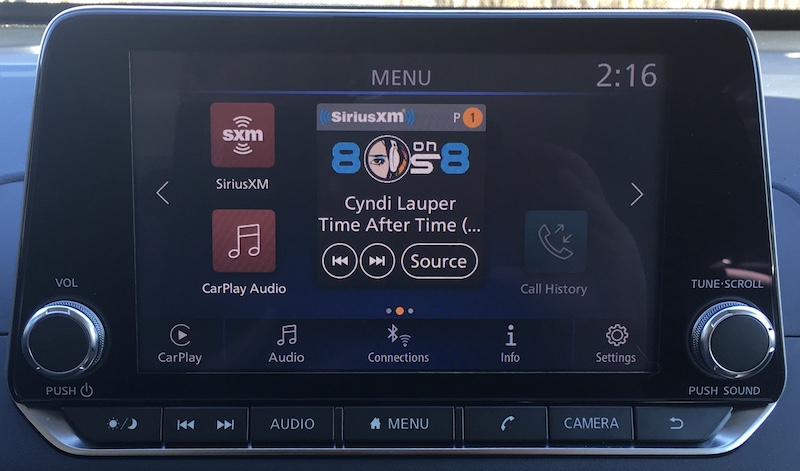
One of the home screens with shortcuts surrounding a central audio widget

On the software side, the Altima's implementation of NissanConnect actually includes three different home screens, all of which are customizable with various widgets and shortcuts. Widgets can share live bits of information like clock, phone, and audio apps, while shortcuts are simply icons that let you hop into a specific function or audio source.
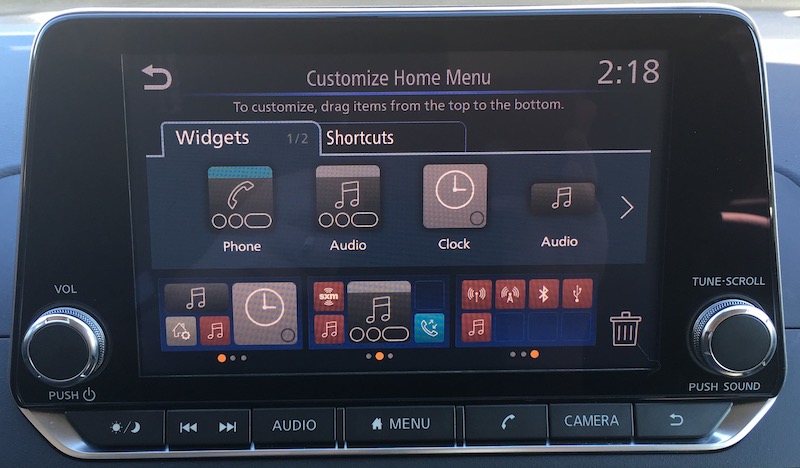

Each home screen is based around a 4x2 grid of spaces, and you can fill up those spaces with whatever combination of widgets and shortcuts will fit in your layout. Widgets can take up larger spaces such as 2x1 or 2x2, and then you can scatter 1x1 shortcut icons in any remaining spaces.

Once you have your home screens set up, you can easily swipe between them, so it's convenient to have something like a central home screen with your most used functions and then a swipe to the left or right can access more focused home screens, but the choice is yours.

CarPlay


Unsurprisingly, the Altima's CarPlay implementation is a wired one, and you can use either the USB-A or USB-C port up front to connect to the system. CarPlay setup was seamless, as CarPlay popped up on the car's display the instant I plugged my phone in, without having to jump through any hoops other than granting permission on my phone to allow CarPlay to function while the phone was locked.
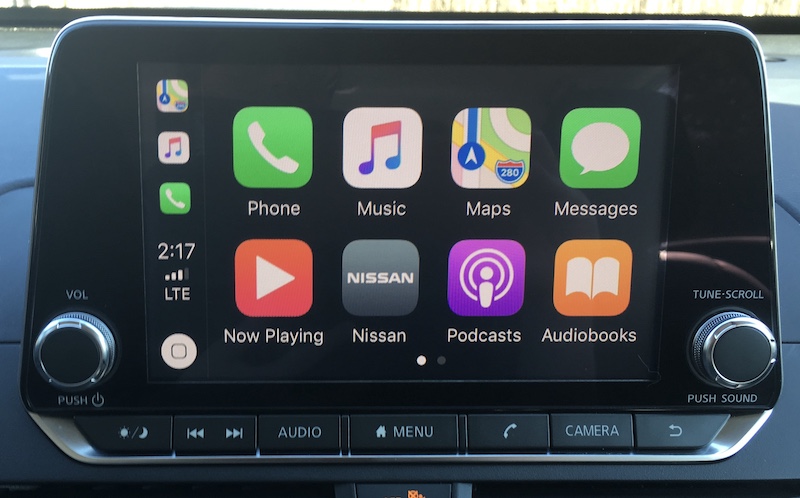

CarPlay appears big and bright on the large 8-inch screen with a traditional aspect ratio that includes the usual 4x2 grid of icons on the home screen. In addition to all of your Apple apps and CarPlay-compatible third-party apps, the home screen also includes a Nissan app icon that makes it easy to jump back to the NissanConnect system. You can also use the hardware home button centered under the screen if you prefer a more tactile method.
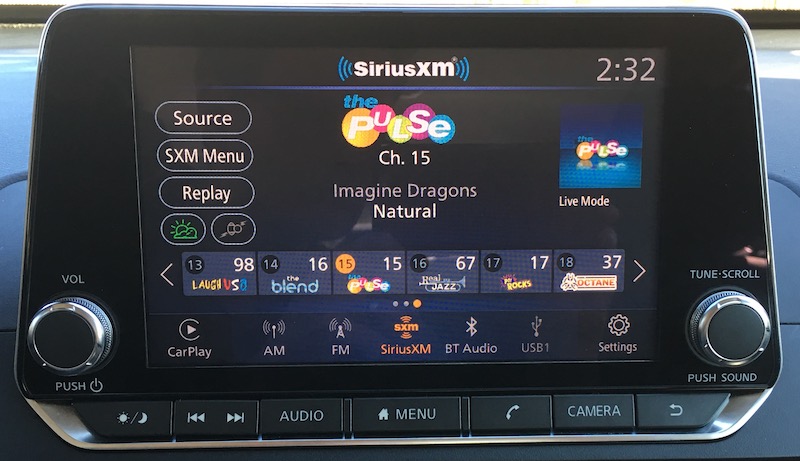
CarPlay icon at left side of launch bar at bottom of main audio screen

Going in the other direction, the NissanConnect audio screens by default place an icon at the lower left that will take you to functions for a paired phone or, if an iPhone is connected via USB, into CarPlay.
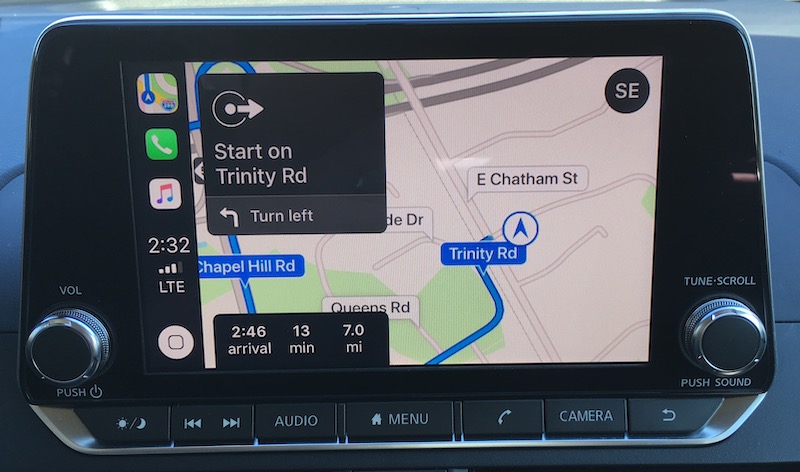

My preference for infotainment systems is for there to be some way to display information from the native system alongside CarPlay, whether it be a split widescreen or portrait display or even something like FCA's Uconnect system with status and menu bars that can display a little bit of information for increased integration. The Altima doesn't offer that, but it does make it fairly easy to jump back and forth.
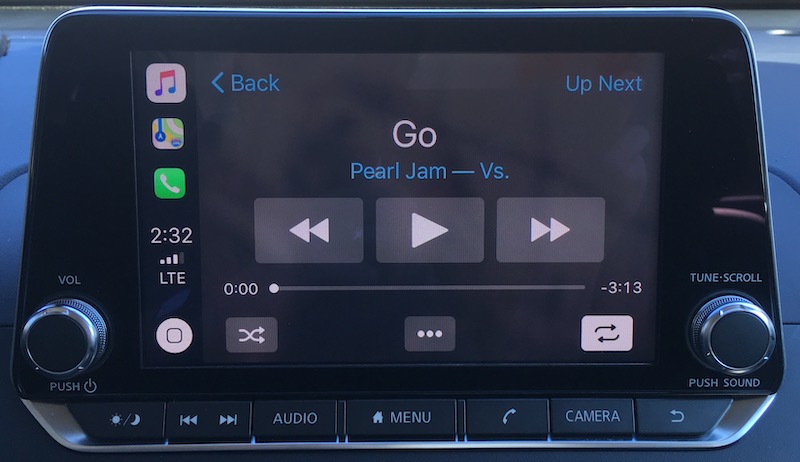

Fortunately, car manufacturers are also moving toward digital driver's displays that can display some additional information and be customized to suit your preferences. On the Altima, the driver's display can be set to show full audio track information, or if you choose a digital speedometer, for example, you can have audio information displayed at the bottom of the screen. Unfortunately, only the channel name is shown for SiriusXM, but for other sources (Bluetooth, USB, FM radio when track data is broadcast) it will display the song name.
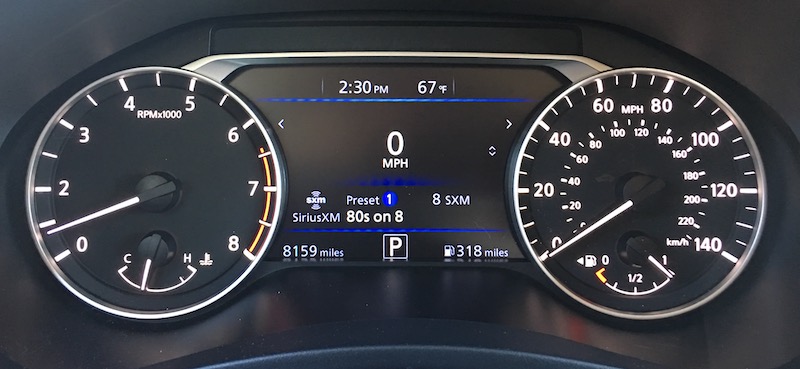
Driver's display with digital speedometer and SiriusXM channel shown below

As is nearly universal among car manufacturers, the voice control button on the Altima's steering wheel serves dual duty, with a short press bringing up the Nissan assistant and a long press activating Siri. The hardware Tune/Scroll knob can also be used to control the CarPlay interface if you prefer a more tactile feel than the touchscreen, but its location at the far side of the display from the driver makes it a bit inconvenient, so you're pretty much going to want to use either the touchscreen or Siri to control CarPlay.
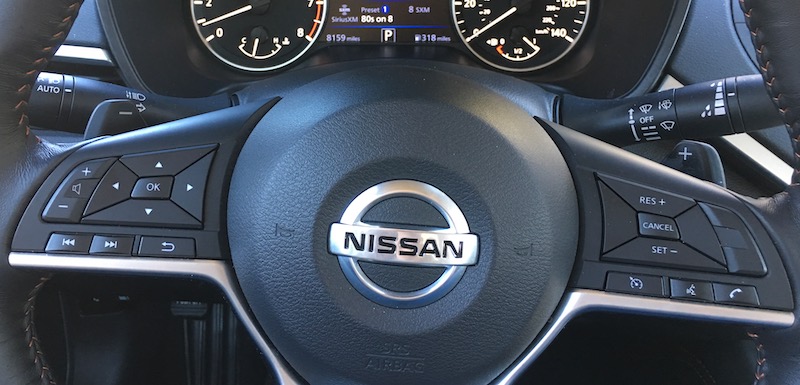
Siri/voice control at bottom center of right cluster

Ports and Connectivity


The 2019 Altima is among the growing number of vehicles offering USB-C ports for connecting devices. At the base of the center stack is a smartphone storage tray (which is a bit too small for an iPhone XS Max with a Lightning cable sticking out the bottom) and a pair of USB ports: one USB-A and one USB-C.
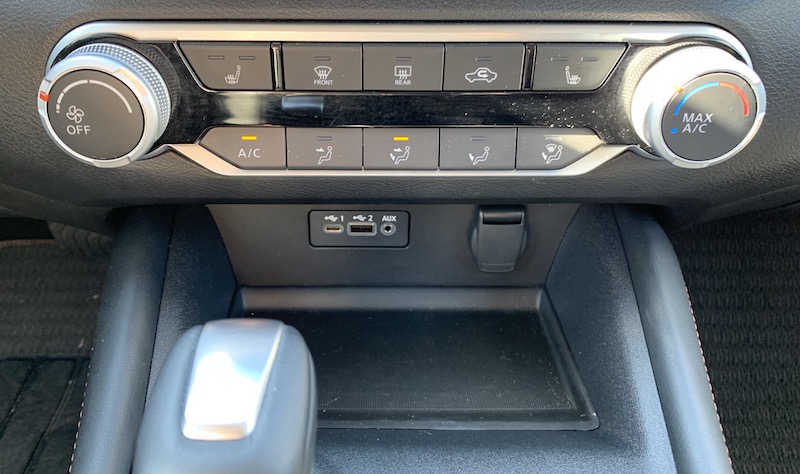

It's certainly nice to see USB-C starting to make its way into vehicles, as even though USB-A is still common, cars are designed to last ten years or more and it's good future-proofing to include these newer ports even though they're still just starting to gain traction with consumers.
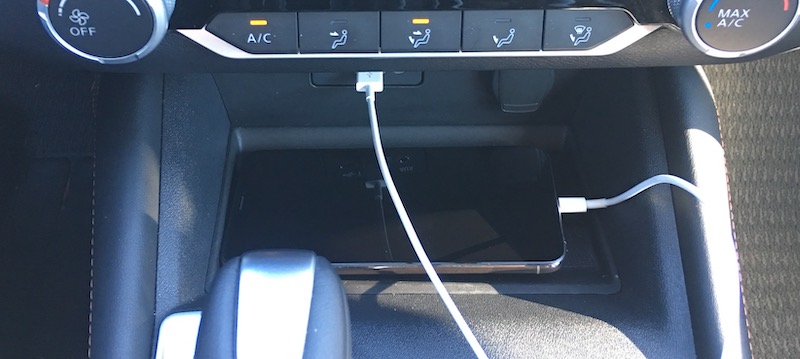
iPhone XS Max in phone tray putting strain on Lightning cable

There is a second set of USB-A/USB-C ports on the back of the center console for rear passengers, but these are only for charging, not for connecting media devices to the NissanConnect system for playback. Nissan does not offer wireless charging or Wi-Fi hotspot functionality as options on the Altima.
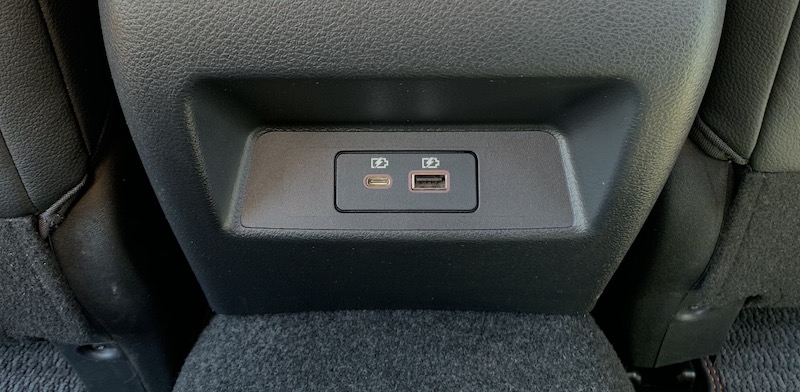
Rear USB-A and USB-C ports

Wrap-up


The Altima along with the Toyota Camry and Honda Accord remain the most popular midsize models in a shrinking sedan market, with those top manufacturers seeking to maintain some momentum while others scale back or even eliminate their sedan models in favor of crossovers that are dominating sales growth. As a result, the redesigned 2019 Altima brings some nice enhancements across the board, and the in-car technology is no exception.

I appreciate the spacious 8-inch touchscreen and CarPlay support across the board on Altima trims, giving everyone easy access to the ecosystems they're already familiar with on their phones. If anything, CarPlay is even more important to have on lower-level trims where built-in navigation isn't available, so it's great to see Nissan going all-in on CarPlay with the Altima and other models as their redesign cycles allow.

The native NissanConnect infotainment system is intuitive with a customizable interface, and the display is bright with vivid colors to help the interface elements stand out. Some of the pages can get a bit cluttered, and I'd like to see a little more modernization of some of the user interface elements, particularly the home screen widgets and shortcut icons.

For a mainstream midsize sedan intended for mass market appeal, the Altima does a solid job of presenting a clean and useful experience with NissanConnect and offering convenient integration with CarPlay.

The 2019 Nissan Altima starts at $23,900 with CarPlay included standard. A new all-wheel drive option is available for a $1,350 charge on all trims other than the high-end ones equipped with the VC-Turbo engine, and you can push pricing all the way to over $37,000 if you choose to max things out with an Edition ONE VC-Turbo trim.

Related Roundup: CarPlay
Tag: Nissan

This article, "Review: 2019 Nissan Altima Offers CarPlay Standard Alongside an Updated NissanConnect Infotainment System" first appeared on MacRumors.com

Discuss this article in our forums


from MacRumors: Mac News and Rumors - All Stories http://bit.ly/2GF6IZg

Pixelmator for iOS Gains iPad Pro Optimization, Apple Pencil 2 Support

http://bit.ly/2GEQqQf

The Pixelmator app for iOS devices received a major update today, adding support for Apple's newest iPad Pro models.

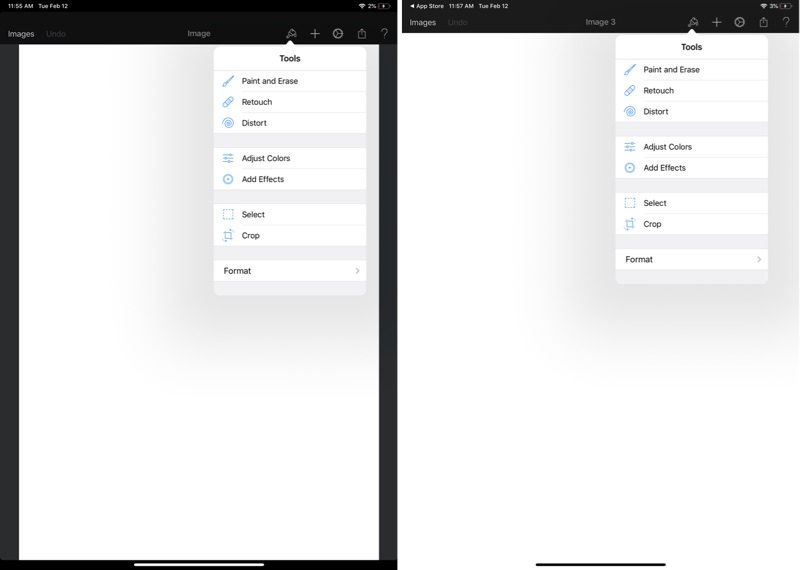
The app's interface has been optimized for the 11 and 12.9-inch iPad Pros, and the double tap gesture introduced with the Apple Pencil 2 can now be used in Pixelmator.

Pixelmator on 11-inch iPad Pro before update on left, after update on right

According to the release notes for the update, Pixelmator will respect the user's global settings for the double tap gesture, so if it's set to switch to the erase tool, for example, it will be set that way in Pixelmator as well.

In addition to iPad Pro optimization, the new version of Pixelmator addresses several bugs, as outlined in the full release notes:
- The Pixelmator interface has now been optimized for the newest iPad Pro.
- The double-tap gesture of the new Apple Pencil is now supported.
- Wherever possible, Pixelmator will respect your global settings for the double-tap gesture.
- The Noise, Hue, Miniaturize, and Hue effects were not working in the Photos extension. Fixed.
- The canvas was being incorrectly centered in both the app and the Pixelmator Photos extension. Fixed.
- After making a selection and movi​ng it, tapping a part of the selection outside the bounds of the original layer would deselect the layer. Fixed.

Pixelmator for the iPad can be downloaded from the App Store for $4.99. [Direct Link]


This article, "Pixelmator for iOS Gains iPad Pro Optimization, Apple Pencil 2 Support" first appeared on MacRumors.com

Discuss this article in our forums


from MacRumors: Mac News and Rumors - All Stories http://bit.ly/2UWPWca

Apple Clashing With Publishers Over Subscription News Service

http://bit.ly/2SGy47R

Apple is having trouble negotiating financial terms with publishers for its planned subscription news service, reports The Wall Street Journal.

Said to be like "Netflix for news," the planned subscription news service is designed to let users read unlimited content from participating publishers for one monthly fee, set at about $10 per month.


Major publishers are said to be resisting Apple's proposed revenue split, which would provide Apple with half of the revenue from the service. The other half of the revenue would be split among publishers "according to the amount of time users spend engaged with their articles."

Apple does not want to provide credit card information or email addresses to publishers, details that news sites use to create customer databases and market their products.

The New York Times and the Washington Post, two major publications with paywalls and subscription offerings, have not inked deals with Apple because of concerns over the terms at the current time. The Wall Street Journal reportedly also has concerns, but its conversations with Apple have been described as "productive."

Most sites charge $9.99 or more per month for access to their articles. The New York Times prices its basic subscriptions at $15 per month, while The Washington Post charges $10 per month and The Wall Street Journal charges $39 per month. Providing subscriptions through Apple could cause current subscribers to swap over, leading to lower revenue.

All three sites already offer some content on Apple News and are allowed to offer up subscriptions. News organizations are able to keep 70 percent of subscription fees for the first year for customers who sign up for Apple News, while Apple keeps 30 percent. After a year, Apple's cut drops to 15 percent.

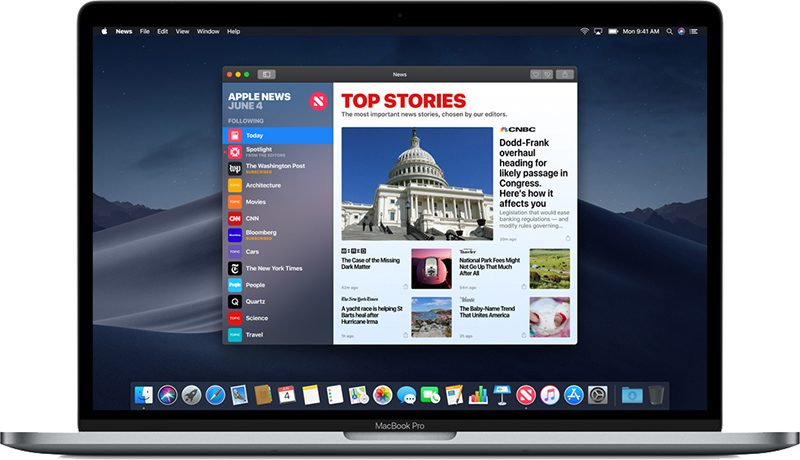
Apple is planning to launch the subscription news service later this year as a paid option in the Apple News app. Other rumors have suggested that Apple is also planning to provide access to a number of popular magazines for $9.99 per month as it incorporates its Texture acquisition into Apple News.

It's possible that the one $9.99 per month fee would include access to both news content and magazines, though these could also be separate payments.

With the news service, and a planned television service that's also coming in 2019, Apple is aiming to boost its overall services revenue. With flagging iPhone sales, services has become an increasingly important category for Apple, allowing the company to generate revenue from its huge active install base.

Apple has discussed bundling its news service with iCloud storage tiers and its television service, so an all-in-one package from Apple could be on the horizon.


This article, "Apple Clashing With Publishers Over Subscription News Service" first appeared on MacRumors.com

Discuss this article in our forums


from MacRumors: Mac News and Rumors - All Stories http://bit.ly/2SuCakd

Waze App for iOS Gains Siri Shortcuts Support

http://bit.ly/2N0U9Zm

Google-owned mapping app Waze was today updated with support for the Siri Shortcuts feature that Apple introduced in iOS 12.

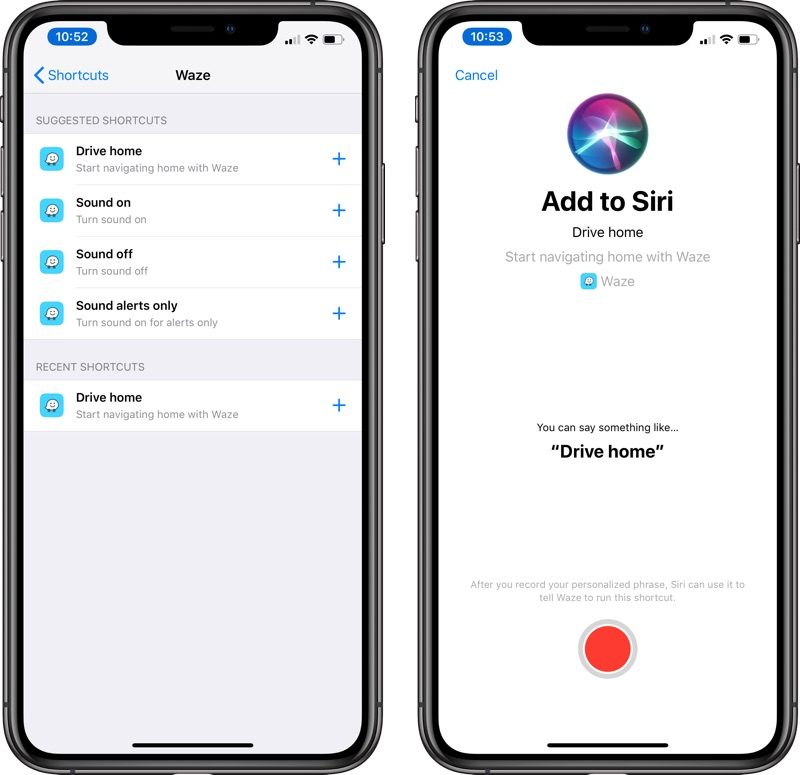
With Siri Shortcuts in Waze, you can record shortcuts for your drive home, drive to work, favorite locations, and more, all of which can be activated with a simple Siri voice command.


Waze is a popular Apple Maps alternative on iOS devices as it is known for its accurate traffic and hazard alerts, along with time-saving routing changes.

Siri Shortcuts for Waze can be set up by opening up the Settings app on the iPhone, navigating to "Siri & Search," and tapping the "Shortcuts" button. From there, either scroll down to the Waze section or search for Waze.

You will need to have your home, work, and favorite locations set up within the Waze app for those options to show up.

Waze can be downloaded from the App Store for free. [Direct Link]

(Thanks, Shawn!)


This article, "Waze App for iOS Gains Siri Shortcuts Support" first appeared on MacRumors.com

Discuss this article in our forums


from MacRumors: Mac News and Rumors - All Stories http://bit.ly/2SsSGB3

New Feature Coming For Chromebooks That Could Change How You Install Android Apps


via Chrome Unboxed – The Latest Chrome OS News http://bit.ly/2BxDKam

Spruce up your Chromebook experience with these 14 new Chrome themes from Google


via About Chromebooks http://bit.ly/2RY5N84