Wednesday, February 20, 2019

How to Set Up Two-Factor Authentication for Multiple Apple IDs on One Device

https://ift.tt/2T50E2L

As of February 27, 2019, Apple is requiring that all Developer accounts with an Account Holder role be secured with two-factor authentication in order to ensure that only the account owner is able to sign into the account.
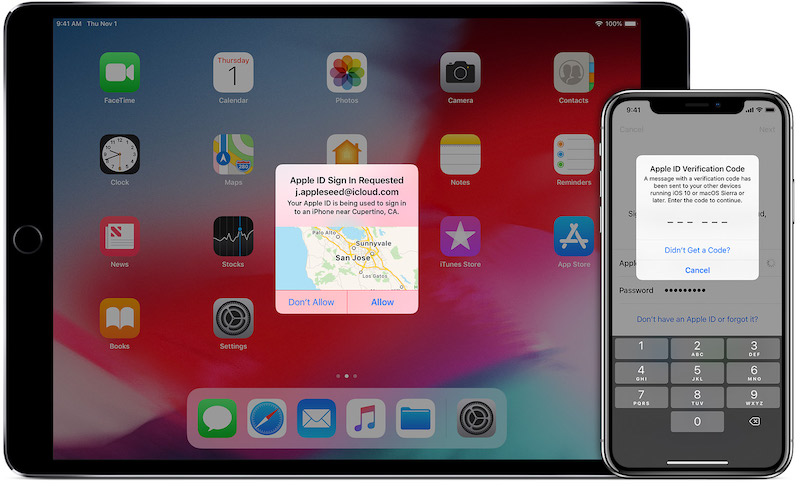

Two-factor authentication involves a pop-up code being generated on trusted devices linked to an Apple ID any time a login attempt is made unless you've logged with that same browser within the past 30 days and selected the option to trust it. That verification code from the trusted device must then be entered for the login to be approved.

The requirement has caused some confusion among developers who have multiple Apple IDs, particularly those who use a dedicated Apple ID for their Developer account that is separate from their primary iCloud account used on their devices.

Apple has posted a developer support document that outlines a few ways to enable two-factor authentication on a non-primary Apple ID, but Apple's suggestion for iOS involves signing out of your primary iCloud account. That can be a hassle as your phone unsyncs and tries to delete content associated with that account, so it's better to use other methods if you can.

Turning on two-factor authentication for an alternate Apple ID and getting it to work properly with trusted iOS devices without signing out of your primary Apple ID requires a few steps, but once they're done the feature should work seamlessly.

Activating Two-Factor Authentication on an Alternate Apple ID


For this portion of the process, you'll need access to a Mac where you have permissions to create new user accounts.
  1. Open System Preferences and click on Users & Groups.
  2. Click the lock at the bottom left corner and enter your administrator password to allow changes.
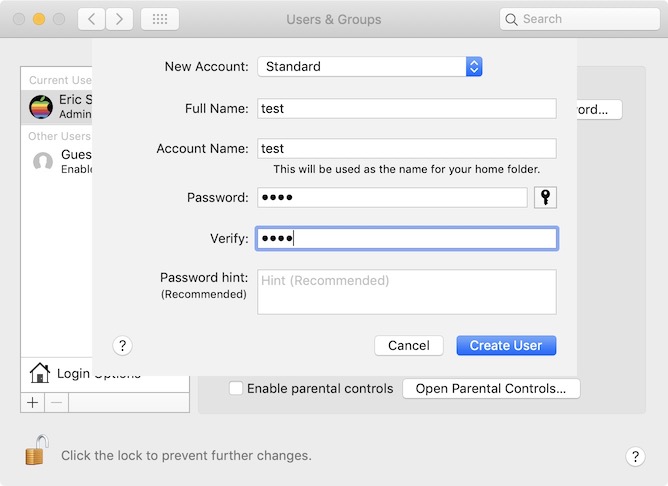
  3. At the bottom of the user list on the left, click the + button and set up a new Standard user account, entering a name, account name, and password and clicking on "Create User."
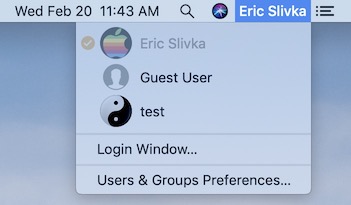
  4. If you have fast user switching activated, click on your name or icon near the right side of the menu bar, and choose the new user account you just set up. If fast user switching is not active, you'll need to either turn it on in the Login Options section of Users & Groups in System Preferences or completely log out of your current account and then choose the new account.
  5. Enter the password to log into the new account, and skip through the setup steps as quickly as possible, unchecking options or selecting "set up later" for various features whenever possible.
  6. Once the user account is configured and you've reached the Mac desktop, head to System Preferences and click on iCloud.
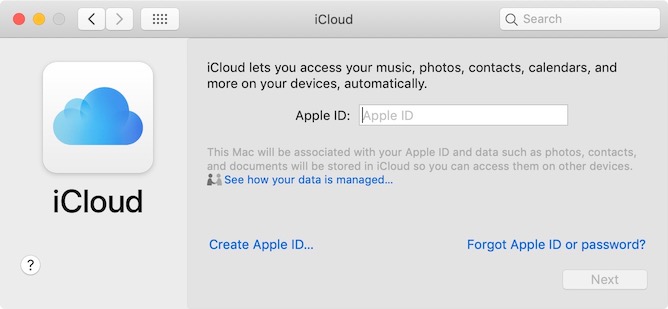
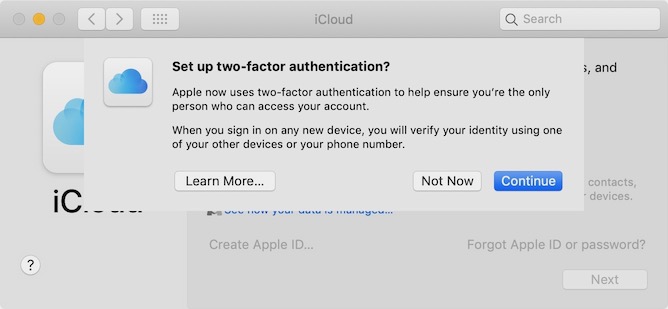
  7. Sign in with the Apple ID you want to activate two-factor authentication for. Once you've entered the password, the system will ask if you want to set up two-factor authentication. Select Continue.
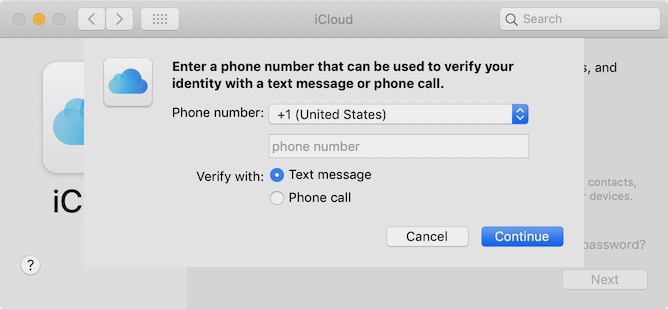
  8. Enter a phone number where you can receive a text message or phone call to verify your identity.
  9. When you receive a verification code at that number, enter it on your Mac and finish the setup steps, unchecking all options. Two-factor authentication is now up and running on your Mac for your desired Apple ID. Keep this user account open on your Mac for the next step unless you want to use a text message verification code to the phone number you entered as a fallback.

Setting Up an iPhone or iPad as a Trusted Device


You don't want to leave this unneeded user account up and running on your Mac as the only method for approving logins that doesn't require a text message, so you'll want to set up an iPhone or iPad as a trusted device for this Apple ID.
  1. Open the Settings app on your iOS device and tap on Passwords & Accounts
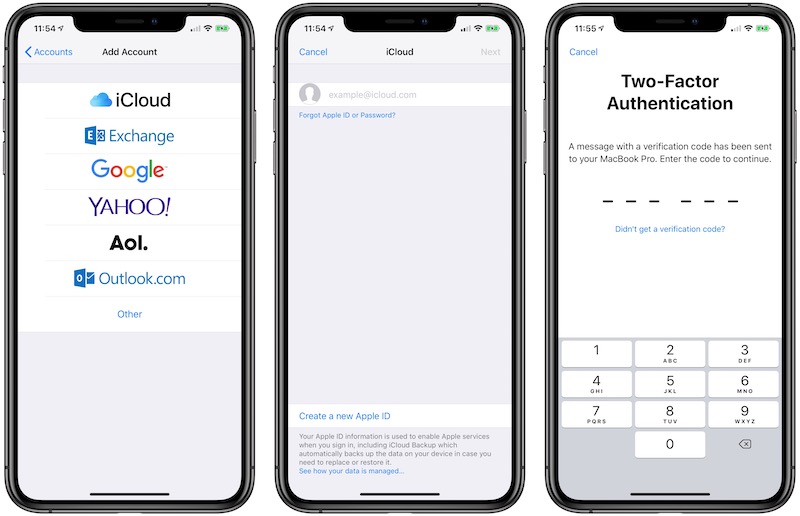
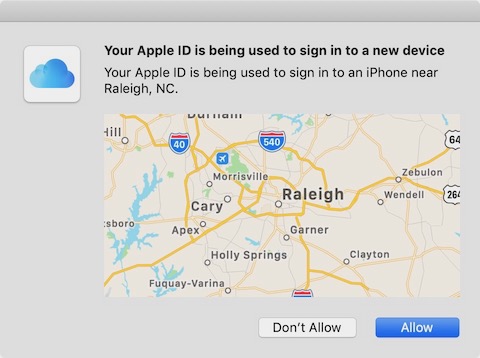
  2. Tap on Add Account and choose iCloud, then enter the Apple ID and password for the account you just set up two-factor authentication for on your Mac. You'll be prompted for verification, which should pop up on your Mac where you can allow the login and view the verification code to enter on your iOS device. (If you already logged out of or deleted the Mac user account, you can choose the "Didn't get a verification code" option and select "Text Me" to receive a code via SMS.)
  3. Once you're authenticated, the Apple ID login will finish and you'll be offered a list of iCloud features including Mail, Contacts, Calendars, and Reminders on your iOS device. Turn all of these toggles off and tap Save.
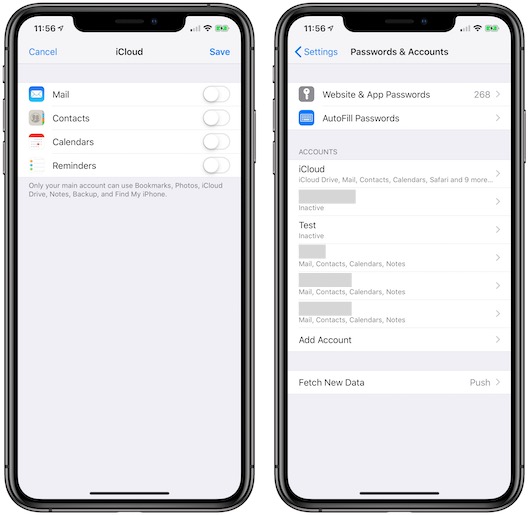
  4. Your Developer Apple ID account is now logged in on your iOS device and it can receive verification requests whenever you try to log into that Apple ID. It will show as "Inactive" in the account list on your device because all of the iCloud features of the account have been toggled off.
The final step of the process is to clean up the Mac you used to turn on two-factor authentication. Log out of the account on the Mac, switch to an account with administrator privileges, head back to the Users & Groups section of System Preferences, click on the lock to allow changes, highlight the temporary account you agreed, and hit the minus button. Choose to delete the account entirely rather than archiving it, and you're done.


This article, "How to Set Up Two-Factor Authentication for Multiple Apple IDs on One Device" first appeared on MacRumors.com

Discuss this article in our forums


from MacRumors: Mac News and Rumors - All Stories https://ift.tt/2X9meT7

HP Chromebook x360 Review: The Total Package


via Chrome Unboxed – The Latest Chrome OS News https://ift.tt/2E0GVrt

Samsung Launches 'Galaxy Buds' AirPods Competitor

https://ift.tt/2GBcNa4

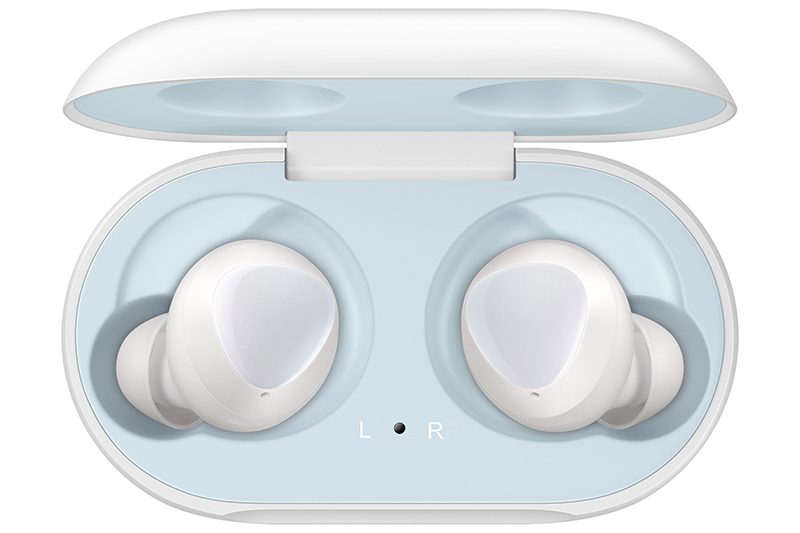
Alongside its new Galaxy S10 smartphone lineup and the Galaxy Fold, Samsung today announced a new wearable accessory, the Galaxy Buds.


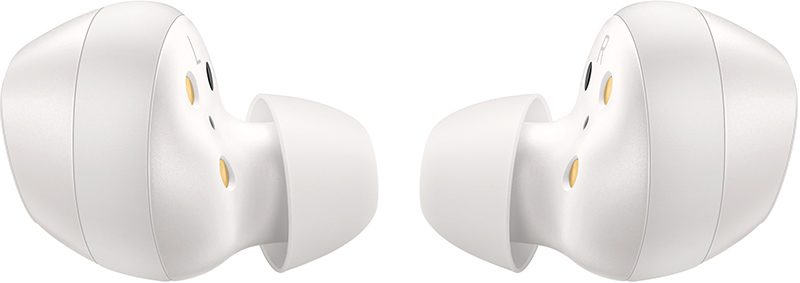
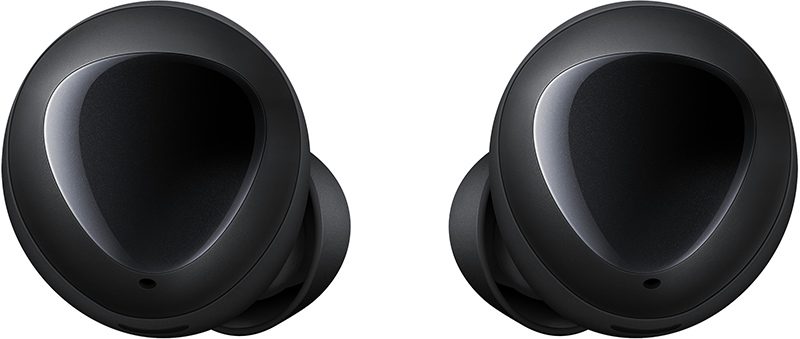
The Galaxy Buds are Samsung's new wire-free earbuds, similar to the AirPods. Samsung focused on sound with the Galaxy Buds, partnering with AKG. An Enhanced Ambient Sound feature allows users to better hear their surroundings with the earbuds in the ears, and an Adaptive Dual Microphone provides clear voice in loud and quiet environments alike.


Samsung says the Galaxy Buds are 30 percent smaller and lighter than the previous-generation earbuds, making them Samsung's most compact wearable earbuds yet. The battery in the Galaxy Buds supports 5 hours of calls or six hours of music on one charge.


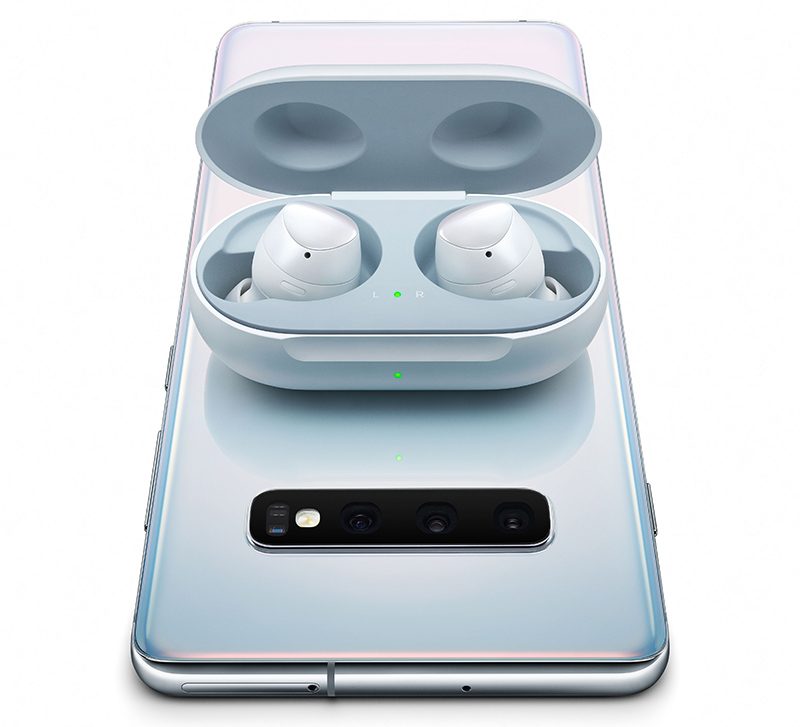
There's a wireless charging case that's used to charge the Galaxy Buds, and it can be charged using any Qi-based wireless charger. It can also be charged via a Galaxy S10 smartphone using the new wireless PowerShare feature.


The Galaxy Buds support Bixby integration for making calls, sending text messages, checking battery level, and more.


Samsung's Galaxy Buds come in three colors -- blue, green, and black -- and will be available for purchase on March 8. The Galaxy Buds will be priced at $129.99, but customers who pre-order a Galaxy S10 or S10+ can get a free pair of Galaxy Buds.

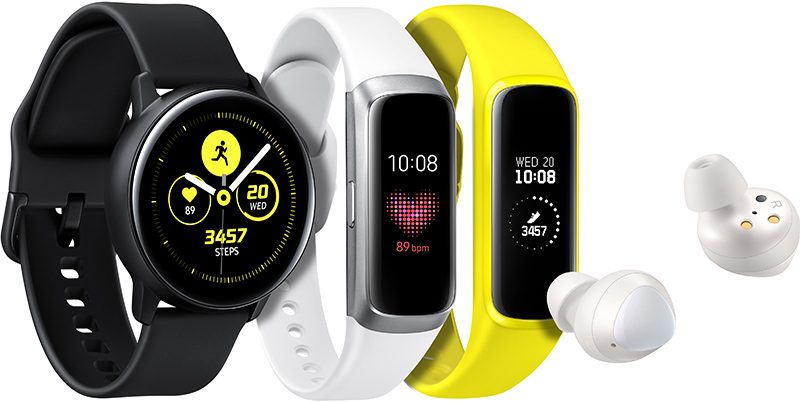
Along with the Galaxy Buds, Samsung today also unveiled two new wrist-worn devices, the Galaxy Watch Active and the Galaxy Fit. The Galaxy Watch Active is a round smart watch with a minimal design, featuring blood pressure monitoring, stress checking and breathing exercises, fitness tracking, and Bixby integration.


The Galaxy Fit is a thin, lightweight wearable that's made for activity tracking. It features automatic workout tracking, heart rate monitoring, built-in alerts and messages, data like weather, calendar, and alarms from your smartphone, and more.


The Galaxy Watch Active will be available starting on March 8 for $200, while the Galaxy Fit is coming in the second quarter of 2019.

Tag: Samsung

This article, "Samsung Launches 'Galaxy Buds' AirPods Competitor" first appeared on MacRumors.com

Discuss this article in our forums


from MacRumors: Mac News and Rumors - All Stories https://ift.tt/2U6YsF6

Samsung Debuts Galaxy S10 and S10+, Along With Premium S10 5G and Lower-Cost S10e

https://ift.tt/2T7LJVI

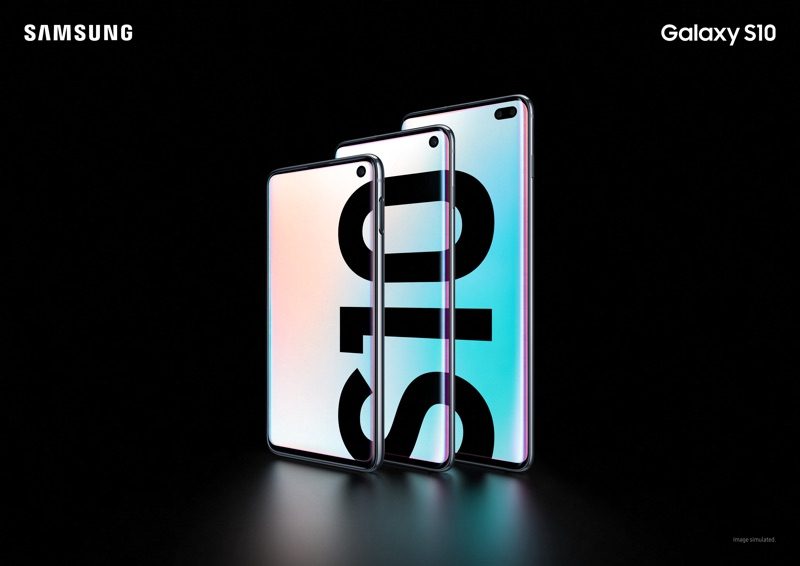
At an "Unpacked" event in San Francisco, California, Samsung today unveiled its 2019 device lineup, with a range of smartphones that will be competing with Apple's 2018 and 2019 devices.

Samsung's biggest announcement was the impressive Galaxy Fold, that can transform from a 4.6-inch smartphone to a 7.3-inch tablet for $1,980, but Samsung also had a whole line of other smartphones, including the Galaxy S10 and S10+.


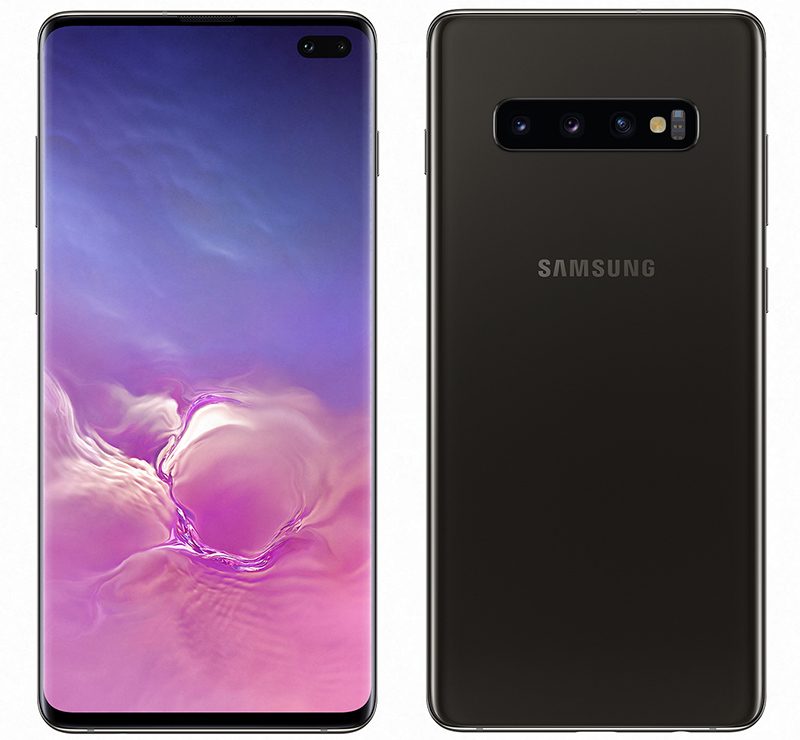
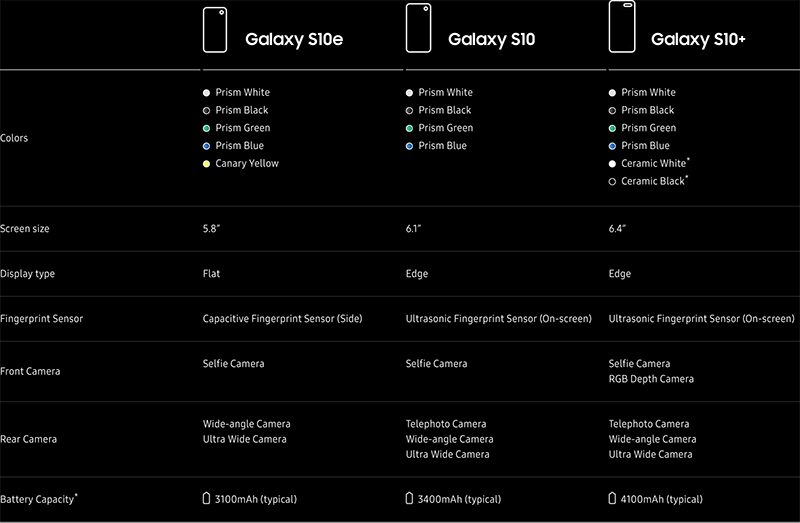
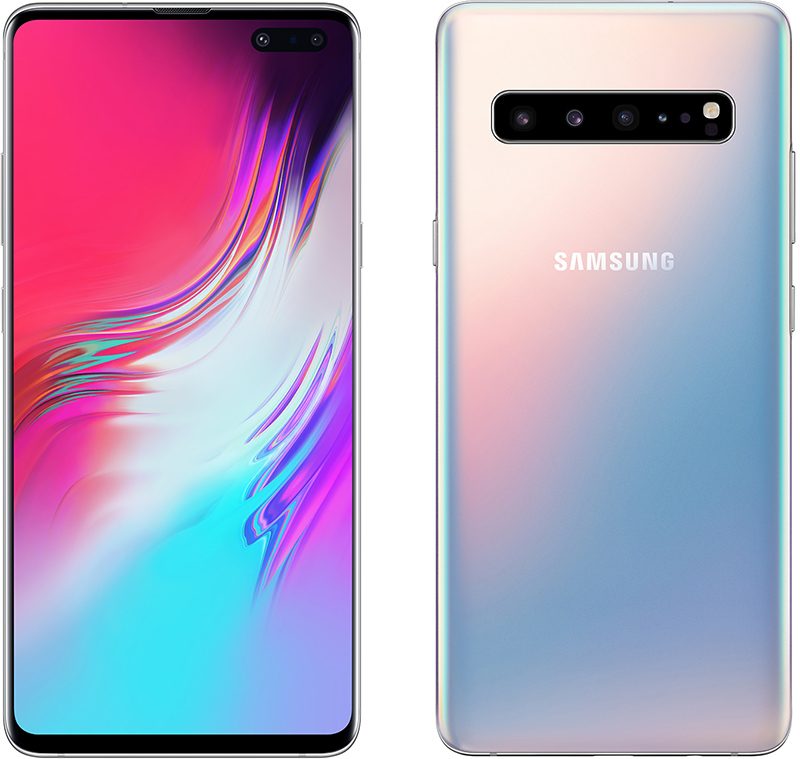
Both devices use an "Infinity-O" display with smaller camera cutouts. The 6.1-inch Galaxy S10 has a super small hole punch cutout at the top of the display for the 10-megapixel camera, while the 6.4-inch Galaxy S10+, which has two cameras (8 and 10 megapixels) and an RGB depth sensor for adjusting depth of field, has a slightly larger oval-shaped cutout.

The display maxes out at 1,200 nits of brightness, which beats the iPhone, and it offers 60 million colors at 100 percent accuracy. It supports HDR10+ and cuts down on blue light by 44 percent for more comfortable viewing.


Underneath the display of the S10 and S10+ is an ultrasonic fingerprint scanner for biometric security. Samsung says that because it uses ultrasonic technology, it works well in bright light and in wet conditions. Samsung is using "vault-like security" for more protection.

The new smartphones come in different glass finishes, and there's also a premium ceramic option in black or white.

There's a triple-rear camera system in the S10 smartphones, with a 12-megapixel wide-angle lens, a 12-megapixel telephoto lens, and a 16-megapixel ultra-wide 120 degree lens for wider-angle landscape shots. It's able to record video in HDR10+ and features advanced stabilization.


The Galaxy S10 features a 3,400mAh battery, while the S10+ has a 4,100mAh battery. The S10 has 128 and 512GB storage options, as does the S10+, but the S10+ also has a premium tier 1TB storage option.

Samsung's new devices feature a Wireless PowerShare option that lets a Samsung smartphone wirelessly charge another device such as a second Samsung phone or Samsung's upcoming earbuds.


Pricing on the S10 starts at $900, while the S10+ starts at $1,000.

Along with the Galaxy S10 and S10+, Samsung is introducing two other smartphones that are lower and higher-end. The Galaxy S10e, a lower-cost device that sounds like an iPhone XR competitor, features a 5.8-inch display and a $750 price tag. It features just two rear cameras and a 3,100mAh battery.


On the high end, Samsung debuted the Galaxy S10 5G, a smartphone that features a 6.7-inch display, 5G connectivity, and all of the other bells and whistles of the S10 lineup. It features 256GB of storage and a 10-megapixel front-facing camera with a 3D depth sensor, and instead of three rear cameras, it has four: a telephoto, a wide-angle, an ultra wide-angle, and a 3D Depth camera.


Samsung will accept pre-orders for the Galaxy S10e, S10, and S10+ starting on February 21, with the smartphones set to launch on March 8. The higher-end Galaxy S10 5G will launch in the second quarter of 2019, with pricing not yet announced.

Tag: Samsung

This article, "Samsung Debuts Galaxy S10 and S10+, Along With Premium S10 5G and Lower-Cost S10e" first appeared on MacRumors.com

Discuss this article in our forums


from MacRumors: Mac News and Rumors - All Stories https://ift.tt/2IrB6ca

ASUS’ Flagship Chromebook C434 Clears The FCC And Gets A Sweet Promo Video


via Chrome Unboxed – The Latest Chrome OS News https://ift.tt/2Nevpx1

The new Samsung S10e takes on the iPhone XR

https://ift.tt/eA8V8J

The Samsung S10e sounds and looks impressive, find out how the S10e compares to Apple's iPhone XR.

from Latest iPhone Articles from Macworld UK https://ift.tt/2U3Dvv6

iPhone XS vs Samsung Galaxy S10

https://ift.tt/eA8V8J

We compare Samsung's new Galaxy S10 smartphone with Apple's iPhone XS, looking at design, features, specs and value for money. Which is the best flagship phone for you?

from Latest iPhone Articles from Macworld UK https://ift.tt/2BKoYx4