Monday, October 14, 2019

Relocated Items in macOS Catalina Explained

https://ift.tt/35wRz6g

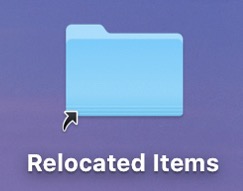
After upgrading to macOS Catalina, you may be surprised to discover a shortcut on your Mac's desktop to a Relocated Items folder that wasn't there previously. The generation of this folder is actually normal behavior when upgrading an older version of macOS to Catalina, but we're highlighting it in this article because a lot of users are confused about why the folder exists and what to do with its contents.

What Are Relocated Items?


Relocated items are older files and data from previous macOS installations that Apple is not sure what to do with after upgrading to Catalina.

Catalina is the first version of macOS to adopt wholesale the relatively new Apple File System (APFS), which is optimized for the flash storage used in recent Macs. Aside from introducing a bunch of other new technical features, an APFS-formatted disk uses a space-sharing "container" that can house multiple secure "volumes" or file systems. This allows the disk's free space to be shared on demand and allocated to any of the individual volumes in the container as required.

When you upgrade to macOS 10.15, Catalina is installed on a dedicated read-only system volume called "Macintosh HD," while your files and data are stored separately in another volume named "Macintosh HD - Data." The idea behind this setup is that it helps prevent the accidental overwriting of critical operating system files, since the user can no longer alter data or store files on the read-only system volume.
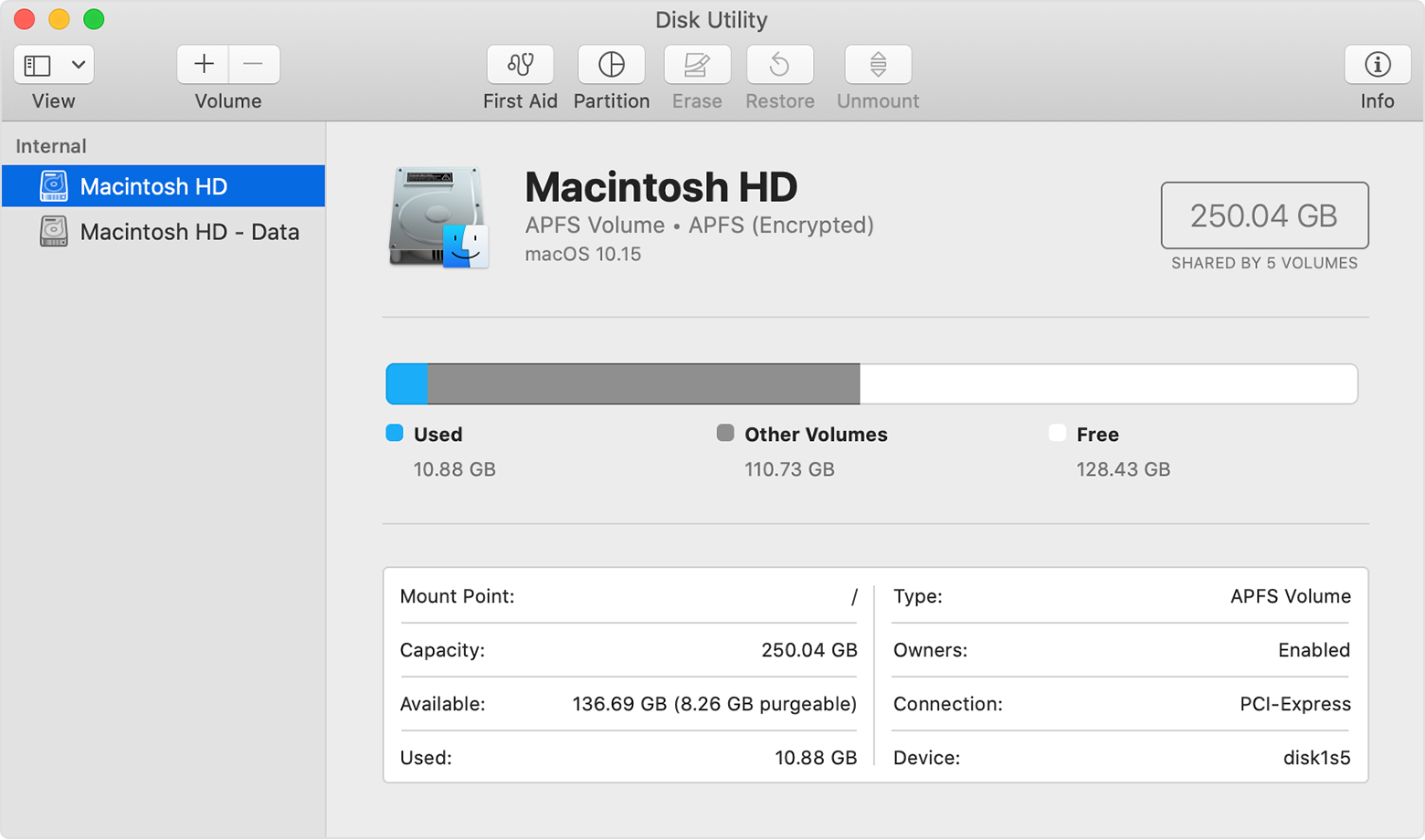

In practice, the average user shouldn't notice any difference after the split, since both volumes appear in Finder as a single unified Macintosh HD volume (although if you want, you can view them separately in Disk Utility).

However, during the upgrade process, files or data that were previously stored in the startup volume are now stored in the new Macintosh - HD Data volume, and Catalina may not be able to find a corresponding home for them there. That's where the Relocated Items folder comes in.

The Relocated Items Folder


While creating the two separate volumes during the upgrade process, Catalina reviews the files and data on your hard drive to check that they're valid, authorized, and in the correct location. Any files and data that couldn't be stored on the Macintosh HD - Data volume in a folder equivalent to their original location, are placed in the Relocated Items folder. This folder also includes a PDF document with more details about these files.

Amongst a bunch of other things that you may not recognize, the folder can include configuration files that were modified by you, by another user, or by an app. Regardless, the modifications make them incompatible with ‌macOS Catalina‌ and are considered redundant as far as the system is concerned.

Can I Delete the Relocated Items Folder?


It's worth reiterating that the Relocated Items folder you see on the Desktop is just a shortcut that can be safely deleted. Doing so will not remove the folder or its contents from your hard disk. You can find the actual folder in /Users/Shared/Relocated Items.

Whether or not you delete the Relocated Items folder proper is entirely up to you. Removing the contents should be safe as far as your Mac's operating system goes. But, if you have any third-party apps that don't work since you updated to Catalina, then the Relocated Items folder may well contain data related to them, but it likely needs updating by the developers in new versions of these apps. If you recognize custom configuration files in the Relocated Items folder, then you might want to keep them around for reference in case you want to recreate them at a later date.

If your Relocated Items folder isn't very big, then simply remove the Relocated Items shortcut on your Desktop to remove the eyesore and carry on. But if you feel strongly about deleting the actual files, see below.

How to Delete the Relocated Items folder


To delete the actual Relocated Items folder, simply drag it into the Trash and then empty the Trash folder. Having said that, some of the contents may resist being deleted when you come to empty the Trash because of old security permissions on the relocated files.
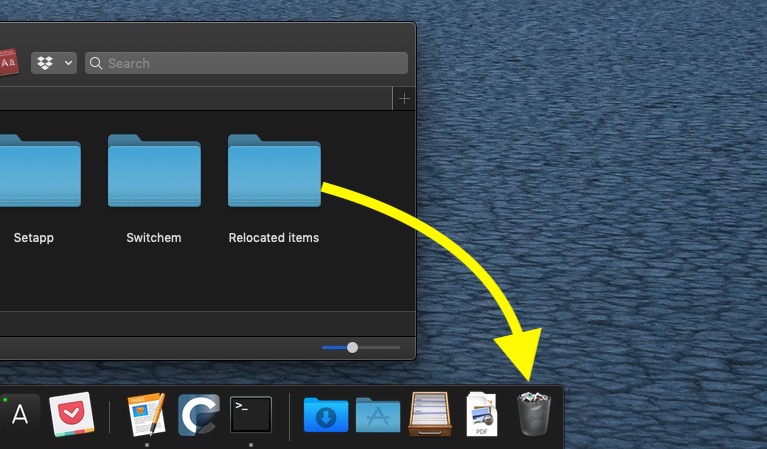

If that's the case, one way to get rid of the files is to disable system integrity protection (SIP) on your Mac. The following steps explain how to disable SIP, but before you go ahead, note that the process involves rebooting your Mac and using Terminal. If you're not familiar with the Terminal command prompt, or if you have any other misgivings about the steps, our advice is to just leave the Relocated Items folder where it is, or move it elsewhere out of sight. MacRumors cannot be held responsible for any data loss.

  1. If the Relocated Items folder is in your Trash, right-click it there and select Put Back from the contextual pop-up menu.
  2. Restart your Mac via the Restart... option in the Apple menu bar, and when the boot cycle starts again, hold down the Command and R keys to enter Recovery mode.
  3. From the Recovery screen menu bar, select Utilities -> Terminal.
  4. Type csrutil disable and hit Enter.
  5. Restart your Mac via the Restart option in the menu bar.
  6. Now delete the Relocated Items folder, then empty the Trash.
  7. Restart your Mac and enter Recovery mode again using Command-R.
  8. From the Recovery screen menu bar, select Utilities -> Terminal.
  9. Type csrutil enable and press Enter to re-enable SIP.
  10. Restart your Mac via the Restart option the menu bar.
Once you've followed these steps, the contents of the Relocated Items folder should be gone from your system for good.

Related Roundup: macOS Catalina

This article, "Relocated Items in macOS Catalina Explained" first appeared on MacRumors.com

Discuss this article in our forums


from MacRumors: Mac News and Rumors - All Stories https://ift.tt/2BckkaE

Apple Launches New Press Site With Details on Upcoming Apple TV+ Shows and Movies

https://ift.tt/2phjLJU

Apple has launched a new press site for its upcoming Apple TV+ service, offering quick access to details on each of the movies and series coming to the service.


Feature pages on each title include summaries, release dates, cast lists, trailers and photos, and press contacts.

Apple is currently featuring 15 titles on the press page, eight of which will be launching on November 1 alongside the service's debut. Others will be following in later weeks, while some are still listed only as "coming soon."

‌Apple TV‌+ will be priced at $4.99 per month with a one-week free trial. Users who purchase a new iPhone, iPad, ‌Apple TV‌, iPod touch, or Mac on or after September 10 will qualify for a free one-year subscription. Up to six family members can share a single ‌Apple TV‌+ subscription through Family Sharing.


This article, "Apple Launches New Press Site With Details on Upcoming Apple TV+ Shows and Movies" first appeared on MacRumors.com

Discuss this article in our forums


from MacRumors: Mac News and Rumors - All Stories https://ift.tt/2pmrc2a

Reliance Jio Offers 30 Minutes of Free Talktime to Compensate Customers for New IUC Charges


via News – MySmartPrice https://ift.tt/2IKQy0L

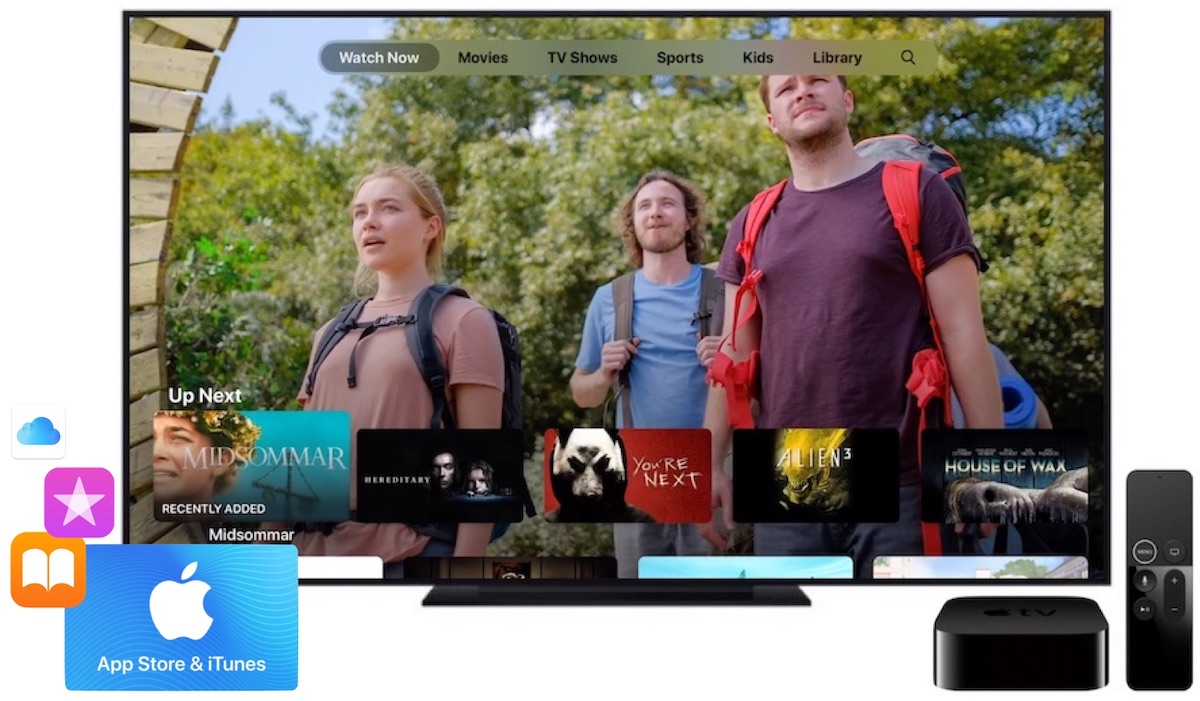
Deals Spotlight: $100 iTunes Gift Cards Discounted to $85 on eBay Amid Apple's Horror Movie Sale on iTunes

https://ift.tt/33wjW2A

PayPal's Digital Gifts eBay storefront has the latest discount on App Store and iTunes gift cards today, offering the $100 iTunes gift card for $85. This 15 percent off sale matches previous sales we've seen on iTunes gift cards throughout the year, and the sales usually last for a few days, but it could end sooner.

Note: MacRumors is an affiliate partner with some of these vendors. When you click a link and make a purchase, we may receive a small payment, which helps us keep the site running.

Like previous discounts, you'll need to have a PayPal account to see the savings and the gift card will be valid only on purchases made in the United States. The card is electronic, so once you place your order you'll get an email within a few hours with a code that you can use to fill up your Apple ID with the credit.

iTunes gift cards are good for buying movies, TV shows, and books on Apple's digital storefronts, as well as paying for subscriptions like Apple Music, Netflix, and Hulu. These discounts on iTunes gift cards come around once every few weeks (and sometimes take longer to reemerge), so if you've been waiting for a sale you should head to eBay soon before the bargain ends.

The iTunes gift card sale is happening amid Apple's ongoing horror movie sale on iTunes Movies. These include $1 rentals, $5 classic and modern films, and under $20 series bundles. You can check out some of the movies in the Halloween sale below.

$1 Rentals

Under $20 Bundles

Our full Deals Roundup has all of the newest Apple-related discounts in one place.

Related Roundup: Apple Deals

This article, "Deals Spotlight: $100 iTunes Gift Cards Discounted to $85 on eBay Amid Apple's Horror Movie Sale on iTunes" first appeared on MacRumors.com

Discuss this article in our forums


from MacRumors: Mac News and Rumors - All Stories https://ift.tt/2OJDA7f

Apple Clarifies Tencent's Role in Fraudulent Website Warnings, Says No URL Data is Shared and Checks are Limited to Mainland China

https://ift.tt/2OKGZCM

Following user concern over Apple using Chinese company Tencent as one of its Safe Browsing partners for Safari, Apple has issued a statement assuring customers that website URLs are not shared with its safe browsing partners.

For those unfamiliar with the feature, Safari sends data to Google Safe Browsing to cross reference URLs against a blacklist to protect users against scams and malicious sites. It recently came to light that Apple is also using Tencent for this purpose, and there was concern that data from users outside of China was being sent to Tencent.


According to Apple's statement, that is not the case, and Tencent is used for devices that have their region code set to mainland China. Users in the United States, the UK, and other countries do not have their website browsing checked against Tencent's safe list.
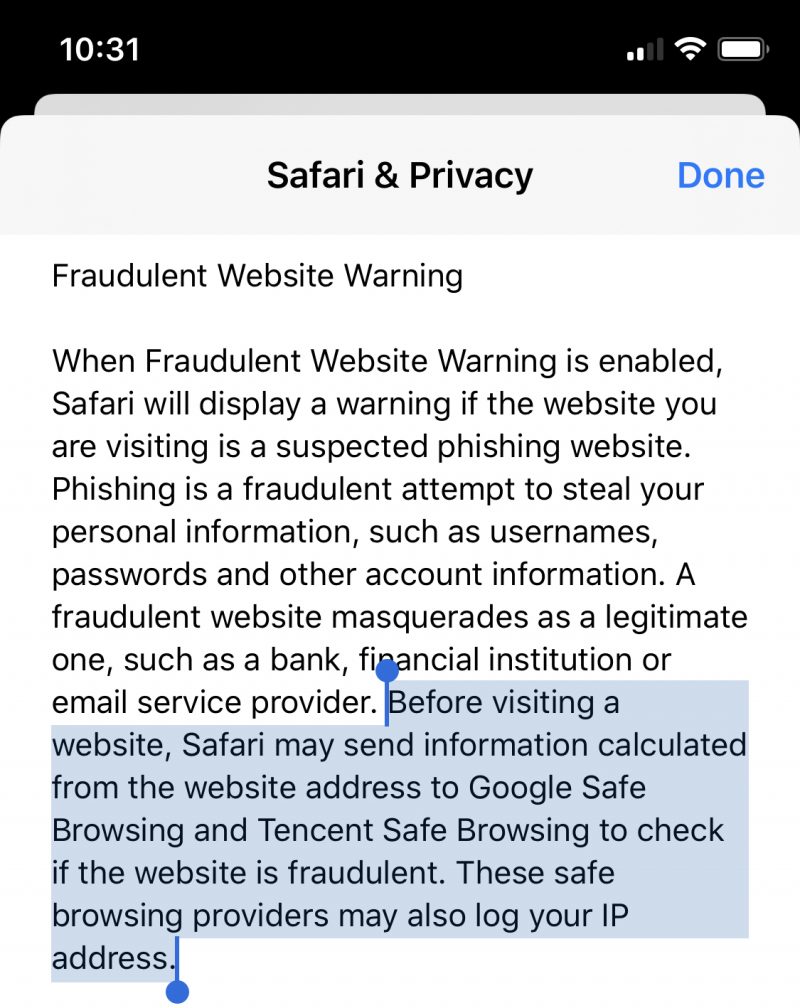
Apple protects user privacy and safeguards your data with Safari Fraudulent Website Warning, a security feature that flags websites known to be malicious in nature. When the feature is enabled, Safari checks the website URL against lists of known websites and displays a warning if the URL the user is visiting is suspected of fraudulent conduct like phishing.

To accomplish this task, Safari receives a list of websites known to be malicious from Google, and for devices with their region code set to mainland China, it receives a list from Tencent. The actual URL of a website you visit is never shared with a safe browsing provider and the feature can be turned off.
Information about Apple's safe browsing partners can be found in the About Safari and Privacy screen, available in the Privacy and Security section of the Safari portion of the Settings app. Fraudulent website protection is enabled by default, and those still concerned about the safety check feature can turn it off by deselecting the "Fraudulent Website Warning" toggle.

Note: Due to the political nature of the discussion regarding this topic, the discussion thread is located in our Politics, Religion, Social Issues forum. All forum members and site visitors are welcome to read and follow the thread, but posting is limited to forum members with at least 100 posts.

Tags: China, Safari

This article, "Apple Clarifies Tencent's Role in Fraudulent Website Warnings, Says No URL Data is Shared and Checks are Limited to Mainland China" first appeared on MacRumors.com

Discuss this article in our forums


from MacRumors: Mac News and Rumors - All Stories https://ift.tt/2OKpceP

How to flip an iPhone photo

https://ift.tt/eA8V8J

Your iPhone automatically flips your selfies after you take them. We explain why, and show how to unflip or create a mirror image of an iPhone photo, in both iOS 13 and earlier versions of iOS

from Latest iPhone Articles from Macworld UK https://ift.tt/2o3i52X

Netgear Launches New Orbi Dual Band Mesh Wi-Fi System for $230

https://ift.tt/31b7hAB

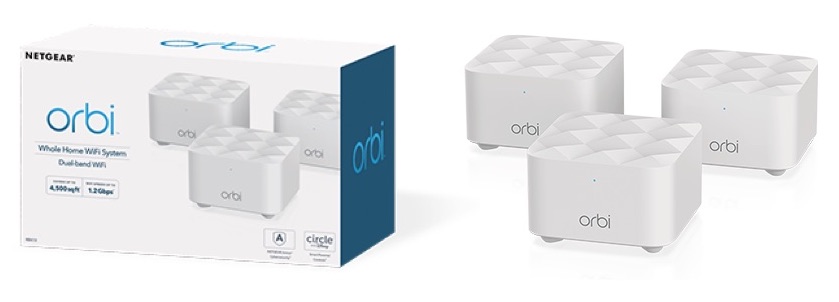
Netgear today announced a new mesh router in the Orbi family of products, called the Orbi Dual Band Mesh Wi-Fi System. The new system consists of one router and one or more satellites, and is aimed at homes that measure up to 4,500 square feet (with two satellites).


The router and satellites all feature the same design, measuring 4.1 inches on all sides and 2.7 inches tall. As with other mesh systems, after users purchase the base router they can continue to add on satellites to boost the range of the network throughout the home.

The new router delivers Wi-Fi at speeds up to 1.2Gbps, supports MU-MIMO for simultaneous data streaming, includes two high performance internal antennas, and is powered by a quad-core 710MHz processor. Because it's a dual band router, it also supports 2.4GHz (400Mbps) and 5GHz (866Mbps) bands.

The Orbi Dual Band Mesh Wi-Fi System features Netgear Armor cybersecurity, which is built into the router and satellites to protect the user's mobile devices and computers. Netgear Armor features anti-virus, anti-malware, and data protection for an unlimited number of devices.


The system also includes Netgear's Circle parental controls, allowing parents to set age-appropriate settings for each family member, enable safe search, block certain ads, and more.

The parental control settings and other features are performed through Netgear's Orbi app on iOS and Android, including the device's setup process. In the app, users can perform speed tests, manage devices on their network, troubleshoot connectivity issues, and more.

The Orbi Dual Band Mesh Wi-Fi System is available to purchase today for $229.99, including one router and two satellites.

Tags: NETGEAR, Orbi

This article, "Netgear Launches New Orbi Dual Band Mesh Wi-Fi System for $230" first appeared on MacRumors.com

Discuss this article in our forums


from MacRumors: Mac News and Rumors - All Stories https://ift.tt/2qdySV8